How to edit a PDF: fix it, convert it, or walk away
The typo has been there since Tuesday. You open the PDF, find the line, click on the word, and the cursor slides straight past it. You drag a box. You double-click. Either nothing selects at all, or the entire page lights up as one solid object, which is the file trying to tell you something: there is no word there to click.
You get a tool name and ten steps, and the steps work right up until they don't, because whether an edit is even possible was decided when the file was created, not when you opened it. The order that saves time is: figure out what the file contains, figure out what kind of edit you're making, then pick the tool.
What a PDF actually stores
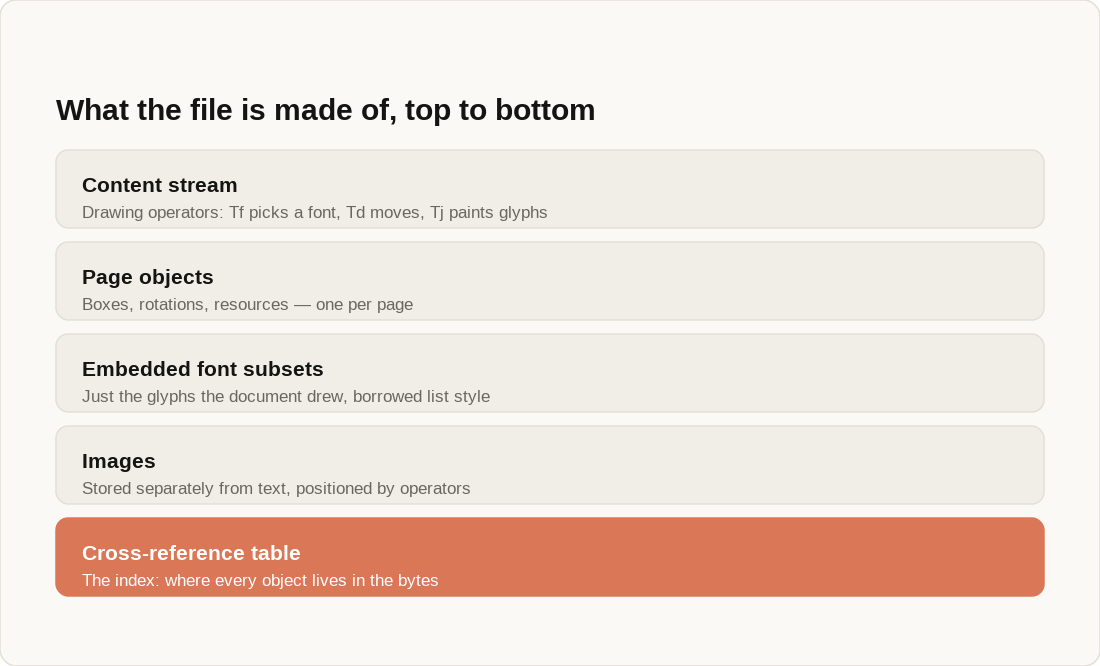
A PDF page is, at bottom, a list of drawing instructions. Text is drawn by operators between BT (begin text) and ET (end text) markers: Tf selects a font and size, Td moves to a position, Tj paints a string of glyphs at that spot. The PDF specification, ISO 32000-1 is blunt about this. The model is ink at coordinates, not a document. Mozilla's pdf.js examples include a one-line demo PDF whose entire text content is:
BT 70 50 Td /F1 12 Tf (Hello, world!) Tj ET
One font, one position, one string. That is a complete paragraph, in PDF terms.
There is no paragraph object. No line object. No reading order. Letter spacing is stored as numbers wedged between glyph runs, which is why "just insert a word" means recomputing positions by hand: nothing in the file knows the word was ever part of a sentence. A paragraph is an inference a viewer makes from geometry at read time. Even selection is a trick of the renderer. pdf.js paints the glyphs onto a canvas and floats a transparent text layer over the picture, and when you select, you're selecting that overlay. Selectable has never meant editable.
Diagnose before you touch anything
Editing failures come in three distinct flavors, each with a different fix. Skipping the diagnosis is how people end up reinstalling their PDF editor at 6 p.m.
| Symptom | What it actually is | First move |
|---|---|---|
| Nothing selects; Ctrl+F finds no word you can see | A scan: a photograph of a page, no text layer | OCR first, edit second |
| Text selects, but pastes as gibberish | Subset font with a missing or broken ToUnicode map | Extraction problem; repair or OCR |
| Text edits, but the typeface visibly changes | Your characters aren't in the embedded subset | Substitute deliberately or rebuild the run |
Nothing selects at all
Press Ctrl+F and search for a word you can plainly see on the page. Zero hits means there is no text in the file. It's an image of text, usually a scan, and no editor can edit what isn't there. The fix is OCR, which lays an invisible, searchable text layer over the image so both search and editing have something to grip. LivePDF runs this on-device, so the scan never leaves your machine, with one limit: its OCR model is English-only, and a document in any other language needs a different tool. The full routine, including what OCR can and can't rescue, is covered in editing a scanned PDF and the OCR explainer.
Text selects, but pastes as garbage
The page looks perfect. You copy a sentence, paste it, and receive ┤xDn║if\|d├gDF…. Characters in a PDF are often stored as font-specific glyph IDs, and a table called the ToUnicode CMap is supposed to translate them back into real characters for copying and searching. When that table is missing or damaged, which happens with subset fonts, copy-paste produces mojibake while the page renders flawlessly. Worth knowing, because this is not an editing problem: the text can often be edited fine, and it's extraction that's broken. The classic walkthrough, including the pdffonts diagnostic, is this Stack Overflow thread, which has been collecting victims since 2010.
Edits work, but the font changes
That one deserves its own section, below.
The real decision: is the fix local or structural?
The test that matters most: does the edit change the amount of text on the page?
If it doesn't, you're making a local fix: a typo, a date, a price, someone's misspelled name. Everything around the edit keeps its coordinates, and coordinates are the only thing the format truly stores. Swap one run of glyphs, leave every other coordinate untouched, done. This is surgery, and in-place editing is genuinely good at it.
If it does, you're making a structural change: a sentence added to an already-full page, reordered paragraphs, a restyle. Now the text after your edit has to move, and the format has no reflow engine. "Move down a line" is not an operation it understands. Your editor must reconstruct paragraph structure that was never stored as structure, then re-render the page around your change. That stops being surgery and becomes renovation, with reliability to match.
The character-count tell works because coordinates are the file's only truth. Local edits keep every other coordinate true. Structural edits invalidate the lot.
It's also why "just convert it to Word" is right far more often than editing diehards admit. Word's entire model is text that flows, so structural change is its native operation rather than a reconstruction. The trade-offs of that route, mainly the fidelity you lose in conversion, are laid out in PDF or Word: which one does this edit need?.
Fixing a typo in LivePDF, step by step
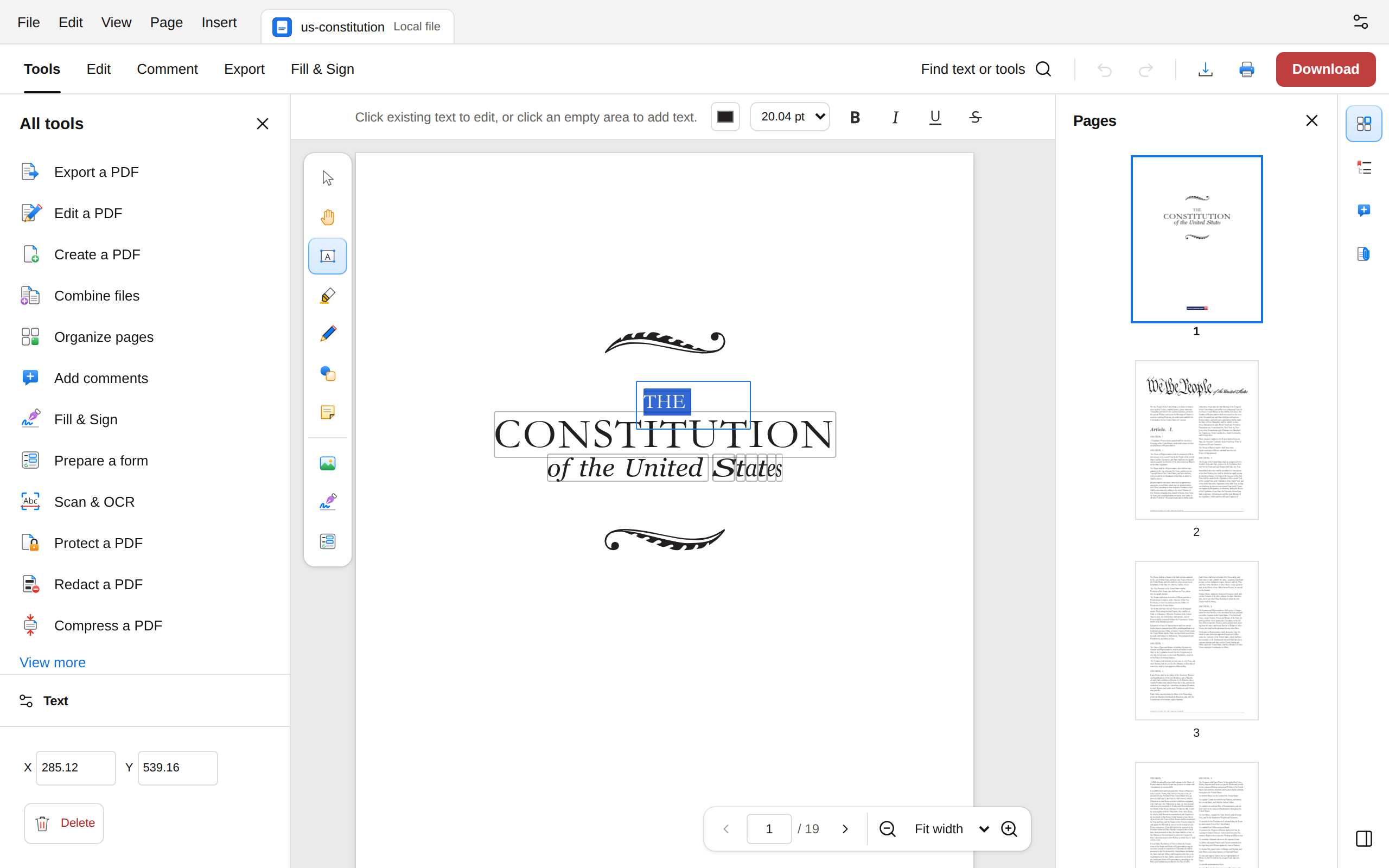
For local fixes, here is the walkthrough in LivePDF, our browser-based editor. It earns its place when the document is, say, a contract you'd rather not upload to a random conversion site: everything runs locally, and nothing leaves the machine. (Quick-reference steps also live on the edit tool page.) The app keeps things in five menus (File, Edit, View, Page, Insert); for this job you'll touch two of them.
- Open the PDF by dragging it into the window, or via the File menu.
- Pick the Select tool and double-click the line containing the typo. The line becomes editable; fragments on the same line stay together, and lines that belong together reflow as a paragraph, within the limits described above, since the editor is reconstructing paragraphs rather than reading them out of the file.
- Fix the text. Bold, italic, underline, strikethrough, size, and color are all available for the edited run. Ctrl+Z if you make it worse.
- For text that doesn't exist yet, like a missing date on a form, choose Insert > Text, click where it belongs, and type. You're placing a new text object at coordinates, exactly the way the original author's software did it.
- Download the result.
A typo takes about a minute. Deeper text work, meaning paragraph reflow behavior, encodings, and what to do when text pastes wrong, has its own article: how to edit text in a PDF.
Why the font changes when you edit
To keep files small, PDF creation tools can embed fonts as subsets: only the glyphs the document actually uses, not the whole font. Subsets are visible in the file (font names like ELM+Arial,Bold, where the prefix marks the subset), and they behave exactly as Datalogics' knowledge base describes: "any text you add to the document later will be limited to the characters available in that subset." Type an é the original author never used and there is no glyph for it. Something gives: the editor substitutes another font, and the line quietly stops matching its neighbors.
In LivePDF, edited text is set in Noto Sans faces, so the substitution is at least consistent and predictable. In Acrobat, the substitute comes from whatever fonts are installed on your machine, which is why Adobe's community forums collect a small genre of "the font changed the moment I edited" complaints. If visual consistency matters, check before you type: pdffonts shows embedded, subset, and unicode columns per font, and Acrobat's File → Properties → Fonts tab labels each entry "(Embedded Subset)". Then decide whether to accept the substitute or re-create the whole run in one font. The mechanics behind all this are covered in why you can't always change a font in a PDF.
When something else is the better tool
An editor honest about its limits is more useful than one that isn't, so:
- Structural rewrites. If the local-or-structural verdict came back "structural," convert to Word and edit there. LivePDF exports .docx, but the point is the approach: the converter reconstructs paragraphs once, cleanly, instead of your editor guessing at them interactively while you squint.
- Non-English scans. LivePDF's OCR ships an English model, full stop. A German contract from 2011 needs a multilingual OCR tool; soldiering on produces confident nonsense.
- Enormous files. A browser editor holds the document in tab memory. A 900-page scanned tome will make the tab sweat; a desktop editor handles that job better.
- Exotic encodings. Some PDFs use encodings so strange that editing fails outright. LivePDF warns and declines rather than saving a corrupted file, which is the right behavior, but at that point the practical answer is a different editor or a rebuild.
Markup that leaves the text untouched - highlights, notes, stamps - is a lighter-weight job: see choosing a PDF annotator.
The one-paragraph version
Search before you edit: Ctrl+F a visible word, and zero hits means a scan, which means OCR before anything else. Ask whether your edit changes the amount of text on the page. Same amount: edit in place. Different amount: convert and rebuild. If the font shifts when you type, the embedded subset doesn't contain your characters, so check the font list and choose the substitute on purpose. A PDF is a finished document, and every edit is a judgment about how much of that finish you are willing to disturb.
FAQ
Why can't I select or edit the text in my PDF?
It's almost certainly a scan: an image of a page with no text layer underneath. Press Ctrl+F and search for a word you can plainly see. Zero hits means there's no text in the file, and no editor can edit what isn't there. Run OCR first, then edit.
Why did the font change when I edited my PDF?
The document's font is embedded as a subset containing only the glyphs the original author used. Type a character that isn't in the subset and the editor must substitute another font. Accept the substitute, choose one deliberately, or re-create the whole text run.
Should I edit a PDF directly or convert it to Word first?
It depends on the edit. A typo, a date, a price: edit in place. Adding sentences to a full page, reordering, or restyling: convert, edit, re-export. The test is whether the amount of text changes, because PDF layout does not move on its own.