Edit the PDF or convert it to Word? How to decide
The document came back with a note: "Update the total on page 2, change the date everywhere, and tighten up section 4 while you're in there." That's three requests with three different right answers. So: edit the PDF, or convert it to Word? The first two are a two-minute fix you can make in the PDF itself. The third is a reason to get the original file instead, and people routinely pick wrong in both directions here: an hour spent fighting a PDF that should have been converted, or a whole document retyped just to fix a date.
The usual online answer to "should I edit the PDF or convert it to Word?" is a shrug with affiliate links: it depends on your needs. Here is what it actually depends on: the type of change. Not which apps you own, not your feelings about either format. The edit decides the tool, every time.
Why the two formats behave differently
One paragraph of theory, because it powers every decision below. A Word file remembers what the words mean: this is a paragraph, that is a heading, this table knows it is a table. Add a sentence and everything after it moves down the page to make room. A PDF remembers where the ink goes: each run of text is drawn at exact coordinates, in a specific font, at a specific size, on pages that never change shape. That is the design, not a flaw. PDF was conceived in 1991 as a final form for finished documents; John Warnock's Camelot memo describes capturing files from any application so they can be viewed and printed identically on any machine. Freezing a document so it looks the same everywhere is the whole point of the format. The cost is that the words aren't stored as words, so anything requiring the document to reorganize itself is working against the grain. Apple's Pages documentation draws the same line between word-processing documents, where text flows as you edit, and page-layout documents, where objects sit on a fixed canvas. A PDF is the fixed canvas, taken to its logical end.
The decision framework
Find the row that describes the change you actually need.
| The change you need | The right move | Why |
|---|---|---|
| Fix a typo, a date, a price, a name | Edit in place | One run of text is replaced; every other glyph on the page stays exactly where it was |
| Replace a sentence with one of similar length | Edit in place | It fits the existing line, so nothing downstream has to move |
| Add or remove more than a few words in body text | Convert to Word | The paragraph must reflow, and PDF has no reflow |
| Move paragraphs, cut a section, restructure | Convert to Word | Structural change; you need a document model, and PDF deliberately doesn't have one |
| Restyle the whole document (fonts, headings, spacing) | Convert to Word | One style definition in Word; hundreds of separate edits in a PDF |
| Translate the document | Convert to Word | A new language means new text lengths everywhere, constantly |
| Rebuild or extend a data table | Convert (or extract) | A PDF table is a drawn grid; a Word or Excel table is actual data |
| Change one number inside a table cell | Edit in place | Same logic as the typo row |
| Can't select text; Ctrl+F finds nothing | It's a scan: OCR first, then decide | There is no text in the file yet, only pictures of pages |
| You just need the words out | Extract the text | If formatting doesn't matter, full conversion is overkill |
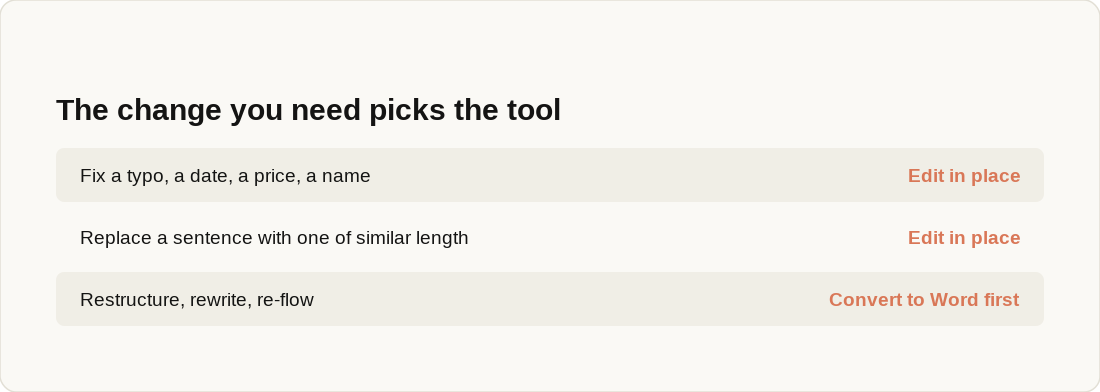
Compressed to a rule you can hold in your head: if the change is smaller than a sentence, edit it where it lies. If the change reorganizes paragraphs, spills across pages, or shows up in many places at once, convert.
The gray zone is the sentence-length row, so here is the tiebreaker. Delete a sentence from a paragraph in a PDF and you get a gap, because the lines below don't know to move up. Editors paper over this by stretching the remaining text or leaving whitespace, which looks fine once and worse each time after. One such edit on one page: edit in place and move on. Three of them, or edits inside dense paragraphs: stop, convert, and save yourself the incremental ugliness.
When editing in place wins
For small changes, in-place editing is not a compromise; it is the better tool, and the mechanics are on its side. A PDF page is a list of drawing instructions, and a good editor swaps the text inside one instruction while leaving every other instruction alone. Fonts, spacing, images, stamps, and the exact position of everything else survive because they were never touched. You are not asking the document to recompute its layout. You are swapping ink.
This is the job LivePDF is genuinely built for: open the file in the browser, double-click the sentence, fix the total, save. Nothing is uploaded, which matters more than usual for the contracts and invoices this scenario usually involves. The exact steps, including the honest footnote that edited text sometimes lands in a substitute font (the embedded font may contain only the glyphs the original author used), are in how to edit text in a PDF. For a broader map of what is and isn't editable in a PDF at all, start with the editing guide.
When converting is the honest answer
If section 4 needs tightening, paragraphs need to move, or the styling needs work in more than a few spots, editing the PDF in place is the wrong approach, and no editor fixes that. You would be hand-simulating reflow in a format with no flow to simulate. Conversion reconstructs the thing the PDF never stored: paragraphs, reading order, structure. Every converter does this by inference from glyph positions, which is why no PDF to Word conversion is perfect. Plain, single-column, text-heavy pages come out close to right. Multi-column layouts, nested tables, and text boxes come out with cleanup waiting for them. Set your expectations accordingly and budget ten minutes for corrections.
So: structural change, convert. And before you run any converter, try the one with a zero percent inference error rate, which is the original Word file. If the author is an email away, ask for it. A PDF-to-Word converter spends its effort rebuilding a document that often already exists, intact, on somebody's laptop. How to convert well, which layouts survive the trip, and what to check afterward is its own article — this page's job is only to send you there when conversion is the right call. (LivePDF exports .docx in the browser too, for the record.)
The scanned-PDF branch
One case breaks the table until you fix it: scans. Run the fastest diagnostic in document work: press Ctrl+F and search for a word you can plainly see on the page. If search finds nothing and clicking selects nothing, the pages are images, and there is no text to edit or convert. OCR comes first; it adds an invisible text layer over the picture, and afterward you apply the same framework as for any other PDF. Small fixes on an OCR'd scan can be edited in place; anything structural converts like normal. LivePDF runs OCR on-device, English only, which is a real limitation and not one to pretend otherwise about. And if your actual goal is just to get the text out for reuse elsewhere, you want extraction rather than conversion; the differences (including why copied text sometimes pastes as garbage) are covered in how to extract text from a PDF.
The question behind the question
Some edit-or-convert dilemmas are self-inflicted. If this document is still collecting feedback, still changing hands, still being redlined in email replies, it may simply not be finished, and an unfinished document had no business becoming a PDF yet. PDF is for done. If you control the workflow, the best answer to "edit or convert?" is often "keep it in Word until it's actually final." There's a whole framework for when not to use PDF that makes that case properly.
Sources and further reading
- John Warnock, "The Camelot Project" (1991), the memo that defined PDF's final-form design
- Apple Pages User Guide: word-processing vs. page-layout documents
- Why copied PDF text sometimes pastes as garbage (subset fonts, missing ToUnicode maps)
Word count: 1,431
FAQ
Is it better to edit a PDF or convert it to Word?
Neither wins on principle. Small, local changes (a typo, a date, a price) are faster and safer as in-place edits, because nothing else on the page moves. Structural changes (reordering paragraphs, adding pages of new content, restyling the document) are conversion work, because PDF has no reflow to borrow.
Will converting PDF to Word keep my formatting?
Partially, always. A converter has to reconstruct a flowing document from fixed page geometry, guessing at paragraphs, tables, and reading order. Simple, single-column, text-heavy pages come out close; multi-column layouts and complex tables need cleanup.
What if the PDF is a scanned image?
Then neither editing nor converting works yet, because the file contains no text, only pictures of pages. Run OCR first to add a text layer, then apply the same edit-or-convert decision to the result.