How to edit text in a PDF (and fix a font that changes)
The contract has to go back today and one line is wrong: a date, an amount, a name spelled with the wrong vowel. You open the PDF, click the typo, and the cursor lands - then the whole line shifts, or the next letter comes back in the wrong shape, or nothing happens at all. Five minutes gone, and you're still trying to work out how to edit text in a PDF before the courier arrives.
That resistance is the format, not your software. A PDF doesn't store a document. It stores painting instructions: at these coordinates, in this font, draw these glyphs. There is no paragraph object underneath, no text flow, no table cell. A page showing "Total: 4,120.00" is closer to a few hundred separate "put this glyph here" commands than to a sentence. The full definition lives in the format spec (ISO 32000-1), but the practical consequence is simple: the thing you want to edit doesn't exist as an object you can open.
Viewers hide this well. When you drag-select text in a browser, you aren't grabbing a text object; you're grabbing a transparent layer of text fragments the viewer has lined up over the picture. pdf.js, the renderer most in-browser editors use, builds that layer from glyph positions and draws invisible text spans on top. Selection feels real because the viewer worked to make it feel real.
The short version of how to edit text in a PDF is: select it, double-click it, type. The long version is the rest of this page, because the two ways that goes wrong (a font that changes under you, and a file with no text to select) are worth understanding before they cost you an afternoon.
How to edit text in PDF, step by step
In LivePDF, editing behaves close to a normal editor, which is the point:
- Open the file and pick the Select tool.
- Click the text you want to change. It highlights as a block.
- Double-click to enter edit mode. The line becomes editable.
- Type the correction. Fragments that were separate drawing operations but sit on one line are treated as a single line, and lines laid out as a paragraph reflow together.
- Match the style if needed: size, color, bold, italic, underline, strikethrough. Edited runs use Noto Sans faces.
- Ctrl+Z to back out, Ctrl+Shift+Z to redo.
To add text where none existed, that's a different move: Insert > Text, then click where it should sit. Text boxes and real inserted text are covered separately in how to add text to a PDF.
None of that is hard. What's hard is what happens next.
When the letters change after you type
You click into a line, fix one character, and the letters come back slightly wrong: heavier, thinner, or plainly a different typeface. The rest of the document looks fine. This is the single most common complaint about PDF editing, and it isn't random. It comes from two things the original file did to save space, and understanding them makes the fix obvious.
The subset-font problem, in plain language
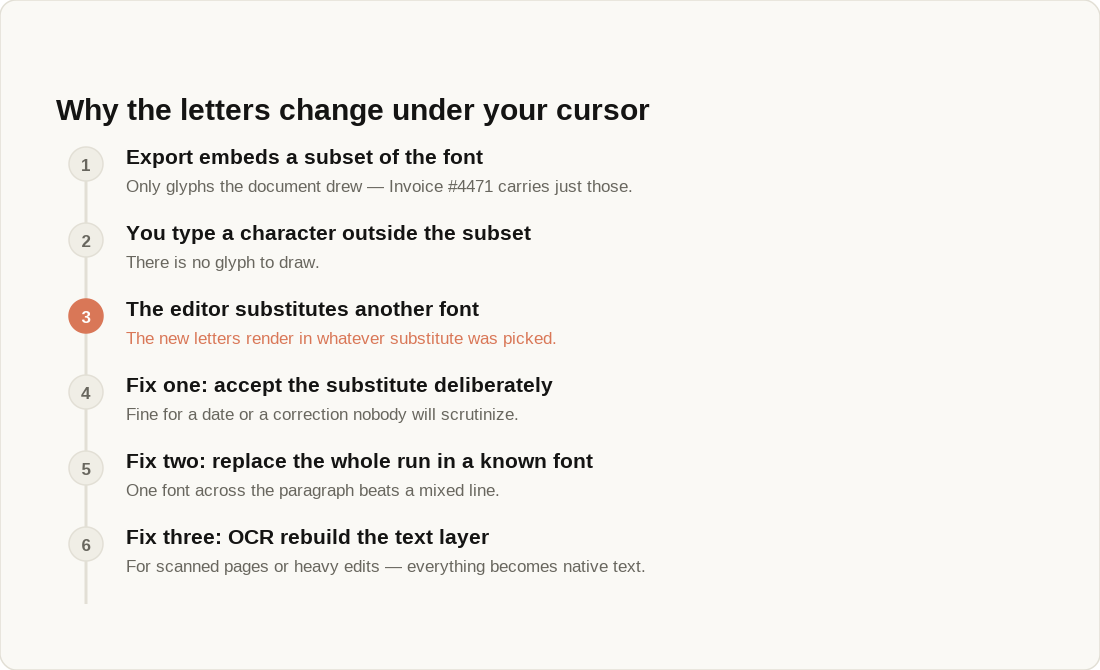
Subsetting first. Fonts are large; a document uses a few dozen characters out of thousands. So most exporters embed only the glyphs the document actually draws, a subset, plus a small safety margin. A file that only ever prints "Invoice #4471" carries the glyphs for those characters and very little else. This is standard practice, not a mistake.
Encoding second. Inside the file, glyphs are stored as internal numbers, not as the letters A through Z. A table called ToUnicode maps each internal number back to a real character. The catch: rendering never uses that table. The page draws from the glyphs directly. ToUnicode only matters for extraction - copying, searching, selecting, and anything an editor does when it reads existing text. Damage or omit it and the PDF still looks perfect while pasted text turns into junk like ┤xDn║if (Adobe Tech Note #5411 covers the table).
Put the two together and every editing oddity has an explanation:
- Type a character the document already used, and the edit is invisible: the glyph is in the subset.
- Type one it never used, and there's no glyph to draw. The editor substitutes another font, and your new characters sit in a different typeface from their neighbors.
- Edit a run whose ToUnicode map is broken and the editor is partly guessing at what's there, which is how edits come back garbled or with letters missing.
That's the whole mystery. The editor isn't being careless; the information required to do better was thrown away when the file was made.
The three fixes
Fix 1: make the substitute deliberate. If a new character keeps picking a different face, set its size, weight, and color to match its neighbors so the mismatch reads as a choice rather than a glitch. Fast, and it never pretends the original glyph was there.
Fix 2: replace the whole run in a font you know is present. Instead of patching inside the subset, delete the edited line and put fresh text back with Insert > Text, using a face the editor carries in full. You give up the original typeface on that line, but you stop fighting a subset that was never going to have your character. For a heading or a short field this is usually the cleaner outcome.
Fix 3: if the trouble is copying, not styling, rebuild the text layer. Garbled copy-paste and scrambled characters are extraction failures: the glyphs are fine, the map isn't. Running the page through OCR rebuilds a clean, searchable layer from the page's appearance, and the result copies correctly. LivePDF's OCR runs on-device and is English-only, so it's the right tool for an English scan and the wrong one for a German contract.
When nothing selects at all: it's a scan
If double-clicking does nothing and Ctrl+F can't find a word you can see with your own eyes, the page has no text. It's a photograph of text. There are no glyphs to edit, because the content is pixels. This is the most common reason an edit fails outright, and the file was a scan from the moment someone made it.
The path is OCR first, then edit: recognize the page, add a text layer, and work on that. It's reliable on crisp scans and shaky on skewed, faint, or low-resolution ones, because OCR is guessing at letterforms and bad input breeds bad guesses. The full workflow is in the OCR guide.
What editing cannot preserve
Editing works for corrections. It fails for restructuring. Worth being blunt about where the line sits:
- Reflow. PDF has none. A paragraph that grows overlaps whatever sits below it. A typo, a date, a name, or a sentence swapped for one of similar length: fine. A new section or a rewritten page is a conversion job, and the decision framework is in PDF versus Word.
- The original typeface, sometimes. When the subset lacks the glyphs you need, Fix 2 is a real trade, not a free win.
- Complex type. Text on a curve, text seated inside a placed graphic, columns with tight gutters. Tools will select them; making the result look untouched isn't guaranteed.
- Exotic encodings. Some files defeat careful editors entirely. A good tool warns and refuses rather than saving a corrupt result, but refusing is still refusing.
- Anything you cover up. A white box over text hides nothing: the words stay in the file for anyone who copies the page. If the goal is security rather than tidiness, that's white-out versus redaction, and they are not the same operation.
The two-minute version
- Text won't select and search finds nothing: a scan. OCR it first.
- Edited letters change shape: a subset font. Match the substitute, replace the run, or rebuild the layer.
- Copy-paste returns garbage: a broken ToUnicode map. Rebuild the text layer.
- A typo, date, or name: edit in place.
- A new section or a rearranged page: convert, edit, re-export.
- Changing the typeface throughout is a font job rather than a text job; see changing fonts in a PDF.
For the bigger question of what is editable at all and why, start with what you can actually edit in a PDF.
Sources and further reading
- Datalogics: managing subset characters when embedding fonts - why subsets limit later edits.
- Stack Overflow: copy-pasting text from a PDF results in garbage - the paste-garbage problem, diagnosed.
Word count: ~1,435 (body).
FAQ
Why can't I select any text in my PDF?
If double-clicking does nothing and Ctrl+F can't find a word you can see, the page has no text layer; it's a scan, a photograph of text. There are no glyphs to edit, because the content is pixels. Run OCR first to add a searchable text layer, then edit that.
Why does the font change when I edit text in a PDF?
The file embedded only a subset of the font, containing just the characters the document already used. Type a character outside that subset and there's no glyph to draw, so the editor substitutes another font. Match the substitute deliberately, replace the whole run in a known font, or rebuild the text layer with OCR.
Can I edit text in a PDF without changing how it looks?
Often, yes. Typo, date, and name corrections preserve the surrounding layout. Structural changes cannot: PDF has no reflow, so a paragraph that gets longer will overlap whatever sits below it. For restructuring, convert to Word, edit there, and re-export.