How to white out text in a PDF (and when it's a mistake)
There's a version of this that starts with an invoice you're about to email and a bank account number in the corner that shouldn't go with it. Or a report carrying a client's name the client never approved. Or a CV with your street address still on it. The file leaves in ten minutes, and one detail has to stop being visible before it does.
White-out is the two-minute version of that fix, and knowing how to white out text in a PDF is a genuinely useful skill: draw a box the color of the page over the text, save, send. It works, in the sense that the page now looks the way you wanted. It also has a failure mode that has embarrassed law firms and government agencies, and it comes from a single fact about how PDFs store text. What follows covers the steps, what they do and don't do to the file, and the ten-second test that tells you which situation you're in.
The quick way: cover it with a white box
Every real PDF editor can do this, and the steps are nearly identical everywhere. In LivePDF:
- Open the file.
- Insert > Shape, and pick the rectangle.
- Set the fill to white and the border to none, so the result reads as blank page rather than as a box.
- Drag the rectangle over the text until every character is covered.
- Save the file.
Thirty seconds, done. One honest sentence about what just happened: you changed the picture of the page, not the page. The box is a new object sitting on top of the text, and adding an object has never deleted anything.
The catch: covering is not removing
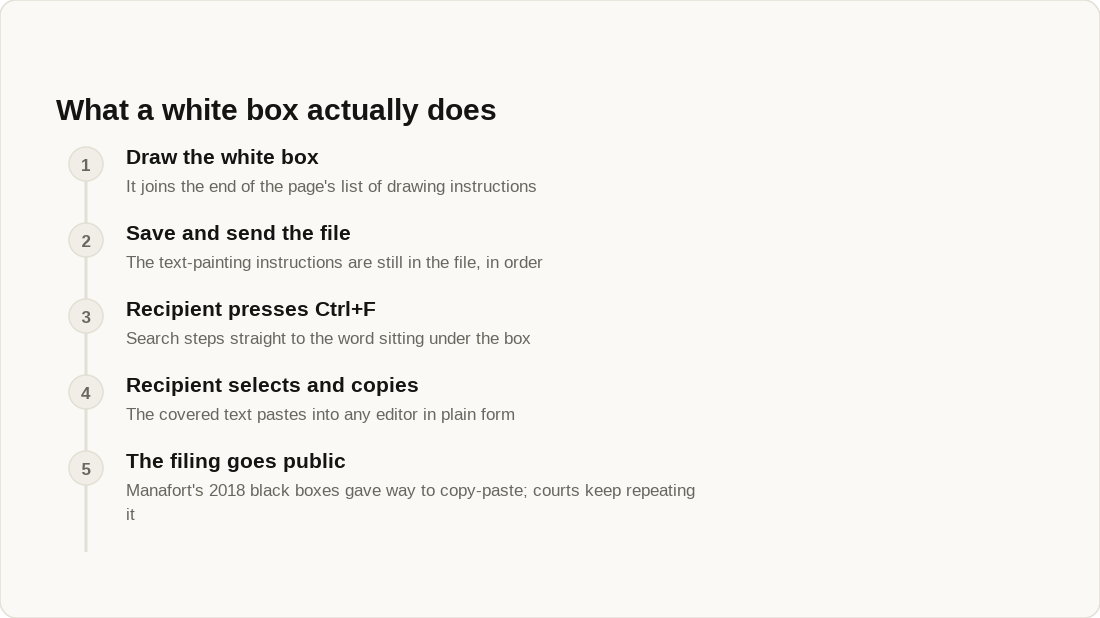
A PDF page is a list of drawing instructions: put these glyphs at these coordinates in this font, then draw this rectangle here. Your white box went in at the end of the list. The instructions that paint the covered text are still in the file, still in order, and readable by anything that reads text instead of drawing it.
That includes the copy function in whatever viewer your recipient uses. Concretely, someone holding your file can:
- click beside the box, drag across it, copy, and paste the "hidden" text into any editor;
- press Ctrl+F, type a word from under the box, and watch search step straight to it;
- select all the text on the page, paste it somewhere flat, and read the box's contents in plain form.
This is a documented failure, not a hypothetical one. In November 2018, lawyers for Paul Manafort filed a court response with sections blacked out; reporters copied the text underneath and published what it said. The American Bar Association keeps a running catalogue of the same mistake in court filings, because courts keep making it. The tool varies — a black highlight in Word, a black box in a PDF editor, your white rectangle — and the outcome never does: covered, not removed.
When white-out is the right tool
The distinction that matters is whether anyone receiving the file is motivated to dig. White-out is for tidiness, in documents where nobody is adversarial:
- covering a typo you'll overprint with corrected text. If the correction is the whole job, editing the text directly is cleaner than painting over it; see how to edit text in a PDF.
- cleaning the edge of a scan: hole punches, shadows, the neighboring page bleeding through.
- masking a draft watermark or an old logo on something internal.
If the covered detail is a secret — money, a name, a diagnosis, case strategy — the white box is not a fix. It's a delay. And the file is about to leave your hands.
When it's a secret, that's redaction
Making text genuinely gone from a PDF is a different operation with a different name: redaction. Where white-out adds a covering object, redaction deletes the content underneath the mark, including any images inside the marked area, and saves the result as a new file. Adobe's own flow makes the gap visible: you mark the regions, you click Apply, and the tool itself warns that nothing is permanently gone until the file is saved again. In LivePDF, the Redact tool works this way, removing the text, images and drawings under each mark, with an optional pass that strips hidden information such as metadata, scripts and attachments.
The full workflow, including pattern-based marking for card numbers, emails and dates, is in the guide to redacting a PDF. Two further reads for the thorough: redaction has subtle failure modes of its own, catalogued in black-box redaction failures, and visible text was never the only thing a file hides; see what PDFs hide beyond the page and removing metadata from a PDF.
Check your own white-out in ten seconds
Run these on the saved file, not the editor window; the saved file is what other people get.
- Reopen the exported PDF and press Ctrl+F. Search for a distinctive word from under the box. If search lands on that page and highlights the spot where the box sits, the text is still there.
- Click just left of the box, drag across it, copy, and paste into any text editor.
- Or select all the text on the page, copy, paste, and read what comes back.
If all three come back empty, two caveats before you relax. A scanned page has no text layer, so Ctrl+F finds nothing anywhere; the covered content is pixels inside an image, and a box sitting on top as a separate object can sometimes be peeled off by viewers that ignore annotations. Flatten the file so the box is baked into the page, or crop the region, before trusting it. And if that scan was OCR'd at some point, the OCR layer is text, it lives under your box too, and test 1 above will find it.
The short version
A white box makes the page look right and does nothing to the file. Use it for typos and scan edges. Use redaction for anything that would hurt someone if it surfaced. Then run the Ctrl+F test on the saved file anyway, because the difference between the two is invisible right up until someone checks.
Sources and further reading
- BBC: Failed redaction reveals Paul Manafort's 'lies to FBI' - the 2018 filing where the black boxes hid nothing from copy-paste.
- ABA Judges' Journal: Embarrassing redaction failures - a judge's catalogue of redaction failures in court filings.
- Adobe: How to redact a PDF - the official workflow; read what it says happens to the marked items.
Word count: ~1,120 (body).
FAQ
Is a white box over text secure?
No. The box is an object on top of the text; the text itself is untouched in the file. Anyone can select around the box, search for a word with Ctrl+F, or copy the page into a text editor and read what's underneath. Covering changes appearances; only redaction removes content.
Does flattening the PDF remove the hidden text?
No. Flattening merges your box into the page's drawing instructions, but the text operators underneath survive it, and text extraction ignores paint order. Printing to paper is the only version that can't be copied back, and then the secret is on paper.
How is redaction different from white-out?
Redaction removes the marked content from the file itself: the text, any images inside the marked area, and optionally metadata, scripts and attachments. White-out draws a rectangle over it. The pages look identical; the files could not be more different.