How to redact a PDF so the data is actually gone
You have a document that has to go out today, and it carries data that must not survive the trip: a card number in a bank statement, a patient's history in an insurance submission, a witness's home address in a filing headed for the public docket. The recipient is entitled to the rest of the file. The private data has to be gone from the file itself, not just hidden from view, because files travel. They get forwarded, indexed, backed up, subpoenaed, and dumped in breaches years after the sender stopped thinking about them. Knowing how to redact a PDF is a data-disposal skill, not a drawing skill.
"Redact" is the verb for that removal, and it names a specific technical operation rather than a cosmetic one. Done wrong, it is also one of the best-documented ways to leak sensitive information in public, courtesy of several court and government mishaps that ended up in the news. Here is the full workflow: what to remove, in what order, and how to prove to yourself afterward that it worked.
Covering text is not redacting it
A PDF page is not a picture of a document. It is a program that draws one: a stream of instructions saying place these glyphs at these coordinates in this font, then fill this rectangle with black. When you black out a sentence in your word processor and export to PDF, you have added one more drawing instruction. You have done nothing to the sentence, which sits in the file fully intact, selectable, searchable, and one copy-paste away from a news story. The white-box version is no better; whiting out text in a PDF is the same non-operation with a friendlier paint job.
The record on this is embarrassingly rich. In November 2018, Paul Manafort's defense team filed a response with sections blacked out in a word processor before export; anyone who selected the censored areas and pasted recovered allegations about sharing 2016 campaign polling data with Konstantin Kilimnik (BBC). In March 2005, the US Army released its report on the checkpoint killing of Italian intelligence officer Nicola Calipari with black boxes over names and procedures; readers copied the hidden text out from under them (the recovered text). Judge Herbert B. Dixon Jr. of the DC Superior Court surveyed these and other cases for the American Bar Association in a column titled Embarrassing Redaction Failures; after two earlier columns on the same subject, his conclusion amounts to: stop drawing boxes.
None of the people behind those documents were careless with secrets in general. They were careful people using a tool that let them believe a visual effect was a data operation. The extended tour of what went wrong in each case is in black-box redaction failures.
What real redaction removes
Redaction is a subtraction. When you apply it, the tool rewrites the page content without the marked elements: the glyphs are deleted, the pixels under the mark are removed, and vector drawings in the area are stripped out. The black box in the result is ordinary page content drawn over a hole where the data used to be. Nothing is layered over live text, nothing is dimmed or recolored, and there is nothing left for a cursor to grab.
The people who think about data disposal for a living have a vocabulary worth borrowing. NIST's media sanitization guidelines sort sanitization into Clear, Purge, and Destroy, and require verification after the fact. Covering text with a rectangle matches none of those categories: the data was never sanitized, just visually obscured. Real redaction is the document equivalent of Clear — the content is gone, and you check that it's gone.
Removal also has to reach everything the mark covers. Text is the obvious target, but a redacted bank statement can leak through a signature image, a photographed card, or a barcode. That is why redaction tools offer two ways to mark: text selections for words, and rectangular areas for everything else.
How to redact a PDF, step by step
The workflow below is LivePDF's, and it runs entirely in your browser: the file never leaves your machine, which for documents full of other people's private data is a reasonable default. (The redaction tool page keeps the short version.) Four steps, none of them optional.
1. Identify what to remove. You have three ways to mark content. Select text directly and mark the selection, which is best for names, amounts, and anything with clean edges. Drag rectangles over regions, which is the correct method for scans, photos, seals, and anything that is pixels rather than text, including images that happen to contain the data. Or run Find-and-redact, a pattern sweep that hunts the whole document for words, phone numbers, email addresses, card numbers, SSNs, and dates. The sweep is the step people skip and shouldn't. Eyes glaze over by the fourth page; a pattern search doesn't. If you are filing in US federal court, Rule 5.2 supplies a concrete minimum list: Social Security numbers cut to the last four digits, dates of birth, minors' names, financial account numbers, and, in criminal cases, home addresses.
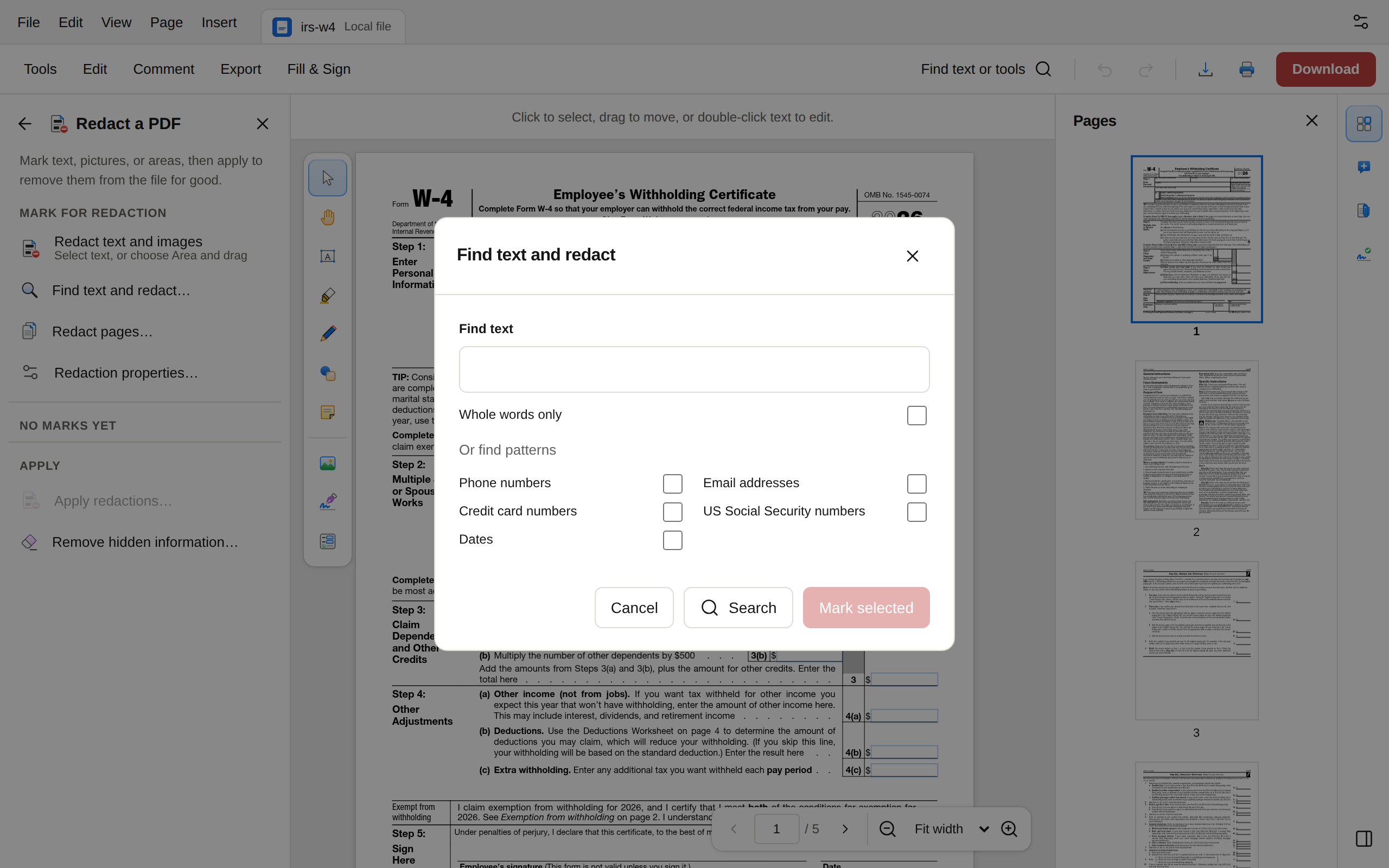
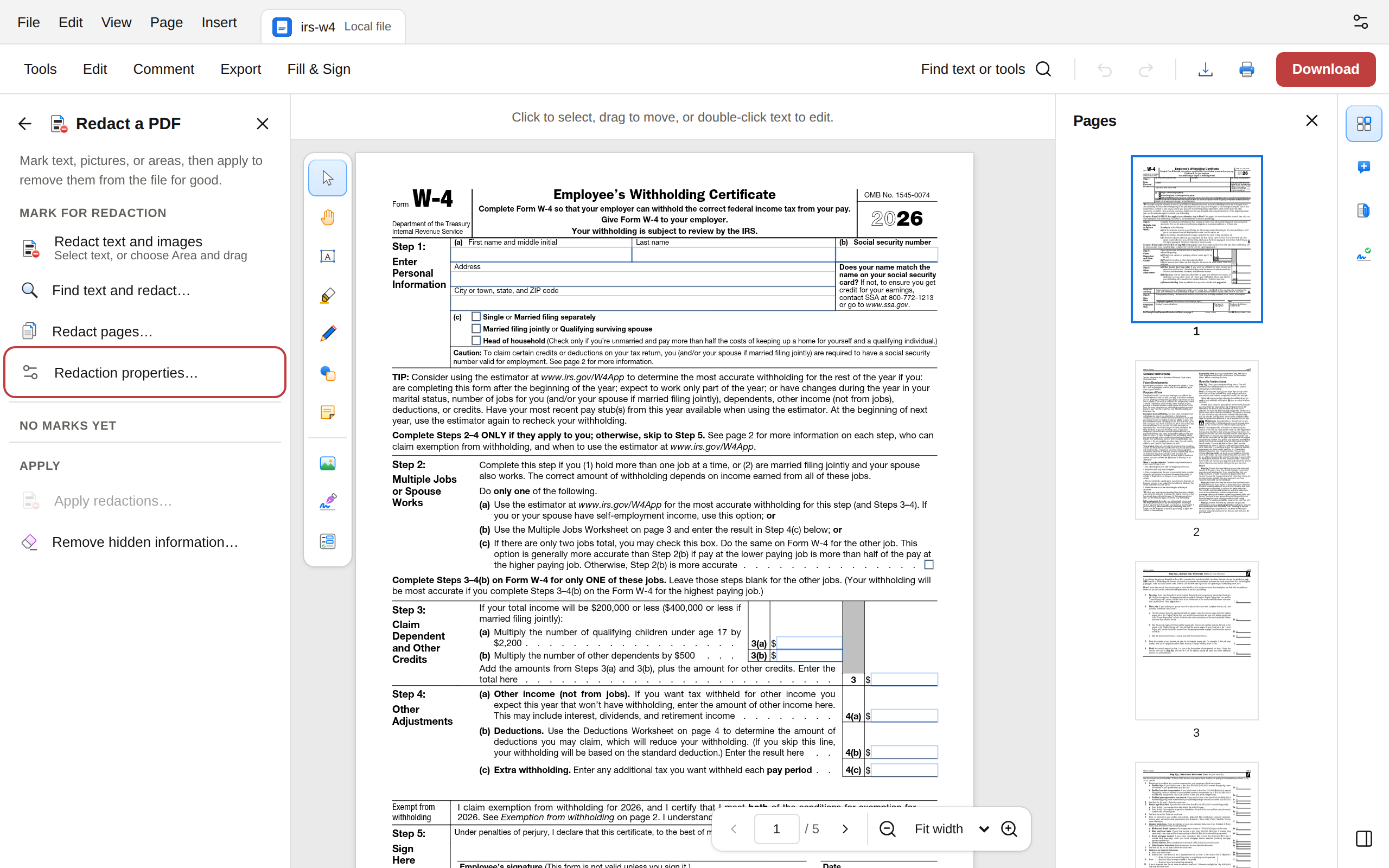
2. Review the marks. Until you apply them, redaction marks are overlays: movable, resizable, deletable, and completely non-destructive. Use that window. Zoom in and confirm each selection covers the whole string — a card number split across a line break is the classic escapee — and that area marks cover all of the pixels, not most of them.
3. Apply. This is the irreversible step. The tool deletes the text, image, and drawing content underneath each mark and burns the box into the page. Work on a copy and keep the original somewhere sane, because after this the data is gone for you too. That is the point, but it is worth knowing before the click.
4. Verify. The next section, because it deserves one.
Don't stop at the visible page
The body text is one of several places a PDF stores information. When the goal is that nothing recoverable leaves your machine, sweep the rest:
- Metadata. The Author field very often holds a real name or an operating-system username inherited from whoever made the file. Creator and Producer expose the authoring toolchain. Creation and modification dates sketch a drafting timeline you may not want public.
- Attachments. PDFs can carry embedded files, and an attachment named "statement_UNREDACTED.pdf" is its own genre of incident report.
- Scripts. Embedded JavaScript goes out with everything else.
LivePDF offers hidden-information removal as part of the redaction flow, covering metadata, scripts, and attachments. What all of this means, where it hides, and what a forensic tool sees when it opens your file is covered in removing metadata from a PDF.
How to prove the redaction held
Here is the honest part. LivePDF's redaction removes the content underneath the mark; we test that. You should not take our word for it, any more than you should take any vendor's word for anything that matters. Verification costs a minute and is the only step that produces proof instead of confidence:
- Open the saved file, the copy you will actually send, not the editor session.
- Try to select the redacted area. The cursor should find nothing.
- Copy the page and paste it into a plain text editor. The private terms should not appear.
- Search for them: the person's name, the last four digits, a distinctive word from the redacted sentence. Zero hits.
- If the document was a scan you OCR'd for searchability, search specifically for the redacted numbers. OCR layers are searchable data, and they count.
If any of those tests finds the data, the redaction failed. Go back, redo it, and run the tests again. One extra look in a second viewer (a browser, a different desktop reader) is cheap, and viewers occasionally disagree about what they display; disagreement is information.
Redaction is not password protection
The two get conflated because they share a menu, but they answer different questions. A password controls who can open the file. Redaction controls what is in the file. Password-protecting a PDF that still contains data you meant to remove just packages that data more neatly for the eventual breach: once the password is shared or cracked, everything inside is exposed, including the parts nobody was supposed to see. The sensible order is redact first, then encrypt for transport. If you are unsure what protection a file already carries, checking whether a PDF is encrypted takes seconds. The mechanics of open passwords, permission flags, and why "copying not allowed" is more of a suggestion than a wall are in how to password-protect a PDF.
The checklist
Run this before any redacted file leaves your machine:
- The marks removed content. Nothing was covered, blacked, or whited over.
- Scans got area redactions, not text selections stretched over pixels.
- A pattern sweep ran for numbers, emails, SSNs, and dates, not just the items you noticed by eye.
- Hidden information (metadata, attachments, scripts) was stripped.
- The saved file was reopened and verified: no selection, no paste, no search hits.
- The original lives somewhere other than the outgoing copy.
If all six hold, the data is gone. Not hidden, not encrypted, not flagged against copying: gone.
Sources and further reading
- NIST SP 800-88 Rev. 1, Guidelines for Media Sanitization - Clear, Purge, Destroy, and verification after sanitizing; the vocabulary this article borrows.
- The Manafort (BBC), Calipari (Wikisource), and Dixon (ABA) references are linked inline above.
Word count: ~1,580 (body).
FAQ
Does drawing a black box over text count as redaction?
No. The rectangle is just another drawing instruction sitting on top of intact text, which stays selectable and copyable in the file. Every famous redaction failure, from the Manafort filing to the Calipari report, was a black box over live text. Real redaction deletes the underlying content; anything less is interior decorating.
How can I tell if my redaction actually worked?
Reopen the saved file and try to defeat it: select the redacted area, copy-paste the page into a text editor, and search for the names and numbers that should be gone. Then look at it in a second viewer. No selection, empty paste, zero search hits: the data is gone. Anything else means redo the redaction.
What should I redact besides the visible text?
The hidden layers: metadata (Author, Creator, dates), embedded attachments, and scripts. Forensic tools read all of them, and the Author field alone often carries a real name the file inherited when it was created. Hidden-information removal is a standard part of any redaction workflow worth the name.