Is my PDF encrypted? How to check in seconds
Someone sends you a PDF and asks you to pass it along, or you're about to attach your own to an email, and a small question surfaces: is my PDF encrypted, and does the answer change what I should do next? It usually matters, because "protected PDF" covers two very different situations that produce the same reassuring lock icon in a file listing. One keeps people out. The other just asks them not to look, and there is no way to tell which you have without checking.
Here are four ways, ordered from the check that takes one second to the one that tells you everything.
1. Open it and watch for a password prompt
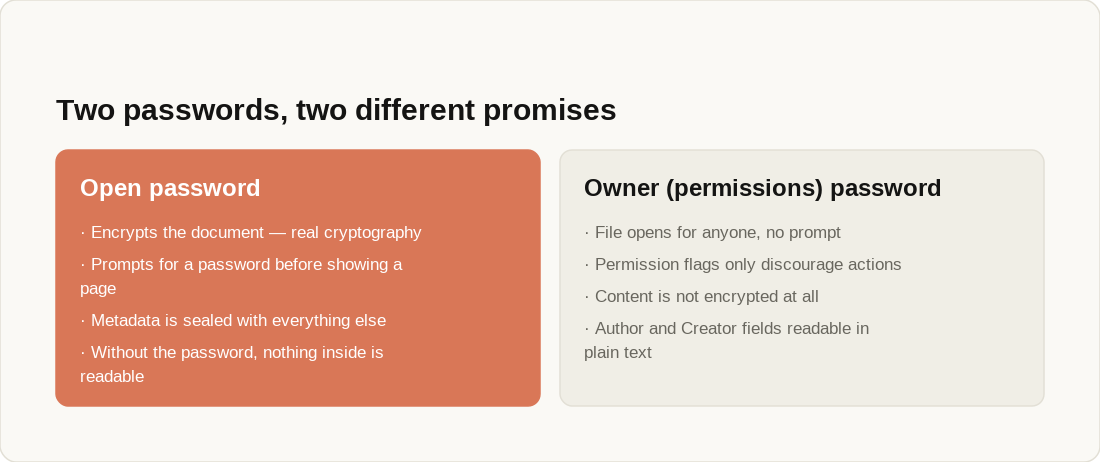
This is the fastest test, and it catches the strongest case. Double-click the file. If a dialog asks for a password before it will show you a single page, the document has an open password (also called a user password). The content is genuinely encrypted. Without that password, nothing inside the file is readable, not the text, not the images, not the metadata.
If it opens straight to page one, that does not mean it is unprotected. A PDF can carry an owner password (permissions password) and still open for anyone. So "no prompt" is a weak result: it rules out the strong kind of protection and nothing else.
2. Read the security settings in your reader
Every desktop PDF reader has a document properties dialog, and that is where the security settings are listed. In Acrobat or Reader it is File > Properties > Security (Ctrl/Cmd+D). You are looking for a line like Security Method: Password Security and, below it:
- Document Open Password: Yes means real encryption is in force.
- Permissions lists what the file says you may not do: printing, copying text, changing the document, adding comments, filling forms.
- Encryption Level names the cipher, such as AES-256 or the older RC4 128-bit.
Browser-based viewers are thinner about this. Some show a small badge or shield; LivePDF marks an encrypted file with a Protected badge and honors the permissions it can. A badge by itself is not proof, so if the answer matters, open the file in a desktop reader and look at the Security tab.
3. Ask the command line
If you have a terminal, this is the most informative check and it takes one command. Poppler's pdfinfo prints an Encrypted field, and for an encrypted file it also lists the permissions and the cipher:
$ pdfinfo secret.pdf
...
Encrypted:       yes (print:no copy:no change:no addNotes:no algorithm:AES-256)
Page size:       595.276 x 841.89 pts (A4)
PDF version:     2.0
That single line answers the whole question. Encrypted: no means there is nothing to defeat. Encrypted: yes followed by algorithm:AES-256 means a real password is in play. A permissions list with no meaningful cipher is the weak, advisory kind described below. The full field list is in the pdfinfo manual.
Two neighbors are worth knowing. qpdf --show-encryption file.pdf prints the security handler and each permission bit individually, and exiftool file.pdf dumps the metadata stores alongside the encryption state, which is the check you want if the worry is what the file says about its author rather than who can open it.
4. Understand what the permission summary means
This is the part almost everyone gets wrong, .
An open password encrypts the document. That is cryptography, and it works.
A permissions password does not encrypt the way you think. The file still has to be readable by a reader that never received a password, so the content is not actually locked away; instead the PDF carries a set of flags saying "do not print, do not copy, do not edit." Compliant software plays along. Non-compliant software does not have to. Browser viewers ignore the flags by design, and a single command, qpdf --decrypt secret.pdf out.pdf, strips permissions from a file without anyone knowing a password. Adobe's own framing is that these are restrictions a reader agrees to honor, not a security boundary; the long-running "is it just an honor code" discussion documents the gap between the promise and the reality.
So when a PDF says "copying not allowed," translate it as "copying discouraged." If the content must not be reproduced, encryption with an open password is the lever, not the flag.
Why it's worth knowing before you send a file
The answer changes what happens downstream.
If your PDF has an open password and you hand it to an automated system, it will likely be rejected. Applicant-tracking software, court e-filing portals, print shops, and archive ingest pipelines routinely choke on password prompts, either failing the upload or dropping the file into a manual-review queue. Encrypting a resume before sending it to a recruiter is a good way to have it never read.
If your PDF has only permissions, do not treat it as confidential. Anyone can open it, and anyone who wants the text can take it. Before you send it anywhere, that is worth knowing. It is also worth knowing your own file: if you inherited a template that was "copy-protected" years ago, the protection is decorative.
What encryption does not cover
Encryption and redaction get confused constantly, and they solve opposite problems. Encryption controls who can open the file. Redaction controls what is in it. Encrypt a PDF that still contains a card number and you have wrapped a secret more neatly for whoever eventually gets the password; once it is shared or the short password is guessed, everything inside is exposed, including the parts that should never have been in the file. The order that makes sense is remove first, encrypt second, as covered in how to redact a PDF.
Metadata deserves its own note, because the answer to "is it visible before I open the file?" depends on the protection type:
- Open-password file: the metadata is part of the encrypted content, so it is unreadable until the password is entered. Safely sealed.
- Permissions-only file: the content is not encrypted, so the Author, Creator, Producer, and date fields are fully readable, together with everything else.
- Unencrypted file: that same metadata is often sitting in the raw bytes in plain text, visible to
stringsor any text editor.
None of this is about passwords at all; it is about what the document leaves behind. Removing metadata from a PDF is the cleanup step, and it is separate from encryption.
A final point about what no password does. Encryption protects the bytes in transit and at rest. It does not authenticate the sender, it does not prove the file is unaltered, and it does not stop a recipient with the password from doing anything they like with the contents. And if the password is weak, old RC4-era files in particular can be attacked offline; the fix there is to re-save with modern AES-256, which the PDF 2.0 standard specifies with Unicode passwords and SHA-256 hashing or better.
The myths around PDF security deserve their own debunking: are PDFs secure? takes down the seven most common assumptions.
The thirty-second version
Open it: a password prompt means real encryption. Read Properties: that tells you the cipher and the permission flags. Run pdfinfo if you want the truth in one line. Then remember the asymmetry: an open password keeps people out, a permission flag merely asks them nicely, and neither one removes a single word from the file. If the goal is that data cannot be recovered, that is a redaction job, and if the goal is a file that renders identically everywhere without leaking when it does not need protecting, it may be worth reconsidering whether PDF is even the right format for the job.
Word count: ~1,280 (body).
FAQ
How can I tell if a PDF is encrypted just by looking at it?
Not from the file icon. Unless the filename or an app badge says so, the only reliable tells are a password prompt on open or a Security/Encryption line in your reader's Document Properties. A padlock in a file listing usually means the file is marked read-only in some app, not encrypted.
Does a 'copying not allowed' PDF actually stop copying?
No. The flag is an instruction to compliant readers, and the file has to be decryptable without a password for those readers to open it, so any viewer that ignores the flag (browser viewers and qpdf included) reads and copies the content anyway. Treat the flag as a polite request, not a wall.
Can someone read a password-protected PDF's metadata without the password?
With a real open password, no. The metadata sits inside the encrypted content, so it stays sealed until the password is entered. With permissions-only protection there is no encryption on the content, so the Author and Creator fields are readable, and in an unencrypted PDF that metadata often sits in the raw bytes in plain text.