How to password protect a PDF (and what it actually stops)
You are about to send a PDF you would rather the whole world not read: a contract with live pricing in it, a bank statement, medical records attached to an insurance claim. Learning how to password protect a PDF takes about two minutes. Choosing which of the two passwords to set takes a little longer, and it is the part that matters, because the format supports two kinds of password and they make very different promises. One scrambles your document so nobody can read it. The other asks readers to please behave.
Two passwords, two different promises
The PDF standard, and every tool that implements it, distinguishes an open password (Adobe's documentation calls it the user password) from a permissions password (the owner password) (Adobe's terminology).
The open password is real cryptography. When you set one, the entire file — pages, fonts, metadata, attachments — is encrypted, and nothing renders without the password. A file with a good open password and modern encryption is not "inconvenient to read" for strangers; it is mathematically unavailable to them.
The permissions password is something else entirely. The file opens freely for anyone who double-clicks it, but the writer embeds a small set of flags alongside the content: printing not allowed, copying not allowed, editing not allowed, commenting not allowed. Compliant viewers read the flags and grey out the corresponding buttons.
That distinction matters because the second kind is the one people reach for when they mean the first. Locking a sensitive file with permissions only — no open password, just "copy: no" — is the same category error as drawing black boxes over text and calling it redaction: an administrative gesture standing in for a data operation. The black-box failure stories are what that error looks like when it happens to careful people with lawyers.
What AES-256 actually does for you
The encryption behind an open password has improved over the format's life. Early PDFs used RC4 at 40, then 128 bits. AES-128 arrived with PDF 1.6 in 2003, and PDF 2.0 (ISO 32000-2) brought AES-256 with Unicode passwords and the SHA-2 family for key derivation (PDF Association). Acrobat has deprecated the RC4-era security handlers; there is no good reason to create one today.
With a modern file, the cipher is not the weak link. Your password is. A four-digit password has ten thousand possibilities and dies to any offline guessing run, while a five-word passphrase of unrelated words pushes the search far out of casual reach. The standard advice applies with extra force here: long beats clever, and a passphrase you can actually remember beats one that migrates to a sticky note.
One more property of open passwords, and it is the deal you are making: there is no recovery. Lose the password and the file is ciphertext forever. Keep an unencrypted original somewhere sane if you can afford to, and accept the risk if the whole point is that you can't.
How to password protect a PDF in LivePDF
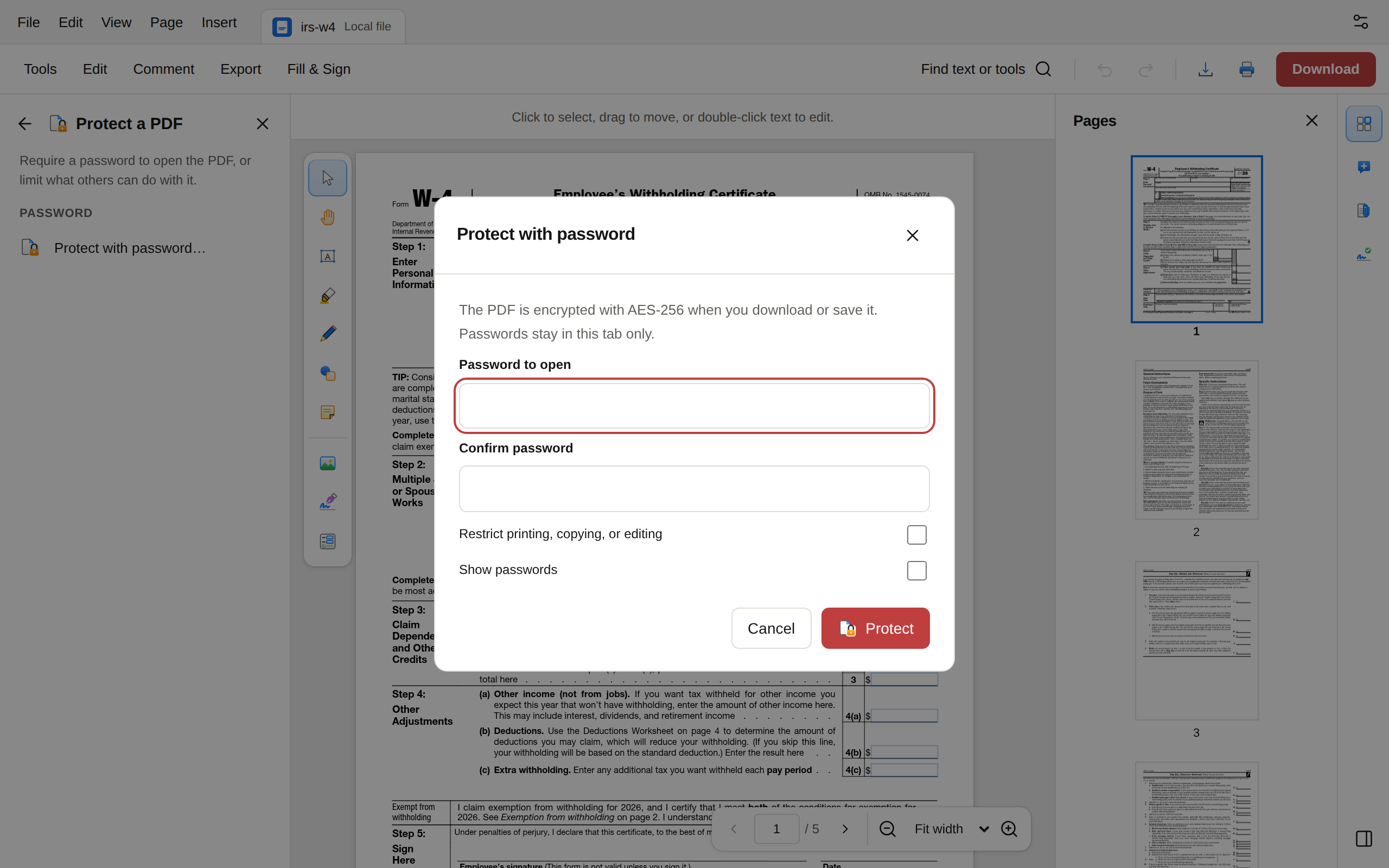
LivePDF's Protect tool does this in the browser, which suits the occasion: a document sensitive enough to encrypt is a document you may not want uploaded to somebody's server first. The file stays on your machine throughout. (Short version: the protect tool page.)
- Open the PDF at livepdf.app. No account, no upload.
- Open the Protect a PDF tool (in the Protect & Standardize group) and choose Protect with password…. You set the two things described above, and the tool keeps them separate.
- Set an open password if the goal is controlling who can read the file. Use a long passphrase.
- Optionally set permission restrictions (printing, copying, commenting, editing) if you also want to signal how the file should be handled. Do this understanding what the flags are worth, which is the next two sections.
- Save. LivePDF writes AES-256 on save.
Step 4 comes with a warning label because it should. The tool will happily set the flags; a good tool also wants you to know they are a request rather than a force field.
What a password does not protect against
An open password guards the file, not the information. Three limits come attached:
It ends when the file opens. Once a recipient types the password, every word is on their screen, and screens can be photographed, screenshotted, and read aloud over the phone. No password stops a camera. If your threat model includes a motivated recipient, encrypting the envelope does nothing about the contents on display.
It does not survive sharing. A password is a secret, and secrets shared for convenience stop being secrets. The file decrypts identically for anyone holding the string, forever, with no revocation mechanism. A password pasted into a support chat is a durable publication.
It is not redaction. Everything you meant to remove is still inside the file, intact, waiting for the day the password leaks or gets guessed. Encryption protects data in transit and at rest; it removes nothing. If information must not reach the recipient (an account number, a name, a whole clause), it needs to come out of the file before you lock it, and the hidden layers need the same treatment as the visible ones, per the redaction workflow and the metadata removal guide. Locking a statement with the card number still in it just ships the card number in a nicer envelope.
The honest limitation of permission flags
Permission flags are enforced by viewer cooperation, not by physics. The standard requires that a file with no open password be decryptable by any reader — that is why it opens at all — so restrictions amount to a value sitting in the file that well-behaved viewers agree to respect. Acrobat does. LivePDF does, honoring the flags on restricted files. Nothing obliges any other tool to care:
qpdf --decrypt restricted.pdfwrites out a copy with every restriction removed, without any password at all.qpdf --show-encryptionprints the security handler, key length, and each permission bit individually.- Many open-source viewers ignore restrictions outright, and browser PDF.js-based viewers ignore them by design.
This is not a defect being described in hushed tones; it is how the format works, and the question has been settled in public for years (SuperUser: "Adobe PDF security: is it really just an honor code?").
What permissions are good for is keeping honest workflows honest: greying out Print in the viewer your reviewers actually use prevents accidental printing, and flagging a file "no changes" cuts down drive-by edits in a review round. What they are not good for is confidentiality. Relying on "copy: no" to protect a witness's name is the black-box mistake wearing a settings dialog.
How to check what protection a file already has
Before you trust a lock, look at it. Three checks, in increasing order of effort:
Try to open it. If the file opens without asking for a password, there is no open password, whatever the filename or the sender's email claims. Restrictions may still be set; that is a different and weaker thing.
Run pdfinfo. Poppler's pdfinfo compresses the whole story into its Encrypted line:
$ pdfinfo contract.pdf | grep Encrypted
Encrypted: yes (print:no copy:no change:no addNotes:no algorithm:AES-256)
Cleartext booleans for each permission plus the cipher, in one string (pdfinfo man page). And note the logic of it: if pdfinfo can print that line without prompting you for anything, the file has no open password; the encryption you are looking at is permissions-level only.
Ask qpdf. qpdf --show-encryption file.pdf gives the full breakdown, bit by bit, including which handler and key length were used.
In a viewer, the same information is available without a terminal: LivePDF marks secured files with a Protected badge and honors whatever permissions are set. The full walkthrough of reading that security panel is its own article: is my PDF encrypted?
Picking the right lock
- Control who reads it → open password, AES-256, long passphrase, and a safe place for the original.
- Signal how it should be handled → permission restrictions, with open eyes about their advisory nature.
- Make data unreachable to the recipient → redaction before encryption, always in that order.
- Still in active negotiation → ask whether the document should be a PDF yet; a locked file nobody can mark up is its own workflow tax (when not to use PDF).
Password protection is a good tool for exactly what it says on the box: controlling the door. For everything the reader is meant to see but not keep, the door was never the problem.
Sources and further reading
- Adobe: open password vs. permissions password
- PDF Association: PDF 2.0, AES-256, and Unicode passwords
- SuperUser: is Adobe PDF security just an honor code?
- pdfinfo man page (poppler-utils)
Word count: 1,454
FAQ
What is the difference between an open password and a permissions password?
An open password encrypts the file's contents; nobody reads a word without it. A permissions password leaves the file openable by anyone and sets flags asking compliant viewers to block printing, copying, or editing. One is a lock on the door, the other is a laminated note taped to it.
Can PDF restrictions be removed without a password?
Yes, when only a permissions password is set. The format requires such files to be decryptable by any reader, so tools like qpdf can write out a restriction-free copy. Restrictions are honored by cooperative viewers, not enforced by the encryption. An open password is the only one that gates access.
Does password-protecting a PDF stop screenshots?
No. Once a recipient enters the open password, the content is on their screen and theirs to capture. Encryption protects the file, not the viewing experience. If content must not reach the recipient at all, redact it from the file before sending.