What OCR actually does to a scanned PDF
A scanned PDF is a photograph of a document with a PDF extension. It looks like a document, files like a document, and yet Ctrl+F treats it like a picture on a wall. OCR (optical character recognition) is the fix: software reads the letters in the image and writes them down as real, selectable characters. If you need to search a scan, copy a quote out of one, or OCR PDF files so an archive becomes useful, this is the machinery doing the work.
That one-sentence summary hides most of what matters, though. What OCR writes down, where it puts it, and how often it gets it wrong determine whether you end up with a searchable archive or a confidently wrong one.
The invisible text layer
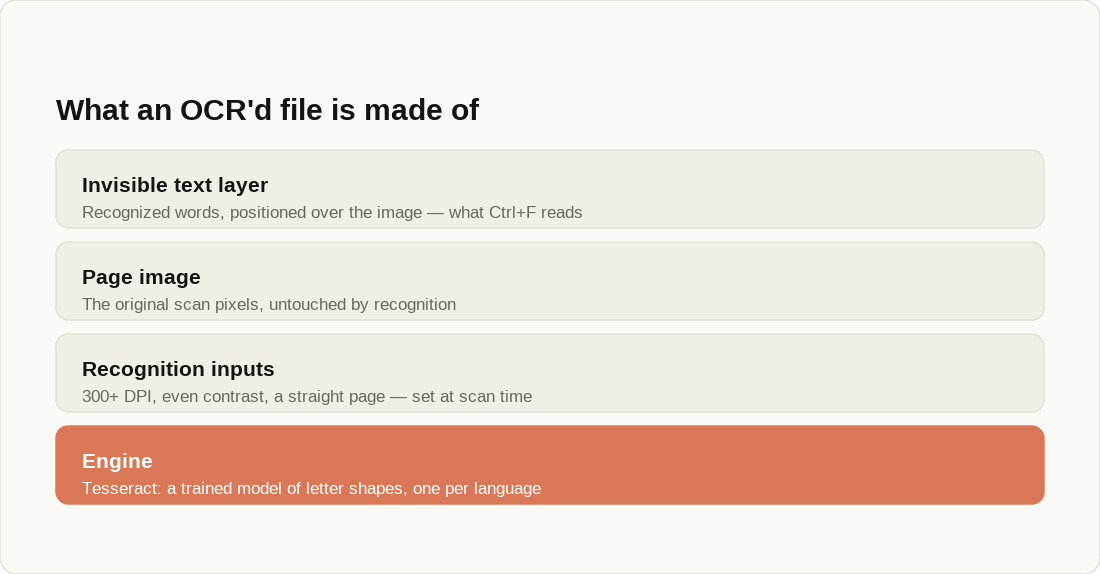
A searchable scanned PDF is two things stacked in one file: the page image you see and a text layer you don't. The recognition engine looks at the picture, decides which glyphs sit where, and writes those decisions into invisible text positioned over the image, word by word, line by line. When you search, select, or copy text from a scan, you are never touching the pixels. You are querying that hidden layer, and the viewer is highlighting wherever the layer claims each word lives.
Adobe's own guidance defines a searchable PDF in exactly these terms: a scan that has been processed with OCR so Find works on it. The design is a genuinely clever compromise. The pixels preserve the page exactly as scanned, and the text layer adds searchability without repainting anything.
Three consequences fall out of the design:
The image is never touched. The coffee stain, the fax noise, the slightly crooked page: all preserved. OCR doesn't clean your scan; it reads it. Garbage pixels in, garbage text out.
The text layer is a claim, not a record. The engine guesses, writes the guesses down, and the file presents them with total confidence afterward. Nothing marks a word as unsure. A misread sits in the file looking exactly like a correct read.
The layer can disagree with the picture. Anyone who has copied a paragraph out of an old scan and pasted something subtly different has seen this. The layer is also what screen readers and text exports read, so any mismatch propagates everywhere the text goes.
What changes about the file
What you gain: search (Ctrl+F now works), copy-paste (as faithful as the recognition was), text extraction and export (the layer is what converts to Word or plain text), and screen-reader access. What you don't lose: the appearance, and barely any file size, since invisible text is measured in kilobytes against megabytes of image. If extraction is the whole point, the four ranked routes are compared in how to extract text from a PDF — the layer quality decides which route pays off.
One thing OCR does not do is make the scan editable. The layer is searchable text, but it isn't flowing paragraphs you can rewrite; the page underneath is still one big picture. Editing a scan is its own workflow with its own limits, covered in how to edit a scanned PDF.
What actually drives quality
Recognition accuracy isn't magic, and it isn't mostly about the engine. Tesseract, the open-source engine behind most tools including ours, publishes its own short list of what moves the needle, and the list is refreshingly unglamorous: a resolution of at least 300 DPI, decent contrast, and a straight page.
DPI. 300 DPI is the working standard. Below roughly 200, the strokes of small letters are too few pixels wide to recognize reliably, and upscaling afterward can't recover detail the scanner never captured. This is why the scan settings matter more than the OCR settings: a 150 DPI scan is already broken before any software touches it.
Contrast. Dark text on a light background, evenly lit. Faded receipts, pencil, and photos taken under bad lighting are the classic killers. The engine does its own black-and-white conversion internally, but it can only work with the contrast the scan preserved.
Deskew. A page tilted by a few degrees confuses line detection, and line detection is how the engine knows where one line of text ends and the next begins. Straighten the file, or rescan it flat, before recognizing.
The full playbook, with what each lever is actually worth, lives in the OCR accuracy tips.
Where OCR fails
Some failures are honest and total:
Handwriting. Recognizing handwriting is a different research problem, and general-purpose engines don't solve it. Cursive notes and filled-in form fields come back as garbage or nothing. Neat block letters are sometimes readable; nobody's doctor's notes are.
Bad scans. Low DPI, heavy compression artifacts, pages photographed at an angle with a thumb over the corner. The engine cannot read what the camera didn't capture.
Low contrast. Faded thermal paper, third-generation photocopies, pencil on cheap paper.
Then there is the failure class that deserves its own warning, because it is silent and it lands exactly where mistakes cost the most: numbers.
Letters get a lot of implicit checking. English words are constrained by spelling and context, so "th3" in the middle of a sentence gets corrected to "the" by the engine and by your own eye without anyone noticing. Digits have no safety net. An account number, a date, an invoice total, a dosage: no dictionary, no grammar, no surrounding context to catch a wrong guess. And the glyph confusions cluster precisely in digits, because 0 and O, 1 and l, 5 and S, and 8 and B are near-identical shapes that a degraded scan tips either way.
So here is the rule worth internalizing: never trust OCR output blindly for numbers. Check every figure in an OCR'd contract, invoice, or financial statement against the image, not against the text layer. The fast way is to search for the number in the PDF and look at where it lands: if Ctrl+F highlights something that doesn't match the pixels, you found the misread before it found you. Words survive a typo. A transposed digit in a payment clause does not.
What this looks like in LivePDF
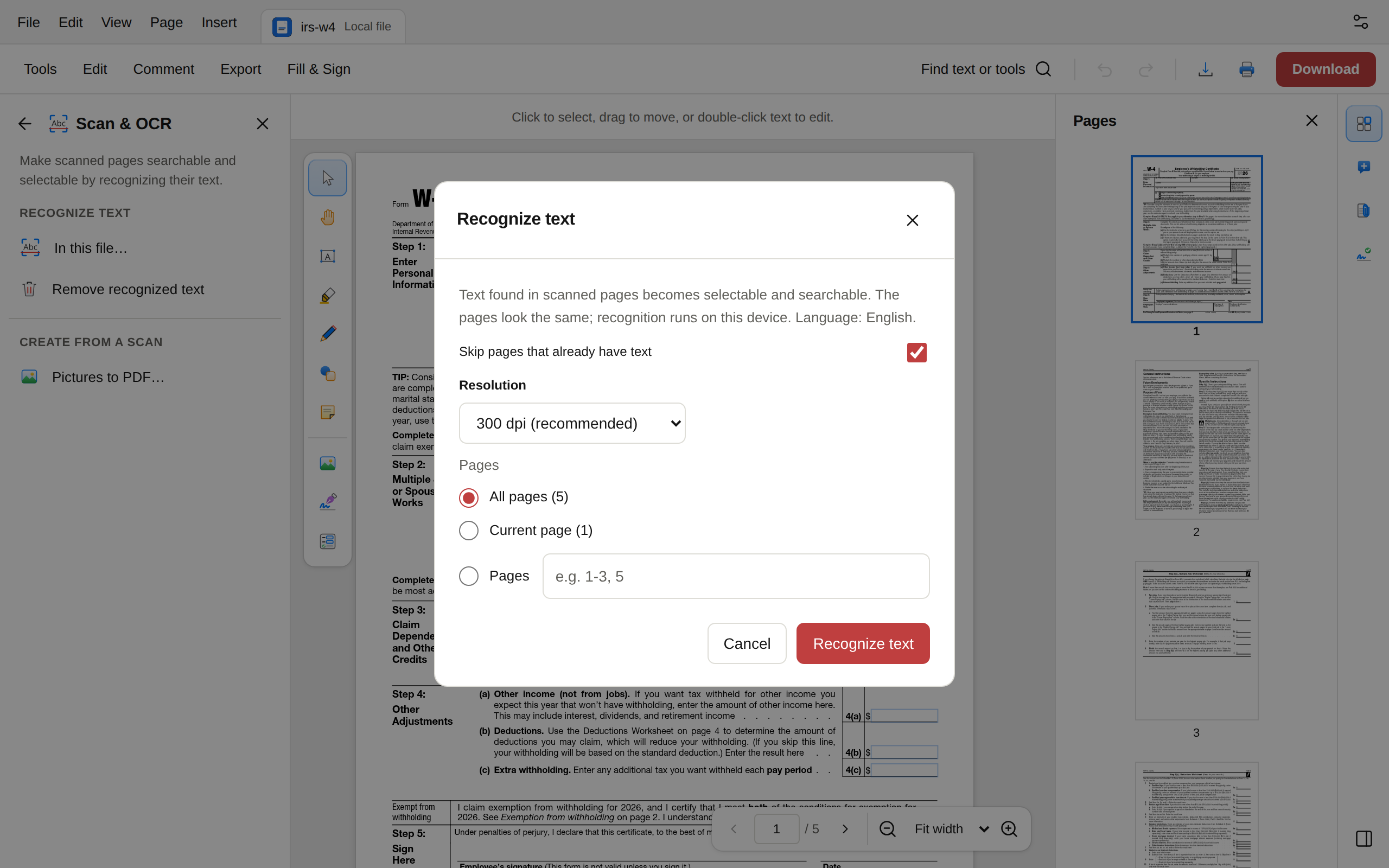
In LivePDF, the command is Scan & OCR, described as "Make scanned pages searchable and selectable by recognizing their text." The dialog, titled Recognize text, puts the essentials up front: "Text found in scanned pages becomes selectable and searchable. The pages look the same; recognition runs on this device. Language: English."
The options, all two of them, map straight onto the quality factors above:
- Resolution: 200 dpi (faster), 300 dpi (recommended), or 400 dpi (small print). If the scan contains fine print, 400 is worth the extra time.
- Skip pages that already have text: on by default, so pages that were born digital are left alone. There is nothing to recognize on a page that already has real text.
Recognition then runs page by page ("Recognizing page 3 (3 of 12)…") and finishes with a count: "Recognized 1,204 words on 8 pages. The text can now be searched and selected." If you change your mind, a "Remove recognized text" action strips the layer back out.
Everything runs on the device. The engine is Tesseract compiled to WebAssembly, and the recognition model is served with the app itself, so no server ever sees the scan. That is the same local-processing design as the rest of the editor, and it's why OCR works offline, on a plane, and on documents you would never upload anywhere.
The honest limitation is right there in the dialog: Language: English. Not "English (recommended)". Just English. Each additional language means shipping another recognition model to the browser, which would break the everything-local, nothing-to-download setup. The non-English OCR options piece explains that trade-off and what to use in the meantime.
Non-English scans, briefly
Until multilingual support exists here, the practical routes are:
- OCRmyPDF, a free command-line tool that adds OCR text layers to existing PDFs and accepts any installed Tesseract language pack, so the quality factors above apply identically. The OCRmyPDF documentation covers the language flag.
- Google Docs OCR: upload the file to Google Drive, right-click it, and open it with Google Docs. Google's help page lists the constraints (files up to 2 MB, text at least 10 pixels high, right-side up) and the supported languages, which are extensive. You trade privacy and batch convenience for language coverage.
Either way, the rules don't change with the language: 300 DPI, high contrast, straight pages, and no blind trust in digits.
The working checklist
- Ctrl+F a word you can plainly see on the page first. If it highlights, the PDF already has text and OCR is unnecessary. More on that test in make a PDF searchable.
- Scan at 300 DPI, straight, with even lighting. Rescan bad pages rather than trying to rescue them in software.
- Run OCR, then spot-check every number against the image.
- Keep the layer honest. If you correct something on the page image itself, rerun recognition or fix the text layer too, or search will keep finding the old word.
That's the whole deal. OCR adds a second, invisible copy of your document alongside the picture. The copy is only as good as the scan, and its numbers are only as good as your willingness to check them.
Frequently asked questions
Does OCR change how my PDF looks? No. The page image stays exactly as it was. OCR adds a layer of invisible text positioned over the picture, and that layer is what search and copy-paste read. The risk runs the other way: if recognition misreads a word, the file looks right and reads wrong.
Why is my scanned PDF not searchable? Because a scan is a photograph, and Ctrl+F has nothing to search in pixels. Some PDFs are also only partly searchable: pages born digital work, scanned pages don't. Running OCR adds the missing text layer to the image-only pages.
Is OCR accurate enough for contracts? For the words, usually, if the scan is decent. For the numbers, treat the output as a draft. Digit confusions (0/O, 1/l, 5/S) land exactly where mistakes cost the most, so check every figure in the recognized text against the image before signing or filing anything.
FAQ
Does OCR change how my PDF looks?
No. The page image stays exactly as it was. OCR adds a layer of invisible text positioned over the picture, and that layer is what search and copy-paste read. The risk runs the other way: if recognition misreads a word, the file looks right and reads wrong.
Why is my scanned PDF not searchable?
Because a scan is a photograph, and Ctrl+F has nothing to search in pixels. Some PDFs are also only partly searchable: pages born digital work, scanned pages don't. Running OCR adds the missing text layer to the image-only pages.
Is OCR accurate enough for contracts?
For the words, usually, if the scan is decent. For the numbers, treat the output as a draft. Digit confusions (0/O, 1/l, 5/S) land exactly where mistakes cost the most, so check every figure in the recognized text against the image before signing or filing anything.