How to make a PDF searchable (check first)
Make PDF searchable again: that's usually a one-step job, but the right step depends on why it isn't. Type a word you can clearly see on page one into Ctrl+F. If it highlights, the file was already searchable and you can stop reading and go do something better with your afternoon. If the search box comes back empty, the page is a photograph of text, and no amount of retrying will change that: pixels don't match queries. The fix is OCR, which reads the letters in the image and writes a searchable text layer into the file. Below: the five-second test, what a "searchable PDF" actually is, how to add the missing layer, and the two snag cases (locked files and image collections).
The Ctrl+F test
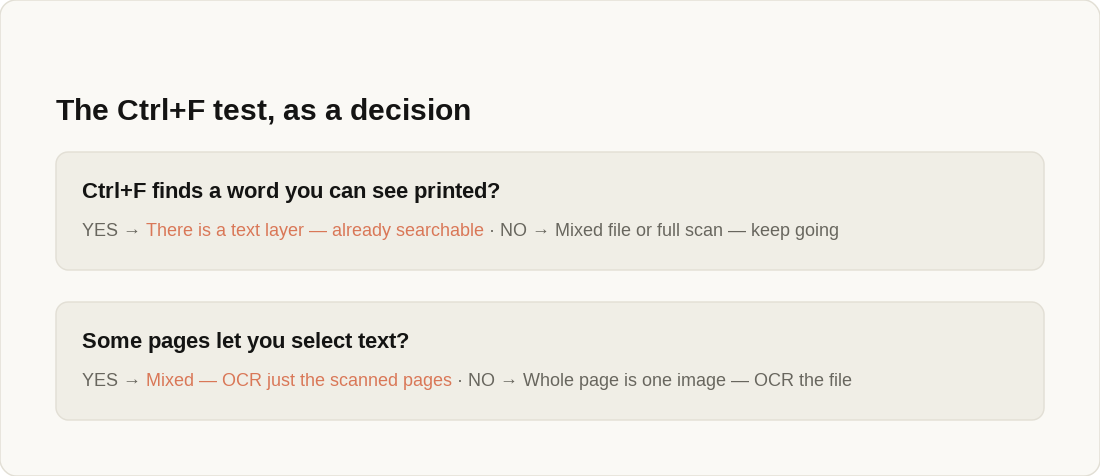
Open the PDF, press Ctrl+F (Cmd+F on Mac), and search for a word that is visibly printed on the page. Three outcomes:
- It highlights. The document has a text layer. Done. You never needed to "make" it searchable; it already was, or someone ran OCR on it years ago.
- Nothing found, but you can select text on some pages. Mixed document: pages born digital search fine, scanned pages don't. OCR can fill the gaps page by page.
- Nothing found, and selecting drags a photo-style marquee. The whole page is one image. Classic scan. This is the case that needs work.
The test is worth running before any conversion, because it takes ten seconds and the alternative is running a 40-page document through recognition it didn't need. Adobe's own guidance defines a searchable PDF in exactly these terms: a scan that has been processed so Find works on it. No text layer, no Find.
Searchability is a property of the text layer, not the paper
Here's the part that surprises people: how searchable a PDF is has nothing to do with how good it looks. Searchability lives entirely in a hidden layer of invisible characters positioned over the page image, and the quality of that layer depends on what the recognition engine saw when it ran.
This is why a gorgeous-looking file can search terribly. Consider a scan of a scan: someone scanned a printout, printed it, scanned it again, maybe upsampled the image to 600 DPI on the way. On screen it looks crisp, arguably better than the original. But the engine reads second-generation letterforms with softened edges and compression mush, and it misrecognizes more words. The file looks excellent and Ctrl+F misses constantly. Meanwhile a humble 200 DPI fax-quality scan of clean typed text, run through OCR once, searches near-perfectly. The pixels in the first file are prettier; the text layer in the second is better.
Two practical corollaries:
- Never judge a PDF's searchability by looking at it. Judge it by searching it. Page through Ctrl+F results for two or three words scattered across the document, including one from the last page. A text layer that only exists on half the pages is common in mixed files.
- A stale text layer is possible. If the text layer was created from a different version of the page than the image shows, search returns words that aren't on the paper. When search results make no sense against what you see, distrust the layer, not your eyes.
Adding the text layer with OCR
OCR (optical character recognition) is the general fix, and how it works, where it fails, and the copy-paste implications get their own treatment in the OCR explainer. The short version: the engine looks at the page image, decides which letters sit where, and writes those decisions into invisible text aligned over the pixels. Search, selection, and copying start reading that layer. The page image is untouched.
In LivePDF, open the document and run Scan & OCR. The dialog is called "Recognize text" and it offers:
- Resolution choices: 200, 300, or 400 DPI (300 recommended; 400 for small print). This matters because the engine renders the page at the chosen resolution before reading it. Recognition quality climbs with detail up to about 300 DPI, which is Tesseract's own recommendation; beyond that you mostly spend time.
- "Skip pages that already have text", on by default. This is what makes mixed documents painless: born-digital pages are left alone and only image-only pages get recognized.
- Per-page selection, so you can recognize just the scanned appendix and not the whole file.
- A progress bar with cancel, and everything runs on your device. The file never uploads, and the dialog states the language plainly: English. Other languages need a tool with the matching model; other languages need a tool with the matching model.
When it finishes, the pages look identical and Ctrl+F now works. If the recognition came back worse than expected, the levers that actually move accuracy (contrast, deskew, scan resolution) are covered in the OCR accuracy tips.
Snag one: the PDF has a password
Two different locks, two different answers.
Open password (you type a password to view the file): enter the password and open the document normally. Once it's open, OCR runs like on any other file. Nothing about the lock prevents recognition after decryption; the text layer gets added on save.
Owner restrictions (the file opens freely but carries permission flags: no copying, no editing): this is the awkward one. Permissions flags are honored by compliant tools, and adding a text layer is an edit. So a file locked against editing won't accept OCR from tools that respect the flags, LivePDF included. The options are to ask the document owner to remove the lock, or to use a tool that ignores permissions, which exists and is also a sign that PDF permission flags are a request, not a wall. For the background on what each password type actually does, see the edit-scanned PDF guide, which walks the scan-editing workflow these restrictions tend to guard.
Snag two: it isn't a PDF yet, it's images
Frequently the material is a folder of JPGs or PNGs from a phone or a scanner's auto-split mode. An image can't get a text layer; only a document can. The sequence is: combine the images into one PDF first (LivePDF's combine command takes images directly and handles phone-photo EXIF rotation), then run Recognize text on the result.
Two things worth knowing before you scan anything new: photograph pages flat and evenly lit, because the OCR engine inherits every shadow and skew; and scan at 300 DPI rather than 600, since the extra detail buys search quality nothing and costs file size plenty. If your goal is actually pulling the text out of the document and not just searching it, the recognized layer also feeds copy-paste and the text extraction workflows.
The one-paragraph version
Searchability is invisible text bolted onto pixels. Check for it with Ctrl+F before doing anything; add it with OCR when it's missing; enter the password first if the file is locked, and combine image collections into a PDF before recognizing them. And remember the trap: a file can look crisp and search terribly, because search reads the text layer, not the picture.
Sources and further reading
- Adobe: make a PDF searchable and text-recognizable
- Tesseract docs: improving output quality (300 DPI guidance)
- OCRmyPDF: adding an OCR text layer to existing PDFs
FAQ
How do I know if my PDF is already searchable?
Open it and press Ctrl+F (Cmd+F on Mac). Search for a word you can see on the page. If it highlights, the file has a text layer and you're done. If nothing matches or selection behaves like dragging a marquee over a photo, the page is an image and needs OCR.
Does making a PDF searchable change how it looks?
No. OCR adds an invisible text layer positioned over the page image. The pixels stay untouched; only search, selection, and copy-paste change. The failure mode is subtler: recognition can misread a word, so the file looks right and finds wrong.
Can I make a password-protected PDF searchable?
If it has an open password, type the password first and then run OCR. If it has owner restrictions that block editing, tools that honor those permissions (including LivePDF) won't add a text layer until the restrictions are removed by whoever set them.