How to improve OCR accuracy (hint: start at the scanner)
If you want to improve OCR accuracy, the least useful place to look is the OCR software. The unglamorous truth: recognition quality is decided mostly by the scan, not by the engine reading it. Feed any modern recognizer a crisp, straight, high-contrast page and it will do well. Feed it a crooked, faint, grainy one and every engine on the market will stumble on roughly the same words. The OCR software matters, but it is the smaller half of the equation.
This piece ranks the fixes that actually move the needle, from the scanner settings that matter most down to the habits that quietly ruin scans, and separates them from the "optimizations" that just make bigger files. It pairs with the explainer on what OCR actually does; here we stay on the input side.
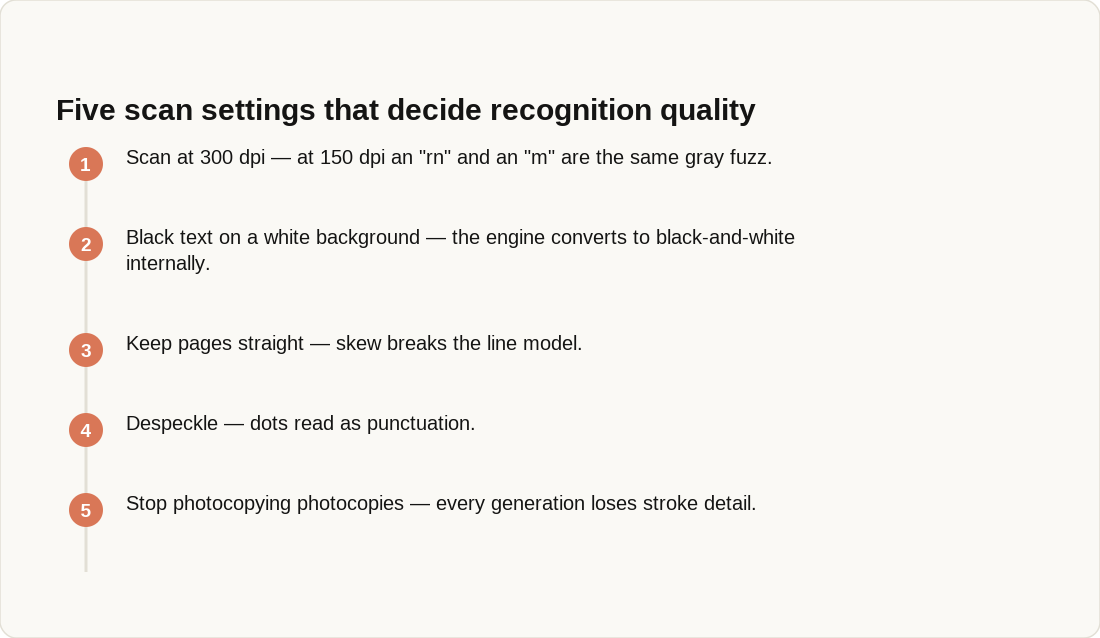
Tip 1: Scan at 300 dpi
This is the single biggest lever, and it is the one setting worth checking before every scan.
The reasoning is mechanical. At 300 dpi, a lowercase letter on a standard page is a dense little bitmap with clean edges; the recognizer can measure stroke widths and distinguish an "rn" from an "m". At 150 dpi, the same letter is half the pixels wide, and antialiasing smears the strokes into gray fuzz. The engine is not being lazy when it misreads those letters. The information literally is not in the image.
Tesseract, the open-source engine behind most OCR tools (ours included), says this outright in its own documentation: it works best on images of at least 300 dpi, and resizing upward helps when the source is below that. Notably, the guidance only runs one direction. Upscaling can approximate detail toward 300 dpi; nothing recovers detail that a 100 dpi scan never captured.
Two practical notes:
- Below 300 dpi, rescan if you can. A document that exists only as a low-res file is stuck with upscaling and preprocessing, which helps but never fully compensates.
- Above 300 dpi, stop. We'll get to that in the "what doesn't help" section.
If a page is all very small print (footnotes, dense contracts), 400 dpi can earn its keep. For normal 11-12pt text, 300 is the sweet spot.
Tip 2: Black text on a white background
The recognizer's first internal step is almost always binarization: every pixel gets sorted into black or white, usually by a thresholding algorithm like Otsu's method. Anything that makes that split easy helps. Anything that blurs the line hurts.
Good input for OCR:
- Dark, consistent ink on plain white paper
- Even lighting, no shadows creeping across the page
- No gray or colored backgrounds behind the text (yellow legal pads, tinted letterheads, dark email printouts)
Bad input: faint dot-matrix printing, pencil, faded receipts, text over watermarks, and photos taken at an angle in a dim room. If the human eye has to squint, the thresholding step is guessing, and its guesses propagate into every downstream word.
When scanning faint originals, most scanner software has a contrast or "text enhancement" setting. That is the right place to fix contrast: at capture time, where the scanner's sensor still has real data to work with.
Tip 3: Keep pages straight
Skew is sneakier than it sounds. A few degrees of tilt and the page still looks perfectly readable to you, but the OCR engine has to figure out where each text line starts and ends before it can read anything, and tilt breaks the line segmentation. Words get cut in half, lines merge, columns interleave.
Tesseract attempts its own deskew internally, and it is decent at mild tilt. But "the engine will probably fix it" is a gamble you take for free on every page. Square the original against the scanner's edge guides and let the automatic paper-detection do its job. Ten degrees of carelessness can turn a clean page into a puzzle.
The same applies retroactively: if a stack of pages arrives already skewed, many tools (OCRmyPDF among them) offer explicit deskewing as a preprocessing pass. That is the fix-after-the-fact version; the fix-before version costs nothing at the scanner.
Tip 4: Despeckle
Noise is any mark in the image that is not text: dust on the scanner glass, specks from dirty rollers, the shadow of the page edge, hole-punch marks, coffee rings. The engine's border-removal and noise filters deal with some of this, but every speck is a candidate glyph, and candidates cost accuracy.
Two minutes of glass-cleaning with a microfiber cloth does more than any denoise filter. On the software side, a despeckle or "remove noise" pass helps with chronically dirty sources (old photocopiers, archive paper). Clean glass first; filters second.
Tip 5: Stop photocopying photocopies
Every copy generation is a lossy re-render of the last one: edges soften, contrast drops, specks gain permanence, and faint text fades toward the background. By the third generation, you have a document that looks passable to a human and is quietly hostile to a recognizer.
The rule of thumb: OCR reads the oldest, cleanest generation that exists. If the source document is already a scan and someone hands you a printout of it, scan it back at 300 dpi, but know you are working with second-generation pixels. If you have any access to the original, use the original. And when you receive a scan you'll need to search later, run OCR once, properly, instead of repeatedly re-scanning intermediate copies.
What doesn't help
Two habits come up constantly and mostly waste effort:
Sharpen filters. Unsharp masking makes text look crisper to a human, but the recognizer reads pixel values, not the illusion of edges. Sharpening can even add halos around letters that make binarization worse. Skip it.
Resolution beyond what the text needs. 600 dpi scans of 12pt body text produce files roughly four times the size of 300 dpi scans (pixels scale with dpi squared) for no measurable recognition gain. The letters already had all the pixels they needed. The one exception is genuinely tiny print, where 400 dpi is justified. Beyond that, the extra resolution just moves you toward the "why is my scan 80 MB" problem, which is its own article: scanned PDFs that are too large.
What our OCR actually offers
Since this is our blog, here are the settings you'll find in LivePDF's Scan & OCR dialog, verified against the code:
- Resolution: 200 dpi (faster), 300 dpi (recommended), 400 dpi (small print). The default is 300, for all the reasons above. The setting controls the rendering resolution the engine sees, so if your scan is 150 dpi, OCR at 300 won't invent the missing detail; rescan instead.
- "Skip pages that already have text", on by default. Mixed documents (some born-digital pages, some scans) only pay recognition cost on the image-only pages. Turn it off if you deliberately want a fresh text layer on every page.
- It runs on-device in your browser, in English. Recognition never uploads your document anywhere, but it handles only English text; there's a separate honest writeup on why and what to do for other languages.
Notice there is no "accuracy boost" slider. That's not us hiding features; it reflects the honest baseline of this whole article: the engine is the cheap part.
The original insight
Here is the compressed version of everything above: the best OCR tip is at the scanner, not in the software. Ten seconds spent setting 300 dpi, checking contrast, and squaring the page beats any amount of post-processing, because preprocessing can only work with the information the scan captured. Software rescues bad scans; it cannot make them good.
So the workflow that produces accurate text layers is embarrassingly short. Set the scanner once, correctly. Scan. Check the result with Ctrl+F on a few words (more on that in editing scanned PDFs). Only if recognition is genuinely bad do you open a preprocessing tool, and by then the culprit is almost always one of the five issues above.
The fix is upstream. It always was.
Sources and further reading
- Tesseract: Improving the quality of the output — the engine's own guidance on dpi, binarization, deskewing, and noise removal
- Tesseract: About the project — history and architecture of the open-source OCR engine used here
FAQ
What is the best dpi for OCR?
300 dpi. Tesseract, the engine behind most OCR tools including ours, works best on images of at least 300 dpi. Below that the letters lose the fine detail the recognizer needs; far above it you only make bigger files.
Can I fix a bad scan with software afterwards?
Only partially. Rescaling, denoising, and deskewing can rescue a mediocre scan, but no filter recreates detail that was never captured. If the original scan is under about 200 dpi or badly skewed, rescanning takes less time and works better.
Does a better OCR engine fix recognition errors?
Engines differ, but the input image dominates. The same page scanned cleanly at 300 dpi with black text on a white background gives good results in almost any modern engine. A blurry 150 dpi fax gives bad results in all of them.