Your scanned PDF is too big. Here's why, and the fix
Search "scanned PDF too big" and every result assumes the same story: the scanner did its job, the portal says no, and nobody explained why a stack of paper turned into a 60 MB attachment. The answer is arithmetic, not bad luck, and once you see where the megabytes live, the fix is usually a two-minute job.
Where the size actually lives
A PDF born from Word or a web export is mostly text: each page stores characters, fonts, and layout instructions, which cost kilobytes. A scanned PDF is the opposite. Every page is one full-page image, embedded at whatever resolution the scanner captured, and that image does all the work. The text you see is pixels, not characters.
This matters because the image is the file. A 20-page scanned contract doesn't have 20 small elements per page; it has 20 photographs of letter-sized paper. Everything else in the PDF (bookmarks, metadata, the odd annotation) is rounding error. So when people ask how to shrink a scanned PDF, they are really asking how to shrink 20 pictures, and pictures shrink by resolution and encoding, not by deleting things.
The DPI math, in plain numbers
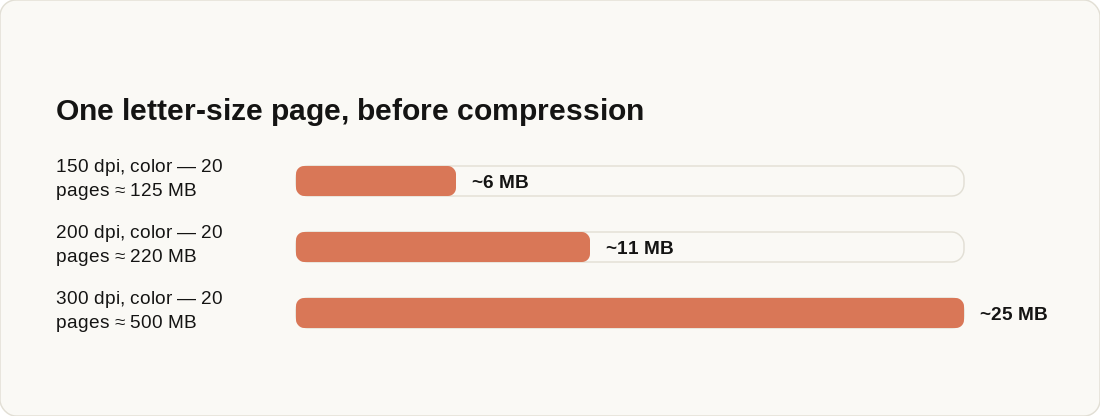
Here is what one letter-sized page (8.5 × 11 inches) costs at various scanner settings, before any compression:
- 300 dpi, color: 2550 × 3300 pixels. Three bytes per pixel for RGB color works out to about 25 MB per page. Twenty pages: roughly 500 MB.
- 200 dpi, color: 1700 × 2200 pixels, about 11 MB per page. Twenty pages: roughly 220 MB.
- 150 dpi, color: 1275 × 1650 pixels, about 6 MB per page. Twenty pages: roughly 125 MB.
Scanners never store pages uncompressed as raw RGB, of course; they apply JPEG, and a JPEG page at 300 dpi typically lands somewhere between 300 KB and 1.5 MB depending on the quality setting. That is how a 20-page scan ends up at 6 to 30 MB, which sounds fine until a government portal caps uploads at 5 MB, or a mail server rejects anything over 10.
Notice the pattern in those numbers: 300 dpi has 2.25 times as many pixels as 200 dpi, and four times as many as 150 dpi, even though 300 is only 1.5 or 2 times the linear figure. Pixels scale with the square of the dpi, which is why nudging the scanner from 200 to 300 dpi makes files more than twice as heavy while looking barely sharper on screen. It is also why "just scan at 600 dpi to be safe" produces files that will never fit in an email.
Compress first. Re-scan only if you must
When a scan is already sitting on your disk, compressing the file beats re-scanning on cost: it takes seconds, it works on the file you have, and modern image compression is lossy in ways you mostly can't see. The general industry approach (called MRC, for mixed raster content) splits each page into a background picture and a foreground text mask and compresses each separately, which is how serious scanners claim 10-to-50-fold reductions. You don't need the industrial version. Ordinary downsampling plus JPEG does most of the work.
In LivePDF, that's the Compress a PDF tool. The Reduce file size dialog offers three levels: Smallest file (pictures at 100 dpi), Balanced (150 dpi), and Higher quality (220 dpi). Pictures get re-encoded as JPEG at the chosen resolution; text, drawings, and form fields stay sharp, and undo brings the original back if you hate the result. For a typical 300 dpi scan, the Balanced level alone cuts the image data to a quarter of its pixel count before JPEG does any further work. One honest limit: this runs in your browser, on your device, so truly enormous files can hit tab memory, and exports cap at 100 MB.
When is re-scanning the right call? If the original scan is already low-resolution (under about 200 dpi) and the pages look soft, compressing will only make that worse, and no amount of upscaling recovers detail that was never captured. The Tesseract OCR project is blunt about this: image resolution below roughly 300 dpi is a leading cause of recognition errors, and enlarging a low-dpi image doesn't fix it. If OCR or legibility matters and the source pages are still in a drawer, scan again at 300 dpi. Otherwise compress and move on.
One side note: if the document also needs to be searchable, adding OCR adds an invisible text layer over the page images, and that text layer weighs almost nothing. Fix the size first, then run OCR; the order doesn't hurt anything, but compressing first means the OCR pass has fewer pixels to chew through.
When the portal just says no
Some portals enforce a hard per-file limit (5 MB and 10 MB are common) and no compression level gets a 60-page color scan under it at acceptable quality. You have two moves left.
The first is splitting. If the limit is per file rather than per submission, split the PDF into parts that each fit, and upload them in order. A 20-page scan at 12 MB divides cleanly into two 6 MB files, and most systems that accept multiple uploads don't care that one submission arrived as two documents. When they do care, compression is the only lever, so drop to the 100 dpi level and check whether the pages are still legible before submitting.
The second applies at the start of the workflow rather than the end: if you are the one creating the scan bundle, combine the pages thoughtfully instead of dumping everything into one file. The scan-to-PDF pipeline (scan, order pages, compress, then OCR) ends with a file sized on purpose rather than by accident, and it is much easier to compress a well-made 20-page scan than to explain a 40 MB rejection email to whoever is waiting on it.
Match the resolution to the purpose
The underlying mistake behind most oversized scans is treating scanner dpi as a quality moral, where higher is always better. It isn't. Resolution is a fit-for-purpose setting, and the right value depends on what happens to the file:
- 150 dpi for documents that will be filed, emailed, or read on a screen. Text is crisp on displays at this resolution, and the files are small enough to move around freely.
- 300 dpi for anything that might be printed, archived, or OCR'd. This is the standard for print quality and the threshold where OCR engines stop struggling, so it is worth the heavier file when the document has a future on paper or in a records system.
Because file size scales with the square of the dpi, choosing 150 instead of 300 for a filing-copy scan gives you the same document at roughly a quarter of the size. Choosing 600 "just in case" costs you sixteen times the pixels for a benefit no printer or screen can show. Scan at the resolution the purpose needs; compress the scans that were captured at more than they needed.
Sources and further reading
- Tesseract: improving OCR quality (image resolution and preprocessing)
- Foxit white paper: Not All PDF Compression Is Created Equal (MRC approach)
- Wikipedia: Mixed Raster Content (ITU-T T.44)
FAQ
Why is a scanned PDF so much bigger than a regular PDF?
A scanned page is a full-page photograph at scan resolution (often 300 dpi), while a text PDF stores the characters themselves. Twenty photo pages at 300 dpi start around 500 MB uncompressed; twenty pages of actual text are a few hundred kilobytes.
What DPI should I scan documents at?
150 dpi is fine for documents you will file, email, or read on a screen. 300 dpi is the right choice for anything you may print or archive long-term. Doubling the dpi roughly quadruples the pixel count, so scan at the resolution the purpose needs, not the maximum your scanner offers.
Does compressing a scanned PDF hurt text recognition?
Not if the scan is 300 dpi or better. Compressing downsamples the picture and the scan still clears the ~300 dpi threshold OCR engines want. If the original scan is already under 200 dpi, compressing can push legibility and OCR accuracy down, and re-scanning at 300 dpi is the better fix.