How to split a PDF: four strategies and when each wins
People who search "split PDF" are usually trying to solve one of four different problems, and a tool that solves one does a clumsy job of the other three. Cutting at chosen pages, at fixed intervals, at chapter boundaries, or under a size limit are distinct operations with distinct failure modes. This is a field guide to matching the strategy to the job, what a split actually does to links and bookmarks, and the one strategy whose output you cannot predict in advance.
Strategy 1: Split at chosen page ranges
You know which pages belong together: the financials section of a board pack, the first twelve pages of a report for the client, the appendix nobody outside audit should see. A range split cuts at explicit page numbers you list yourself, and every page lands in exactly one part.
This is the strategy for anything with human logic behind the boundaries. The downside is the same as the strength: you have to know the page numbers. If your reasoning is "pages 1–12 are the summary," a range split is perfect. If your reasoning is "wherever chapter 3 starts," you are really doing strategy 3 with extra manual labor.
Strategy 2: Split every N pages
Some documents have no internal structure worth respecting, and even chunks are all you need. Batch scans are the classic case: a stack of 180 pages scanned into one file that now has to go out as eighteen 10-page attachments, or into a system that accepts at most 20 pages per upload. An every-N split chops the document into equal groups: 10 and 10 and 10, remainder at the end.
The boundaries land wherever they land. That is fine for scans (each page is self-contained anyway) and wrong for anything with running text, where part 2 will start mid-sentence. If your starting point is actually a pile of separate documents that someone combined into one file, an even split is how you dish it back out.
Strategy 3: Split by bookmarks
Manuals, legal filings, theses, and anything with a real outline already have their structure declared: the bookmark tree names each section and points at its first page. A bookmark split reads that tree and cuts where the chapters begin, so every part is a section with its proper name.
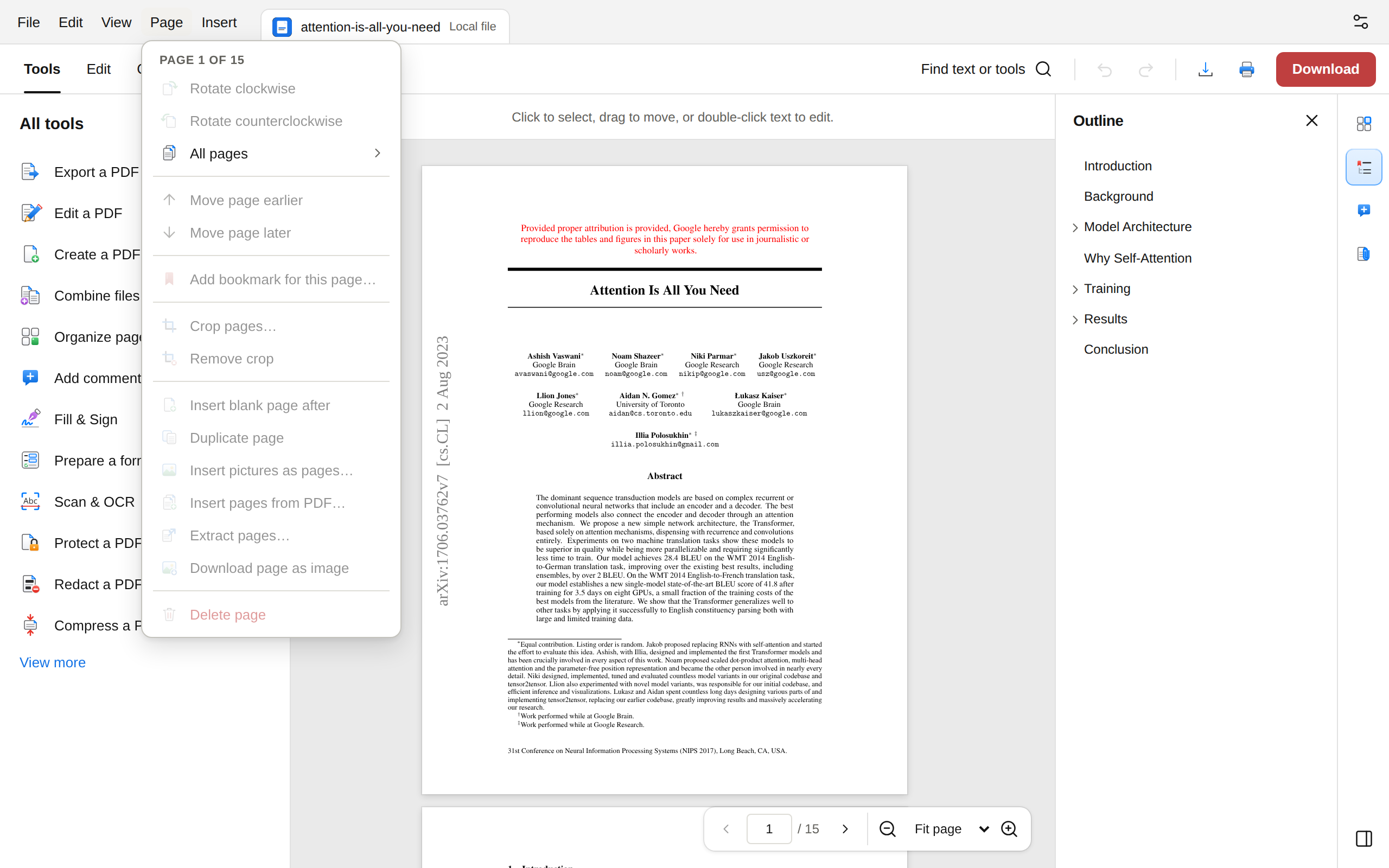
Command-line tools do this natively: cpdf -split-bookmarks splits "according to the page ranges implied by the document's bookmarks" and can even name each file after the bookmark text; pdftk users dump the bookmark page numbers and feed them to cat as ranges. In a browser tool without a dedicated bookmark mode, the same result is two minutes of work: open the outline panel, note the first page of each chapter, and use those numbers as a range split (exactly how this looks in LivePDF below). The precondition is honest: the document must actually have bookmarks. A scan with no outline has no structure to follow, and OCR alone won't invent chapters.
Strategy 4: Split by size
A 25 MB email limit or a 10 MB portal cap turns splitting into an arithmetic problem: divide the document into parts, each under the limit. Here is the caveat most guides skip: splitting is a page operation, but file size is not stored per page. A size split divides pages and hopes the bytes follow. Typically they do not follow neatly: the parts usually add up to about the same as the original, sometimes more, because each part carries its own copy of resources the pages share (more on that below).
So before splitting to hit a limit, ask which problem you actually have. If the goal is "smaller file," compression is the real tool; splitting only divides. If the goal is "each message under the cap," split into parts few enough to be safe, then check the actual size of each part before sending, because a page-count guess is exactly that: a guess.
How to split a PDF in LivePDF
Open the file, then File menu → Split PDF… (it also sits in the organize view under Whole document → Split PDF…). The same three modes are summarized on the Split PDF tool page. The dialog offers the three structural modes:
- Each page as its own PDF (N files): one file per page, for when parts must be single pages.
- Every [N]: pages per part, the even-chunks mode for scans and upload caps. The dialog shows its default suggestion; type your own number.
- New part before pages: the range mode. Type the page numbers where a new part begins, like
3, 7, and each becomes the first page of a part.
A live summary reads "N PDFs, downloaded together as a ZIP," and the Download ZIP button saves every part on your device in one archive named after the original file. The parts are capped at 500; beyond that the dialog tells you to choose more pages per part. One caveat printed right in the dialog deserves attention: form fields in the parts become fixed page content. A fillable 20-page form split into pieces stops being fillable, so complete forms first, split second.
For pulling a single set of pages rather than partitioning the whole document, extraction is the lighter tool: open the organize grid, select the thumbnails, and Extract pages saves exactly those pages as a new PDF. The whole grid, including selection tricks, is covered in organizing pages. Two honest limits: splitting needs the document to allow copying (a restricted file refuses, by design), and if you are running the same split across dozens of files, that is a batch job, and worth setting up as one.
What a split preserves, and what it breaks
The pages themselves travel well. A split copies the actual page objects, content streams, fonts, and images into new documents; nothing is re-rendered or screenshotted on the way past. A part looks exactly like those pages looked in the original.
What breaks is everything that pointed across the boundary:
- Internal links. A "see §4.2 on page 31" link is a pointer at a specific page object. If that page ended up in a different part, the link has nothing to point at and simply stops working. This is true of every splitter, not a quirk of one tool; it is how the format stores links.
- The bookmark outline. Outlines are document-level data, and a part is a new document. qpdf's own split discards outlines outright, and general-purpose splits follow the same pattern: pages come, furniture doesn't. Expect to re-add the two or three bookmarks each part actually needs.
- Form field linking. Fields sharing a name across pages (one "client name" filling every page) are document-level wiring. Splitting severs it; LivePDF is upfront that fields become fixed content in the parts.
The practical order that follows from all three: split first, then rebuild navigation inside each part. Adding bookmarks before splitting is donating work to the void.
Why splitting by size is the one unpredictable strategy
Here is the structural reason the size caveat exists, and it is worth internalizing if you ever size splits for a living. Three of the four strategies have fully predictable outputs: you know precisely which pages land in each part before clicking anything. Size is different, because in a PDF, file size does not live in the pages. It lives in shared resources: embedded fonts, images referenced by several pages, reusable content streams. A PDF is closer to a database of objects with pages pointing at them than to a stack of self-contained sheets.
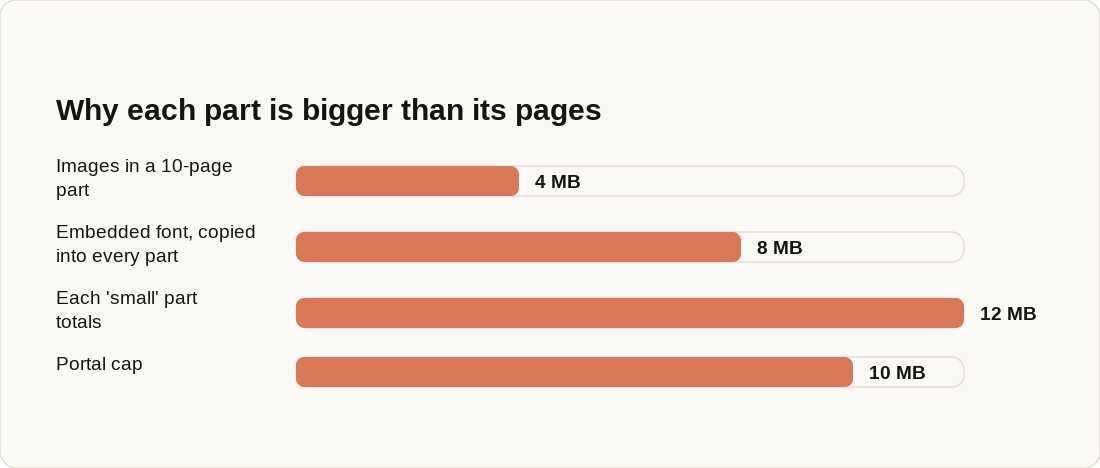
When you split, each part takes its own copy of every font its pages use. Our own source code carries a warning comment about exactly this: every part carries its own copy of the fonts and pictures its pages share, so a file far under the open limit can multiply many times over. Concretely: a 200-page manual set in one large embedded font, averaging 400 KB per page of images, is about 90 MB. Split it into twenty 10-page parts and each part is 10 pages of images (4 MB) plus the entire font, which every part needs. If that font is 8 MB, every "small" part is 12 MB, and a 10 MB portal cap rejects all twenty. The pages were 5% of the problem; the shared font was 95% of it.
No page count can warn you about this in advance, because the size of a part depends on which objects its pages share, not on how many pages it has. That is why the only reliable workflow for a hard size limit is: split by pages, measure the parts, and if they are still over, compress (downsample images, subset fonts) rather than splitting again, which just multiplies the shared overhead.
Choosing the strategy
Splitting is the inverse of merging, and the deciding question is the same from the other end: what does the recipient need as one unit? Chapters and sections call for ranges, scans for even chunks, structured documents for their bookmarks, and size limits for a split followed by a compression check. Cut where the logic of the document says to cut, and only rebuild what the cut actually broke.
Sources and further reading
- qpdf CLI manual: page selection and --split-pages, the note that document-level features are not preserved by splits
- pdftk Server manual, page range syntax,
cat, and bookmark-driven splits viadump_data - Coherent PDF (cpdf) manual: split by bookmarks — level-based bookmark splits and naming parts after bookmarks
Word count: 1,588
FAQ
Does splitting a PDF make the files smaller?
Not really. Splitting divides pages, not bytes: each part takes its own copy of every font and image its pages share, so the parts typically add up to roughly the original size, sometimes more. If the goal is a smaller file, compress it, with image downsampling. If the goal is getting under a per-message limit, split by pages and check the size of each part before sending.
What happens to bookmarks and internal links when I split a PDF?
The page content is copied intact, but anything that points across the cut is orphaned. An internal link whose target page ended up in a different part stops working, and the bookmark outline is document-level data that split parts generally do not inherit. Plan to rebuild the navigation you need inside each file.
How do I split a PDF into chapters?
Find the first page of each chapter using the bookmarks panel or by scrolling, then split at those page numbers. In LivePDF: File menu, Split PDF…, choose 'New part before pages', and enter the start pages (for example 13, 47, 92). Each chapter becomes its own PDF, delivered together in one ZIP.