How to merge PDF files (and what survives the merge)
To merge PDF files is to bind finished documents into one: a contract with its exhibits, chapters into a manuscript, a week of scans into a single archive. It is the most common PDF task there is, and it is also where a surprising amount of quiet breakage hides. The merge is easy; the document-level data around the pages is where tools differ.
What a merge actually does
Under the hood, a PDF is a page tree surrounded by document-level furniture: an outline (what you see in the bookmarks panel), named destinations, form fields, metadata. Merging grafts pages from the source documents into a new page tree. The pages travel faithfully. The furniture mostly does not, because it refers to pages as objects, and those objects were copied to new addresses. A tool that rewrites the references keeps the furniture working; a tool that copies annotations verbatim leaves a link on page 4 aimed at a page object that no longer exists in the new file.
The mental model that makes all of this predictable: a merged PDF is a container, and pages are copied, not converted. Merging does not re-render text or re-encode images. The fonts, vectors, and JPEGs on each page are carried into the new document as they are, which is why merging print-ready files yields a print-ready result, and why a merge never makes text fuzzy. Where tools actually differ is the non-page data: bookmarks, internal links, form fields, metadata. Page quality is safe by construction. Everything else deserves a look afterward.
How to merge PDFs in LivePDF
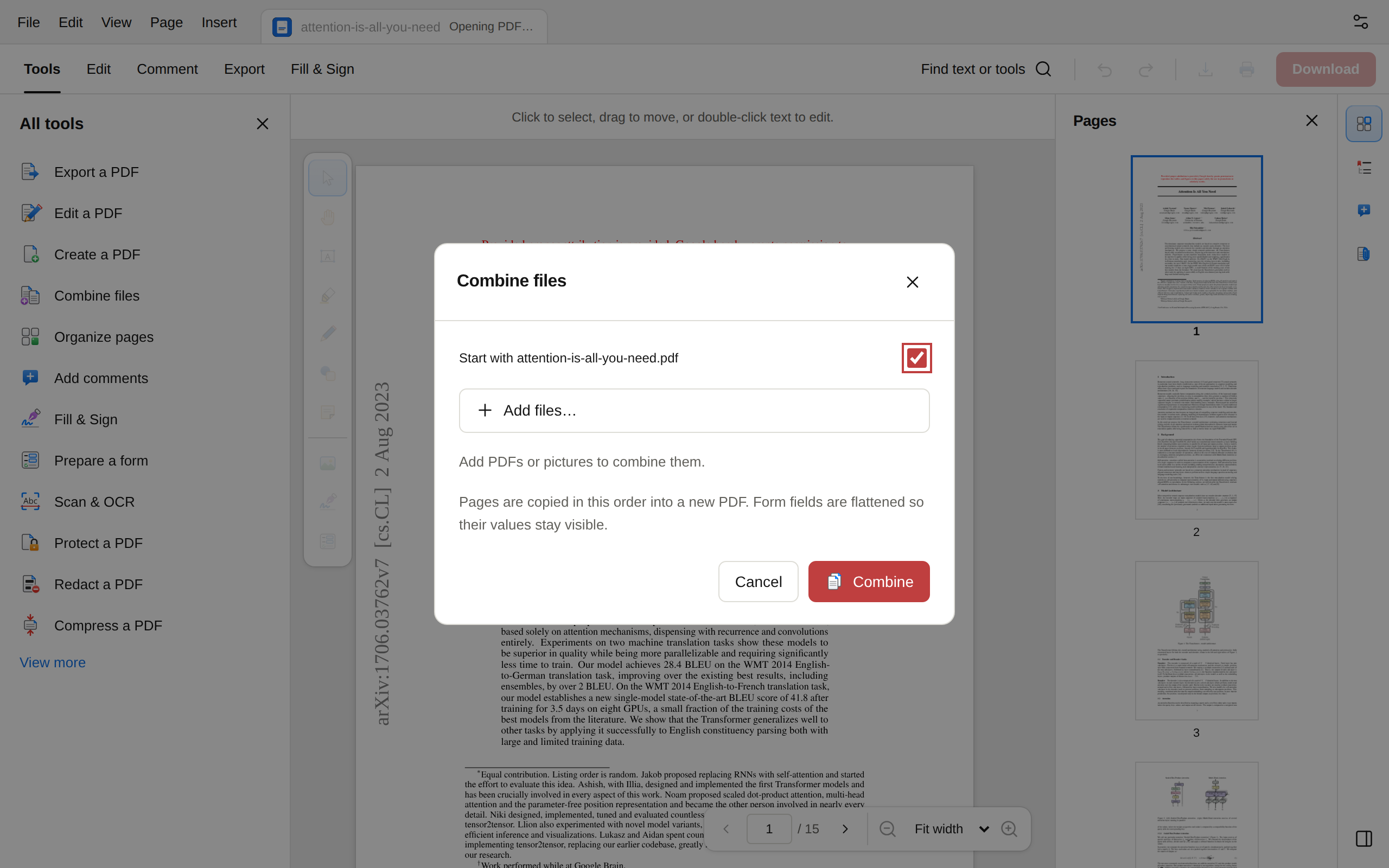
The whole flow, start to finish. If you want the short version first, the merge tool page has the bare steps; this walkthrough includes the quirks:
- Open one of the files. Any of them; it can go first.
- Run Combine files. The command sits in the Create & Edit group, and the command palette finds it if you type "merge".
- Set what goes first. The dialog opens with a checkbox offering to "Start with" the open file, ticked by default. Untick it if the open document is just the host and not part of the result.
- Add files. The "Add files…" button accepts PDFs and pictures (PNG or JPEG). Each PDF lists its page count; pictures show as Picture.
- Put them in order. Every row has Move up and Move down buttons, plus a remove button. The list order is the exact order the pages will appear in.
- Press Combine. It wants at least two files. The result opens as a new document, Combined.pdf, and nothing was uploaded anywhere: the whole thing runs in the browser.
The dialog states its own contract at the bottom: "Pages are copied in this order into a new PDF. Form fields are flattened so their values stay visible." It covers the two things that matter: the order is final at combine time, and filled-in form values survive as printed content rather than live fields.
Limits, for the record: PDFs up to 100 MB each, images up to 20 MB, and the combined document caps at 1,000 pages.
Two variants are worth knowing. To drop pages into a document you already have open, at a position you choose, use Insert pages instead; it asks which pages from the second file go where. And if your sources are scans and photos rather than born-digital PDFs, the scan combining guide covers rotation, blank-page removal, and where OCR fits relative to the merge.
What survives a merge, and what breaks
Page content survives, always. It's a container; the pages were copied, not converted. Fonts stay embedded, images keep their resolution, vectors stay vectors. There is no quality setting on a merge because there is no re-encoding step to hang one on.
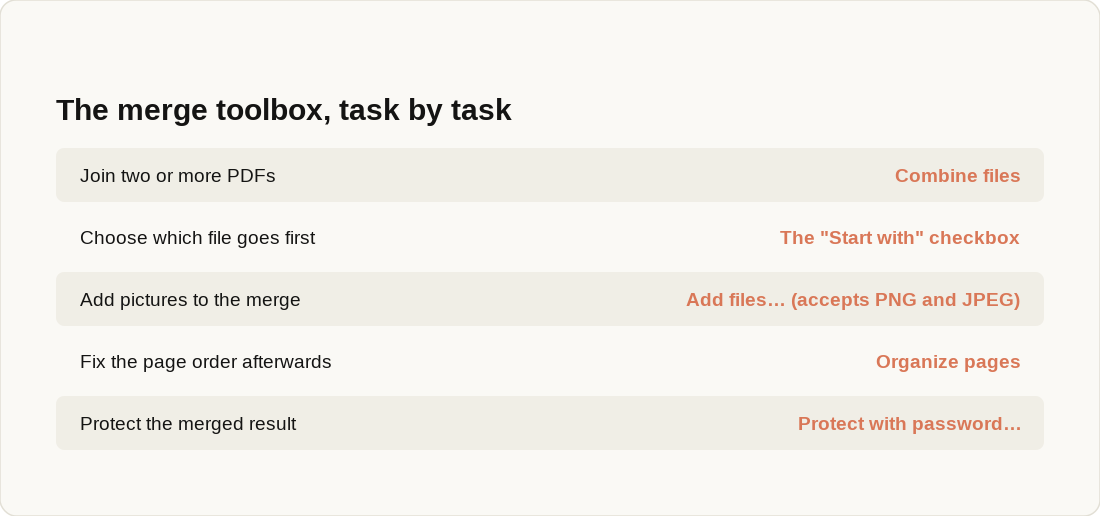
Bookmarks are the first casualty. They live in the outline tree at document level, and tools handle them three different ways. qpdf takes document-level data from the primary input only: merge A and B and you get A's outline, full stop. pdftk merges every input's bookmarks, but only if you specified no page ranges anywhere. pypdf imports outlines deliberately, with a flag to turn it off. None of these is a bug; the outline simply isn't part of any page, so it has no automatic right to travel. LivePDF's combine builds a fresh document from the pages, so source outlines don't come along. Plan on rebuilding the bookmark panel if the merged file needs one.
Internal links can detach. A "see section 7" jump is an annotation pointing at a page object in the source file. The pypdf maintainers document this as a standing failure class: copy the annotation without rewriting its target, and the link dies or lands somewhere misleading. LivePDF re-aims links on the pages you combine at the pages they land on, so a cross-reference that travels with its target keeps working. A link whose target page didn't make the trip has nothing to point at, and that one is yours to catch. This is the one check worth doing on any merged document with cross-references.
Form fields collide or flatten. Merge two PDFs that each have a field named "Signature" and one of the two becomes unreachable; the pypdf docs describe the name collision and its fix, renaming fields under a per-document prefix. LivePDF takes the other road, stated in the dialog itself: fields are flattened, values fixed onto the page. The tradeoff is honest: the merged file is no longer fillable. If the result needs live form fields, fill after combining, not before.
Merging password-protected PDFs
Two different passwords can protect a PDF, and they matter differently here. The qpdf manual puts it precisely: "Password protection is distinct from encryption." A file can carry encryption and restrictions with no open password at all. It opens for anyone, and its restrictions bind only software that chooses to honor them. Those files merge without ceremony.
A file with an open (user) password is the other case: the tool has to get past the password before it can read a single page, and no merge tool can supply a password it wasn't given. If you don't have the password, you don't have a merge.
In LivePDF, adding a protected file to the combine list prompts for its password on the spot. Restrictions are honored, not ignored: if a file's permissions forbid copying, you'll be asked for the owner password before it can join the list. That's the correct behavior, and when the file belongs to someone else it's also a prompt in the other sense: ask whether combining it is fine. The merged result is a fresh, unprotected document. If it needs protection, that's one extra pass.
Order matters more than people expect
The list's order is the final page order; "pages are copied in this order" is literal. Two habits prevent most redoing:
Beware filename sort. Add scan1, scan2, through scan10, and most file pickers sort scan10 right after scan1, before scan2. Pad the names (scan02, scan03) or fix it with Move up and Move down. With scanned sets, wrong sort order is the most common way a merge comes out wrong.
Reorder before, not after. Setting order in the list takes seconds. Fixing it later means opening the page organizer and dragging, fine for five pages, tedious for five hundred.
Two related cases: If you merge the same set of files on any kind of schedule, that's a batch job, not a repeated errand. And if you merged too much, taking the result back apart is the split guide's department.
A 60-second check before you send it
- Open the bookmarks panel; rebuild the top level if the sources' outlines didn't survive.
- Click two internal links, especially "see page X" cross-references near the seams.
- Confirm form values appear as printed text where expected.
- Spot-check the joints: last page of one source into the first page of the next.
Merging is safe where it counts (the pages) and uncertain only where tools make choices. Spend the minute on the furniture.
Sources and further reading
- pypdf: merging and appending PDFs, on link and outline preservation and form-name collisions
- qpdf manual: page selection, on document-level data coming from the primary input only
- qpdf manual: encryption, on the two-password model
- pdftk server manual, on bookmarks merging only when no page ranges are given
Word count: 1398
FAQ
Does merging PDF files reduce quality?
No. Merging copies pages into a new page tree; it does not re-render text or re-compress images. A merged page looks exactly like the page it came from. Quality only changes if you run a separate compression step.
Can I merge password-protected PDFs?
Only if you can open them. A file with an open (user) password has to be opened with that password first, and no merge tool can supply the password for you. Files with restrictions but no open password merge normally, though software that honors restrictions may ask for the owner password before copying.
Why did my bookmarks and links disappear after merging?
Bookmarks and internal links live outside the page tree, and every tool handles them differently. Some carry bookmarks over, some take them from the first file only, some drop them entirely. If your document has cross-references, click through them after merging.