Organize PDF pages: reorder, rotate, insert, delete
The fastest way to organize PDF pages is not to touch the pages at all. Reordering a document, turning a sideways scan upright, dropping in a blank sheet, or pulling two pages out as a separate file all work by rearranging the page tree and writing flags. The glyphs, images, embedded fonts and drawing operators inside each page are copied across exactly as they were. Organize PDF pages is the one class of PDF editing that never rebuilds content. Everything else, changing words, swapping pictures, removing a signature, is surgery on the inside of a page, and surgery can scar.
That difference is why this guide exists, and why page work belongs first in almost any cleanup job: it is the step where you cannot hurt the file, so do it before the steps that can.
This is the full map. What each of the six page operations does, where it lives in LivePDF, what it changes inside the file, and the order to use them in.
The full page-operation map
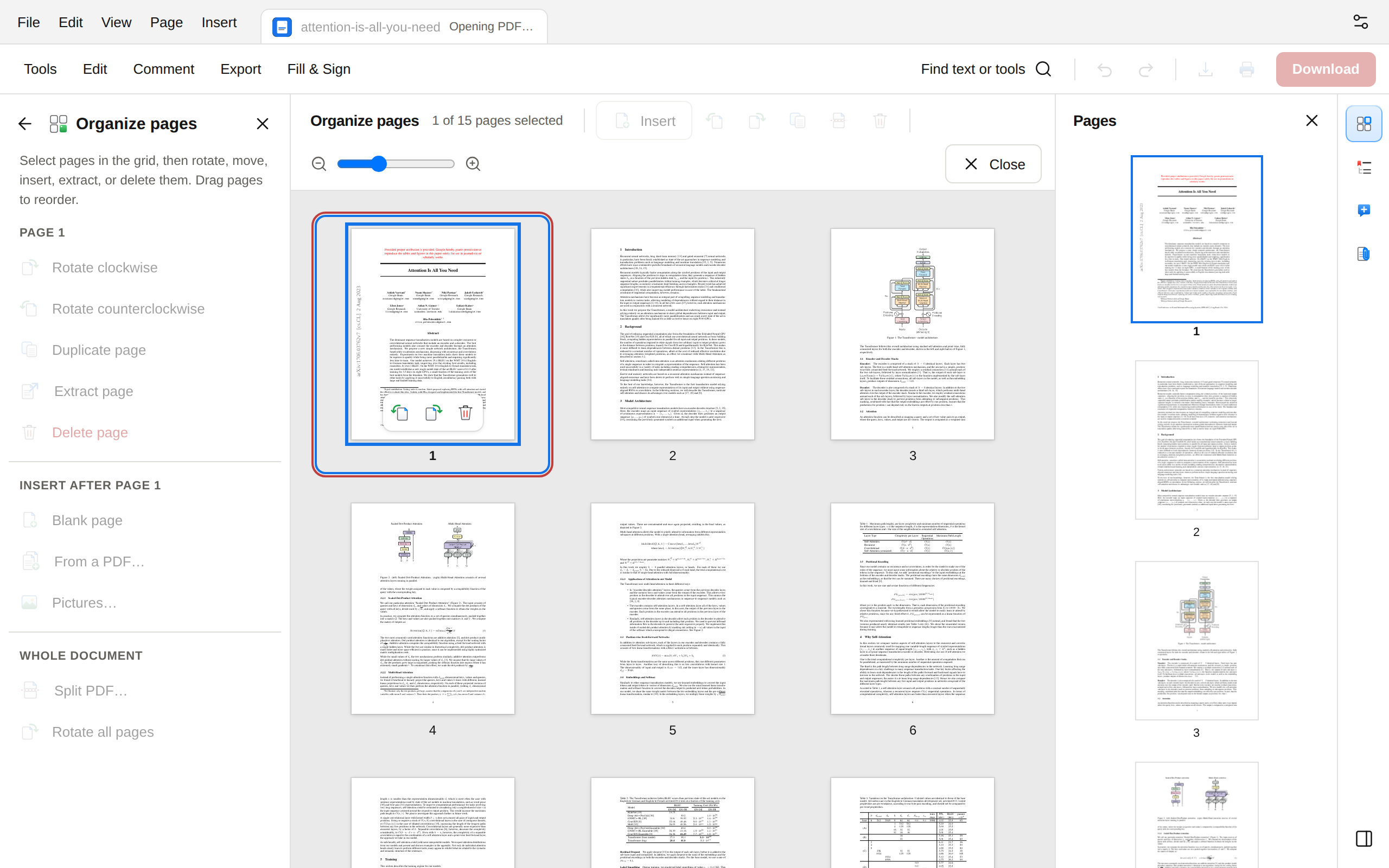
Every operation below lives in LivePDF's page organizer; here is what each one actually touches in the file:
| Operation | What actually changes | Where in LivePDF |
|---|---|---|
| Reorder | position of pages in the page tree | Organize pages grid; sidebar thumbnails |
| Rotate | one page's /Rotate value (0, 90, 180 or 270) |
Page menu; Organize toolbar; Ctrl / ⌘ Shift R |
| Duplicate | a copied page object inserted next to the original | Page menu, Duplicate page |
| Insert | new page objects (blank, from another PDF, from pictures) | Page menu; Organize Insert |
| Extract | chosen pages copied into a new document | Page menu; Organize toolbar |
| Delete | pages removed from the page tree | Page menu; Organize toolbar |
Six operations, one theme: none of them rewrites what is painted on a page. They move pointers and set numbers.
Reorder: drag thumbnails, shuffle pointers
There are two places to reorder in LivePDF, and they suit different jobs. The sidebar page thumbnails are for small moves: drag a thumbnail up or down to a new spot, and the document order follows. The Organize pages view is for everything else. It replaces the document with a grid of every page as a tile, and its own description says it plainly: "Select pages in the grid, then rotate, move, insert, extract, or delete them. Drag pages to reorder."
Selection is the part worth learning, because it is what turns six operations from one-at-a-time chores into batch work:
- Click a tile to select it.
- Hold
Ctrlor⌘and click to add or remove single pages from the selection. - Click one tile, then
Shift-click another to select the whole range between them. Ctrl / ⌘ Aselects every page. A status line counts it back: "4 of 12 pages selected".
Drag any selected tile and the whole group moves together into the gap you drop it on. Double-click a tile to open that page and leave the grid. Delete or Backspace removes the selection. In the file, a reorder changes the order of the children listed in the page tree, not the pages those entries point at. It is cheap, it is reversible with undo, and it never touches a byte of page content.
Rotate: one number per page
Rotation is the operation people most often misunderstand. Rotating a page in a PDF editor does not rotate an image. It writes a single number, the page's /Rotate value, which the spec defines as a multiple of 90 degrees applied when the page is displayed [ISO 32000-1, §7.7.3.3]. A page turned 90 degrees clockwise in the file is the same pixels as before, shown turned. Nothing is resampled, nothing is re-rendered, nothing gets fuzzy. That is the opposite of rescanning a page to get it the right way up.
In LivePDF, rotation is available from the Page menu and the Organize toolbar:
- Page > Rotate clockwise and Rotate counterclockwise turn the current page.
- Page > All pages holds Rotate all pages clockwise and Rotate all pages counterclockwise.
- The keyboard shortcut
Ctrl / ⌘ Shift Rrotates the current page clockwise. - In the Organize grid, each tile has its own rotate buttons, and the toolbar's Rotate clockwise / Rotate counterclockwise act on the whole selection.
Multi-page scans are the common case: one sheet fed in sideways, or a whole batch landscape when it should be portrait. Fix the selection at once, then reorder. There is more detail on the flag itself, and why it matters for anything later stamped onto a page, in the rotating PDF pages guide.
Duplicate and insert: adding pages that weren't there
Duplicating is what it sounds like, and surprisingly useful: a cover sheet that should head two sections, a form template you need three times. In the Page menu it is Duplicate page; the Organize toolbar's Duplicate pages acts on the selection. The copy lands next to its original, with content referenced rather than rebuilt.
Inserting adds pages that never existed in this document:
- Page > Insert blank page after adds an empty page at the current position. The Organize version, in its Insert menu, offers Blank page, From PDF file… and Pictures….
- Page > Insert pages from PDF… pulls pages in from another file at the current spot. This is the single-file version of combining documents, which gets its own treatment in the merge PDF files guide.
- Page > Insert pictures as pages… turns image files into pages, one picture per page, in the order you pick. That is the fast route for a photographed form or a single scanned sheet.
Every insert targets the selection: the Organize Insert menu names the spot for you as After page N, so batch inserts land where you mean them to.
Extract and delete: taking pages out
Extract is insert's mirror: it copies chosen pages into a brand-new PDF and leaves the original untouched. From the current page, Page > Extract pages… opens a dialog for the ranges you want. From a thumbnail's menu, Extract this page downloads that single page immediately. The Organize toolbar's Extract pages acts on whatever is selected. Page > Download page as image is the sibling command for when you want a picture of a page, not a PDF of one.
Delete removes pages from the document: Delete page in the Page menu, Delete pages in the Organize toolbar, the Delete key on a selected tile, or Ctrl / ⌘ Shift D for the current page. The last page cannot be deleted, and the command is drawn in red for a reason. If you are trimming a long report down, extracting the pages you want into a fresh file is often safer than deleting the ones you don't, because it leaves the original intact to compare against. There is a whole article's worth of nuance in what a deletion does to the pages around it, over in deleting pages from a PDF, and the range-based version of the same job is splitting a PDF.
What a page operation really rewrites in the file
Here is the file-level truth.
A PDF is a tree of page objects. Each page object points at a content stream (the operators that paint the glyphs and images) plus its resources and its flags, of which /Rotate is one [ISO 32000-1, §7.7.3]. When you reorder pages, the tool changes the order of entries in the page tree. When you rotate, it changes one number. When you duplicate, insert or extract, it copies page objects and adds or moves entries. In every case the content streams themselves are carried over unchanged. There is no re-encoding step, so there is nothing to degrade.
The fragile part is not the content. It is the references.
A surprising number of things in a PDF are defined relative to a page: the outline (bookmarks), internal /Dest links that jump from one page to another, named destinations, and the order of form fields. Move pages around and those references can end up aimed at the wrong place. This is a known failure class in PDF tooling. The pypdf project has a long-running discussion of exactly this, where copying pages verbatim leaves internal link destinations pointing at the old page object [pypdf issue #3290]. The qpdf documentation is equally blunt about a related rule: when you select pages, document-level data such as outlines travels with the primary input, and bookmarks that point at pages you left out simply stop working [qpdf manual, page selection].
So the accurate claim is narrower than "organizing is totally safe." The content is lossless; the references are what can drift, depending on whether the tool rewrites them. That is why a big reorder deserves a glance at your bookmark panel afterwards, and why keeping the original is not paranoia.
Why page work goes first (and content work second)
Put the two facts together and you get the reason this is the first step of any cleanup job.
Page operations do not rewrite content, so they cannot make your file worse. Content operations do rewrite content. Cropping sets a clipping rectangle, and the trimmed-away pixels are still in the file see the crop vs resize vs scale distinction in the crop PDF guide. Compressing a scan re-encodes its images, and a JPEG squeezed twice looks worse than the same JPEG squeezed once. Editing text rewrites glyph runs and can fail on unusual encodings.
Each content step is easier to judge against a file already in its final shape. If three blanks are coming out and two pages are swapping places, do that first. A compressor that only sees the pages you want has less to destroy. OCR run before heavy downsampling reads cleaner glyphs and should run on the finished order anyway. For a scanned batch the order is the same: get the pages in order, merge, recognize text, compress once at the end.
The insight, stated plainly: page operations are the only PDF edits that are genuinely lossless and structure-safe, which makes them the correct first move for every cleanup, before anything touches content. Reorder the sheets, fix rotation, drop the blanks, extract what doesn't belong, then edit what is on the pages.
A short workflow
- Keep the original file. Undo covers this session; a saved copy does not remember its old order.
- Open the PDF and enter Organize pages.
- Reorder first, dragging tiles or selections into place.
- Rotate anything that arrived sideways, as a selection if there are several.
- Delete or extract the pages that don't belong.
- Insert the blanks or imported pages you need, into their final positions.
- Save a copy, then open the outline and click through a couple of internal links to confirm nothing drifted.
- If a step looked wrong,
Ctrl / ⌘ Zundoes it, andCtrl / ⌘ Shift Zputs it back.
What organizing does not do
It is just as useful to know the edges. Organizing does not change page size or scale content; that is cropping or resizing. It does not join two documents into one file, which is merging. It does not split a document by a rule such as every ten pages, which is splitting. And it does not repair a bookmark or a link that was already broken before you started. Each of those is its own operation, and each is safer run after the page order is settled.
Sources and further reading
- ISO 32000-1:2008 (PDF 1.7), page tree and the /Rotate entry
- qpdf manual: page selection and document-level data
- pypdf issue #3290: internal link destinations after copying pages
Word count: 1958
FAQ
Does organizing pages reduce quality?
No. Reordering, rotating, duplicating, inserting and deleting pages rearrange the page tree and its flags. They do not re-encode page content, so text stays text and images keep their original bytes.
Can I bring back the original page order after saving?
Only from the copy you started with. Undo (Ctrl/Cmd Z) covers the current session, but a saved PDF does not record the order it used to be in. Keep the original file until you're sure.
Will moving pages break bookmarks and internal links?
It can. Bookmarks, link targets and form-field order are page-relative references. A tool that rewrites them keeps the jumps working; a plain page shuffle may leave some pointing at the wrong page, so check your outline after a big reorder.