How to Delete Pages From a PDF (and What Breaks)
Three situations bring people to delete pages from a PDF. The scanner double-fed, and pages 9, 14, and 22 came out blank. Page 6 of the packet has last quarter's salary numbers on it, and the packet is about to leave the building. Or the contract still carries the version-2 schedule from two drafts ago, bound right next to the version-4 one.
All three get the same fix, and it is the rare PDF job that is genuinely easy. Deleting a page doesn't touch any other page: text doesn't re-flow, layouts don't shift, nothing gets re-encoded. Compared with editing text in a PDF (surgery on individually positioned glyphs), deleting a page is a paperwork exercise. The complications live elsewhere: in what quietly breaks, and in the difference between deleting a page and erasing it.
The blank pages your scanner gave you
Feeders double-feed. A sticky note over the glass produces an empty page. A page grid is the right tool: every page as a thumbnail, blanks instantly visible, select, delete, done. Two things worth knowing first.
First, the surviving pages don't move their content. Unlike a word processor, a PDF never re-flows: the text on old page 10 does not shift up to fill the space left by deleted page 9. A footer that says "Page 4 of 24" is ink on the page; deleting pages doesn't rewrite it, so a document with stamped numbers will now lie about them. Re-stamp the page numbers after deleting if that matters.
Second, file size follows content, not page count. Deleting blank pages from a scan shrinks the file by roughly those pages' share of the images; deleting pages from a text report saves less than you'd guess, because one embedded font often serves every page and stays.
If this is a weekly event, treat it as a batch job instead of a series of one-off jobs.
The page that shouldn't leave the building
The instinct here, stripping the salary page before the packet goes out, is correct, with one caveat: deletion is forward-looking. It removes the page from this file going forward, and says nothing about the copy in your email drafts folder, the version a colleague already forwarded, or earlier revisions of the file itself (more on that below).
There's often a cleaner move. If the recipient needs pages 1 through 5 out of a 30-page packet, don't delete 25 pages; extract the five you want into a brand-new file. The split guide covers the strategies; the result is smaller, has no history, and leaves nothing behind to leak.
The superseded page
The third case is version skew, usually self-inflicted by the merging workflow: a packet assembled from several authors' documents, where one source got revised after the packet went around, and now page 14 contradicts the document it came from.
The fix is delete plus insert: remove the stale pages, then insert the fresh ones at the same spot; the page organization grid handles both halves. If the whole packet needs reassembling from updated sources, that's a merge job, and it's worth knowing how bookmarks and links behave when files combine.
How to delete pages in LivePDF
Everything runs in the browser tab; the file never leaves your machine.
- Open the PDF at livepdf.app. No account, no upload.
- Run Organize pages (in the Create & Edit group). You get a grid showing every page in the document.
- Click the pages you want gone. Multi-select works, and the panel title tells you where you stand: "Page 7" or "3 pages".
- Click Delete page (the label reads Delete pages when several are selected). One confirmation dialog.
- Changed your mind? Ctrl+Z undoes it while the document is open.
One deliberate limit: the delete button disables when your selection covers every page. A PDF with zero pages isn't a document, so the tool refuses to make one.
The confirmation dialog is honest about side effects. For a single page it says: "Remove page 7? Bookmarks and links to it will go to the next page. You can undo this while the PDF is open." That second sentence is the tool telling you exactly what's about to break.
What breaks when a page goes
Not the visible content on other pages; those are untouched. What breaks is the wiring between pages.
Bookmarks. A PDF's outline is a list of destinations, and each destination points at a specific page object. The qpdf manual states the consequence plainly: bookmarks that point to pages still in the output keep working, and the rest don't. Some tools leave dead bookmarks behind; LivePDF retargets them to a neighboring page, which is what the dialog is telling you. Retargeting is usually what you want, but a bookmark that used to land on the deleted appendix now lands somewhere adjacent; worth a spot-check in documents with deep navigation.
Internal links. Same mechanism, smaller scale. A link inside the text ("see the schedule on page 12") carries a destination; delete page 12 and it points at nothing, or gets nudged to a neighbor like the bookmarks do. External URLs on surviving pages are unaffected.
Form fields. The subtle one. Fillable-form fields are declared at the document level, but each field appears on specific pages. Delete a page and its field appearances go with it, while the field definition itself may survive, so a form can end up with a field that has no visible presence on any page. Fields that repeat across pages under one name (a signature line on every copy of a contract, say) partially lose their appearances. PDF libraries have documented exactly this failure class.
Named destinations. Documents that use named targets (common in publishing and CAD exports) can dangle the same way; if other systems link into your PDF by name, test one afterwards.
Deleting is not erasing
Two limitations before you handle anything confidential.
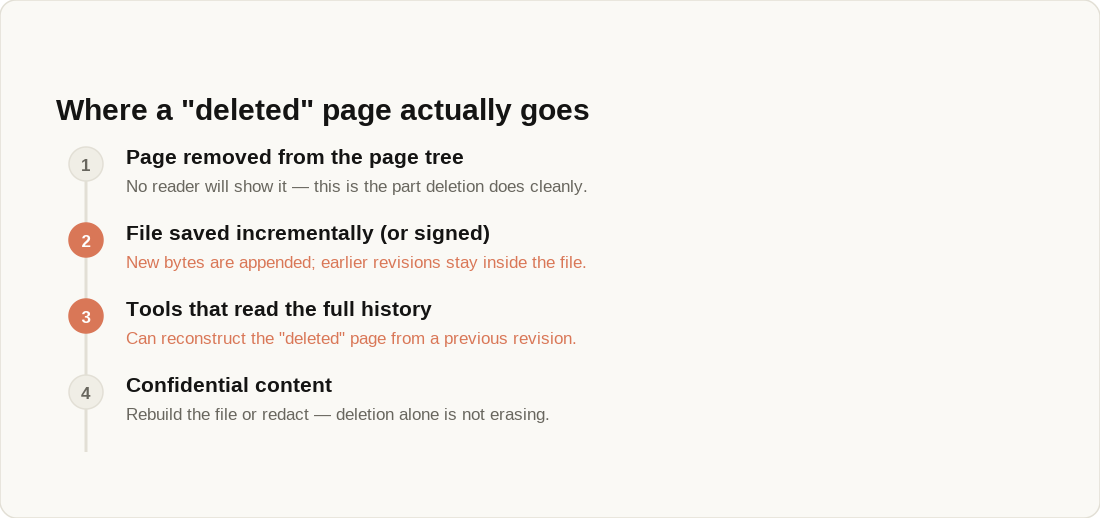
First, the file itself may remember. PDFs are sometimes saved incrementally (new bytes appended rather than the file rewritten), and digitally signed documents must be saved this way. Earlier revisions remain inside the bytes, and a deleted page can still be recoverable from a previous revision by tools that read the full history.
Second, the copies don't care: your backups, your email outbox, the sync service's version history, and every recipient who already has the file are outside the reach of any edit. Deletion changes this file, now.
So for genuinely sensitive content, deleting a page is not the security step. The security steps are: extract the pages you actually want to share into a fresh file, or redact the content within pages. Real redaction removes the text or image underneath; a box painted over it is how redaction scandals happen. If the goal is "this content must not exist in the file the recipient gets," don't delete pages from a file that contains it. Build a new file that never contained it.
The one operation PDF does cleanly
Here's what makes deletion special, and it's not obvious from the outside: a PDF stores its pages in a tree, and deleting a page is a tree operation. You detach a node and drop the references to it. No content stream is rewritten, no font gets re-embedded, no glyph moves. Every surviving page keeps its exact bytes.
That's why deleting a page from an 800-page file is instant, and why, when a page is broken (a corrupt content stream, mangled fonts, a viewer that crashes on page 4), the winning move is usually delete-then-rebuild, not repair-in-place. Delete the broken page, rebuild it clean from the source document or a rescan, and insert the replacement where the old one sat. Repairing in place means fighting the format's internals; deleting and replacing works with them, because deletion is the one operation the format does both instantly and losslessly.
FAQ
How do I delete pages from a PDF for free?
Open the PDF in LivePDF, run Organize pages, select the pages in the grid, and click Delete page or Delete pages. It runs entirely in your browser: no upload, no account, no install.
Why can't I delete every page in a PDF?
A PDF has to contain at least one page, so the delete button disables when your selection covers all of them. The document needs a survivor; delete down to the pages you actually want.
Does deleting a page remove its content from the file?
It removes the page from the document, but not necessarily from the file's history. Incrementally saved PDFs can retain earlier revisions, and copies already emailed or backed up are untouched. For sensitive content, extract the pages you need into a new file or redact properly.
Sources and further reading
- qpdf manual: page selection (bookmark survival behavior)
- ISO 32000-1:2008 (PDF 1.7 spec), section 7.7.3: the page tree
- pypdf issue #1753: shared form field names dropped during page operations
FAQ
How do I delete pages from a PDF for free?
Open the PDF in LivePDF, run Organize pages, select the pages in the grid, and click Delete page or Delete pages. It runs entirely in your browser: no upload, no account, no install.
Why can't I delete every page in a PDF?
A PDF has to contain at least one page, so the delete button disables when your selection covers all of them. The document needs a survivor; delete down to the pages you actually want.
Does deleting a page remove its content from the file?
It removes the page from the document, but not necessarily from the file's history. Incrementally saved PDFs can retain earlier revisions, and copies already emailed or backed up are untouched. For sensitive content, extract the pages you need into a new file or redact properly.