How to batch process PDFs (and when a script wins)
Fifty PDFs land on your desk and every one of them needs the same three things: rotate, stamp page numbers, compress. At this point the question stops being which tool and becomes which interface. Nearly every PDF tool on earth handles one file at a time. To batch process PDFs, the tool matters less than the shape of the job: are the steps identical for every file, or does each file need its own judgment?
Same steps, many files: decide the interface first
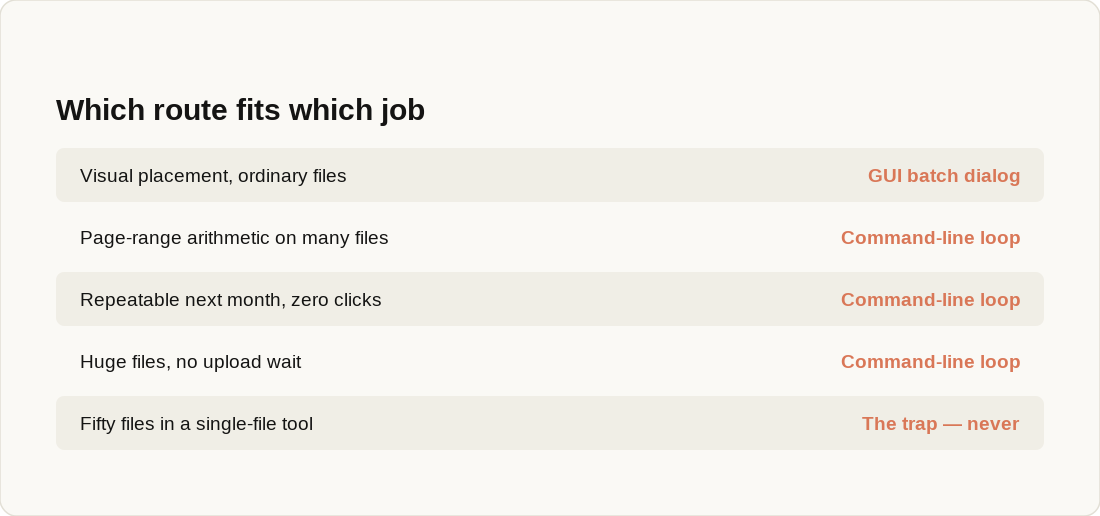
If the answer is "the same steps for every file," you have two good options and one trap. The options are a GUI with a batch feature, or a command-line loop. The trap is doing fifty round trips through a single-file tool, which is how a mistake in step two gets applied forty-nine more times before anyone notices.
A GUI batch wins when the operations are visual (you want to see where the watermark lands) and the files are ordinary. A loop wins when the operation is page-range arithmetic, when you want the job repeatable next month with zero clicks, or when the files are huge and you'd rather script than wait on an upload.
If each file needs different steps (this one split at chapter 3, that one cropped), no batch interface helps; you're doing per-file work no matter what. Nothing below applies.
The CLI route: a loop, not a ceremony
The whole skill is one shell pattern: for every file, run a command, write a new file. Here is the classic qpdf version, which pulls pages 1–5 into one output and everything after into another, for every matching file:
for f in REQ*.pdf; do
  qpdf "$f" --pages . 1-5 -- "${f%.pdf}-inv.pdf"
  qpdf "$f" --pages . 6-z -- "${f%.pdf}-rec.pdf"
done
Merging a whole directory is a single call, no loop needed, because qpdf accepts a list of files:
qpdf --empty --pages *.pdf -- combined.pdf
pdftk does the same kind of thing; brace expansion builds the argument list for free:
pdftk chapter{1..12}.pdf cat output book.pdf
Three gotchas that show up in every forum thread about these loops:
- Never write
for f in $(ls *.pdf). The command substitution word-splits on spaces, sofinal version.pdfbecomes two broken filenames. Use the glob directly (for f in *.pdf), and quote"$f"everywhere. - Very large batches can hit the shell's argument limit ("argument list too long"). Build the list with a loop instead of a wildcard if you're in the tens of thousands of files.
- Alphabetical order is not numeric order. In a merge,
scan10.pdfsorts beforescan2.pdf. Pad with zeros or sort explicitly.
The qpdf manual documents the page-range syntax (r1 counts from the end, 1-10,x3-4 excludes pages 3–4, :odd and :even pick positions), and the pdftk man page covers its cat and shuffle operations. One structural warning: splitting with --split-pages does not carry document-level features like bookmarks into the parts, so if your outlines matter, check the splitting guide before trusting any one-command splitter.
The GUI route: one dialog, one ZIP
If scripting is not your thing, or you simply want to watch it happen, LivePDF has a Batch process command in the command palette ("Find text or tools"). The dialog says exactly what it does: "Apply the same steps to several PDFs. The results download together."
You add files, and optionally include the document you already have open, then tick steps from a fixed list of nine:
- Rotate all pages
- Add a watermark
- Add page numbers
- Add Bates numbers
- Flatten form fields and comments
- Remove hidden information
- Recognize text (OCR)
- Reduce file size
- Protect with a password
Each step has its own setting: the watermark text (prefilled with CONFIDENTIAL), the page-number format, a Bates prefix, the compression level, the password. The steps run in that fixed order, each file passing through all of them before the next file starts. A progress line names the current file and step, and you can cancel mid-run.
A few details are worth knowing because they're the ones a per-file workflow can't give you. Bates numbering continues from one file to the next, so a fifty-document set numbers itself in sequence instead of restarting at 1 each time. Page numbers land bottom-center; Bates numbers bottom-right, six digits. Protection is applied last, after all other steps have done their work. Each successful file comes back named like the original with "processed" appended, and the whole set downloads as one Processed PDFs.zip. Files are capped at 100 MB each, everything runs locally in the browser, and OCR is English-only.
What it deliberately doesn't do: split or merge inside the batch. Those are separate jobs (merging is its own command, and splitting strategies deserve their own decision). A batch is for identical steps, and those aren't.
Run the batch on your three weirdest files first
The habit that saves the most rework: batches fail on the first odd file, not the first file. Your forty-seven normal invoices will process identically every time. The failure modes hide in the odd ones, and every batch system has the same blind spot: it happily applies your steps to garbage until the garbage trips it.
So before running fifty, pick the three files most likely to misbehave and run the batch on those:
- The password-protected one. LivePDF reports it ("This PDF is password protected; open it to process it.") and moves on; a shell loop will often just die on it mid-run.
- The sideways or mixed-orientation scan. "Rotate all pages" does exactly what it says, so a file that's already half-rotated comes out worse.
- The one with handwriting or a fax-quality copy. OCR on that is where the time goes, and the result may not be worth it.
If your three monsters come through clean, the other forty-seven are a formality. If something breaks, you found out in two minutes instead of after downloading a ZIP of fifty files with one wrong watermark stamped across all of them, because that's the second property of batches: they multiply mistakes with perfect democracy. An error that would have ruined one file ruins all of them.
The risk register
Two things go wrong in batch work, and both are organizational rather than technical.
One bad file. Know your tool's failure mode before you need it. LivePDF's behavior is: a file that fails gets reported at the end, the successful ones still download. A shell loop keeps running too by default, but a failed qpdf writes no output file at all, so "missing output" is your only error signal. Add || echo "FAILED: $f" to each line in the loop so the failures print at the end.
Output organization. The default <name> processed.pdf naming keeps results identifiable, but fifty files named invoice processed.pdf, invoice (2) processed.pdf... defeats itself. For scripts, write outputs into a separate directory (mkdir -p out then "out/${f%.pdf}-inv.pdf") so a re-run can never clobber an original. Never write a batch's output over its input, under any tool, ever; the input is your only rollback.
And one note that belongs to both risks: page numbers, stamps, and Bates marks are placement decisions worth getting right once, and the stamping guide covers the tokens and positioning. Compression, if it's part of your batch, runs last: every step that removes data before it leaves the compressor less to work with, and the mechanics are in the compression guide.
The short version
Fifty files, identical steps: pick an interface, not a tool. A four-line shell loop if you're comfortable in a terminal, a batch dialog if you're not. Either way, rehearse on your three weirdest files, keep outputs separate from inputs, and let the machine do the other forty-seven while you check the first three.
FAQ
What does it mean to batch process PDFs?
Applying the same list of steps (rotate, watermark, page numbers, compression, and so on) to many files in one run, instead of opening each file and repeating the clicks. The two standard interfaces are a GUI with a batch feature or a command-line loop.
Can I batch process PDFs without installing anything?
Yes. LivePDF's Batch process command runs entirely in your browser: pick your files, check the steps, and the results download together as a ZIP. Files up to 100 MB each, nothing uploaded to a server.
How do I merge every PDF in a folder from the command line?
With qpdf: `qpdf --empty --pages *.pdf -- combined.pdf`. The shell expands the wildcard in alphabetical order, so pad your filenames with zeros (scan02, scan10) or the sort will put scan10 before scan2.