Blog › Privacy & local processing
How to compress a PDF (and what actually makes it big)
A 40 MB PDF is not one big thing. It is a container holding dozens of independently compressed parts: image bitmaps, embedded fonts, page content, metadata, bookmarks, and the bookkeeping that lets a viewer find them all. So the useful answer to "how do I compress PDF files" is not a single button. It is knowing which part is heavy, because each part answers to a different lever. This piece covers what's inside the bytes, which lever cuts what, and how to decide what may degrade before you see the result.
What's inside the bytes
Weigh a typical bloated PDF and the mass concentrates in a few places:
Image bitmaps. Scans and photos are stored as pixel grids, and resolution is the driver. A 300-dpi color scan of an A4 page works out to roughly 2,480 × 3,508 pixels, which is about 26 MB per page before any compression. Even after JPEG encoding, images dominate most oversized files.
Embedded fonts. A PDF carries its own glyphs so it renders identically on machines that don't have the fonts installed. That's the right call for fidelity, but full fonts add real weight, and fonts for Chinese, Japanese, or Korean text can run to tens of megabytes. Merged documents are repeat offenders: combine ten files that all use the same typeface and you can end up with ten embedded copies of it.
Structure and leftovers. Bookkeeping objects, embedded page thumbnails, embedded search indexes, alternate screen-and-print versions of the same image, private data written by the authoring application, and objects that nothing references anymore. Editors leave such debris behind when they modify a file, and it silently accumulates.
Uncompressed streams. Anything stored without a compression filter sits at full size. Older exports and some generators are prone to this; the content is perfectly compressible, nobody bothered.
The levers, and what each one cuts
Lever 1: image downsampling and recompression. This is almost always the big one, and it's really two operations. Downsampling lowers the pixel resolution; recompression changes how the pixels are stored. Adobe's own optimizer documentation is candid about the cost: compression "removes some pixel data permanently." Codec choice matters as much as resolution: JPEG suits photographs, lossless Flate suits flat-color illustrations, and 1-bit bi-level encodings suit pure black-and-white scans. Get the codec wrong and a crisp screenshot turns fuzzy.
Lever 2: font subsetting. Embedding only the glyphs a document actually uses (a subset) shrinks the font payload dramatically; unembedding standard fonts and letting the viewer substitute removes it entirely, at the cost of guaranteed appearance. CJK documents benefit most. The trade-off is real: a subset can't render characters that were never embedded, which is why typed text sometimes falls back to a substitute font in edited PDFs.
Lever 3: object streams. Since PDF 1.5, the hundreds of small bookkeeping objects in a typical file can be packed into compressed streams instead of stored one by one. Tools like qpdf expose this directly (--object-streams=generate). The win is modest for image-heavy files and real for text-heavy ones.
Lever 4: structural cleanup. Discard page thumbnails, embedded print settings, search indexes, alternate images, private application data, and unreferenced objects. These rarely change appearance and are the safest bytes you'll ever cut.
One thing that is not a size lever: linearization, sometimes sold as "web optimization" or "fast web view." It reorders a file so the first page can display while the rest streams in. It changes time-to-first-page, not file size. Anyone promising smaller files via linearization is selling a faster download, not a lighter one.
Command-line users get all of this bundled in Ghostscript's /screen, /ebook, /printer, and /prepress presets, which set downsampling thresholds and JPEG quality in one flag. They're a fine reference point for what "low, medium, high" should mean.
The resolution math in plain terms
Effective resolution is pixel dimensions divided by display size. A 2,480-pixel-wide image printed on A4 (8.27 inches) is 300 dpi; the same image shown full-width on a laptop counts as far more than you need.
Working targets:
- 150 dpi for anything read on a screen. Text stays legible well below this on typical monitors.
- 300 dpi for print. Below that, printed text and line edges visibly soften.
- 600 dpi only for fine detail work and as OCR input.
The gain lives in the square: downsampling a scan from 600 to 150 dpi divides the pixel count by 16. That single operation usually dwarfs everything else you can do to the file. The rule of thumb that follows: shrink each image to the largest size it's actually displayed at, and not a pixel more.
A walkthrough: Reduce file size in LivePDF
The compression tool page holds the short version of this. The walkthrough below is the full pass, including the judgment calls:
LivePDF's compression runs entirely in your browser, so the file never leaves your device; there's no upload wait and no copy on someone's server. The home screen offers Compress a PDF, described as "Make the file smaller by shrinking its pictures," and inside a document the same tool lives in the menu as Reduce file size….
The dialog states what it does: "Pictures are shrunk to the chosen resolution and saved as JPEG; text, drawings, and form fields stay sharp, and leftovers from earlier edits are removed. Undo brings the original back." Three settings are offered:
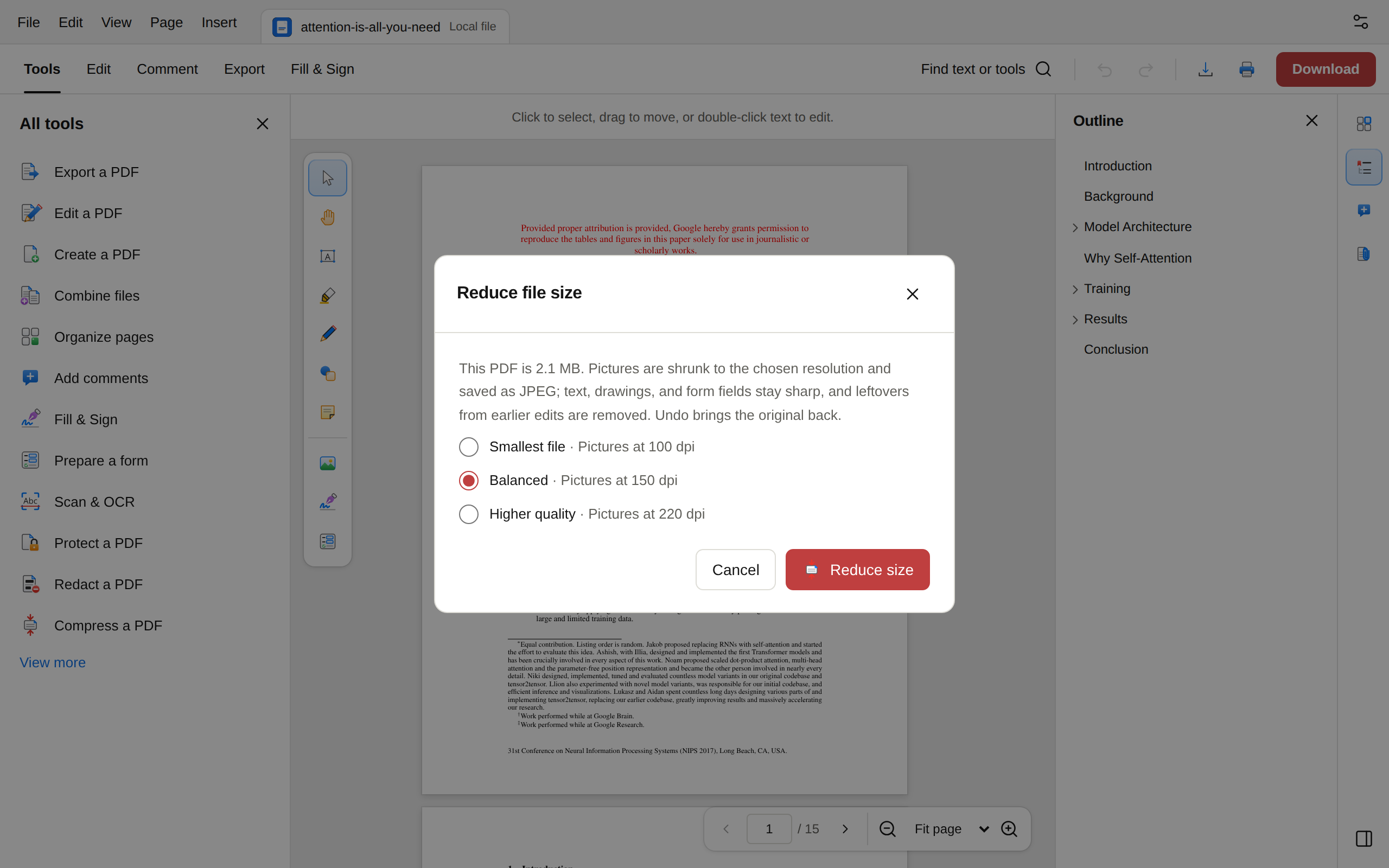
- Smallest file · Pictures at 100 dpi
- Balanced · Pictures at 150 dpi (the default)
- Higher quality · Pictures at 220 dpi
The mapping to the levers above is honest. Pictures are measured at the size they're actually displayed on the page, and anything already at or below the chosen resolution is left alone, as are tiny images and 1-bit scans. A replacement is kept only when it saves at least 10% of that image's bytes. Alongside the image work, the tool deflates uncompressed streams, strips page thumbnails, and drops objects nothing references anymore. When it finishes, a toast reports your actual before-and-after sizes; nothing is estimated.
Two behaviors worth calling out because most tools hide them. First, if the file doesn't get at least 1% smaller, LivePDF says so ("This PDF is already as small as it gets here.") instead of handing you a near-identical copy. Second, note that even the highest setting tops out at 220 dpi, under the 300-dpi print floor. For a print-bound document, use the highest setting, check a test page, and keep the original.
What it can't fix
The limits, same as any tool:
- Already-compressed files barely move. JPEGs at or below the target resolution are left exactly as they are; a file of those has almost nothing for the tool to do.
- Text-only PDFs barely shrink. With no pictures, the gains cap at stream deflation and cleanup, often single-digit percentages. If a "report" is huge and mostly text, its weight is in fonts or something embedded, not in pixels.
- Fonts are not subsetted or unembedded. A bloated CJK font payload survives compression intact.
- No object-stream generation. Structure gets deflated but isn't repacked the way qpdf does it.
- JPEG is the wrong codec for flat-color line art. Pictures that get re-encoded may show slight ringing around sharp edges. Photos never make this visible; screenshots and diagrams might. Check those pages after compressing.
Compression is lossy triage
The decision most tool pages skip: compression is triage about which content is allowed to degrade, and you should make that call before choosing settings, not after inspecting the output.
A scanned contract: the pages are photographs of paper. Every pixel is fair game, because the words survive at 150 dpi and nobody can tell a scan from its slightly softer twin. A designed brochure: the text and logo are vectors that compression won't touch, but the hero photo is a candidate for downsampling, and the flat-color diagrams are not. A signed form: almost nothing should degrade, and the right tool is cleanup, not image work. Ask "what in this file is a photo, and what isn't" first. Then the settings choose themselves: aggressive for scan piles, gentle for anything with vector art you care about, and for archival masters destined for PDF/A, consider not compressing at all, since PDF/A's whole point is surviving the next few decades unchanged.
One more escape hatch: if the pictures matter more than the document wrapper, extract the images at full quality and send those instead. And when the real problem is a 300-page merged monster, the surgical fix is to split it and compress only the parts that need it.
Sometimes the limit is not the file but the pipeline it travels through: PDF size limits explained separates format limits from policy limits.
Sources and further reading
- Adobe: PDF Optimizer settings
- qpdf CLI: object streams and linearization
- Ghostscript: ps2pdf and PDFSETTINGS presets
FAQ
Why is my PDF still huge after I compress it?
Most likely its weight is in places image compression can't touch: fonts (LivePDF doesn't subset or unembed them), already-compressed JPEGs at or below the target resolution, or mostly text with little to shrink. The tool tells you plainly when a file is already as small as it gets, rather than returning a near-identical copy.
Does compressing a PDF reduce quality?
Only for pictures, and only where it downsamples or re-encodes them. Text, vector drawings, and form fields are untouched. But the image loss is permanent: downsampled pixels are gone from the file, so keep the original if you might need full resolution later.
What resolution should I choose when I compress a PDF?
150 dpi is plenty for anything read on screen; 300 dpi is the usual floor for print. If the file is headed for a printer, pick the highest setting and check a test page, or keep an uncompressed copy of the original.