Blog › Converting & extracting
Extract images from a PDF: embedded files vs screenshots
The instinct when you need to extract images from PDF pages is to screenshot what you see. That works, the same way photographing a painting works. But a PDF usually contains the actual pictures as separately stored objects, and pulling those out gives you the original pixels at the original resolution, not a resample of your screen. Knowing which operation you are doing, and when each one is the wrong choice, is the whole subject.
Two operations, not one
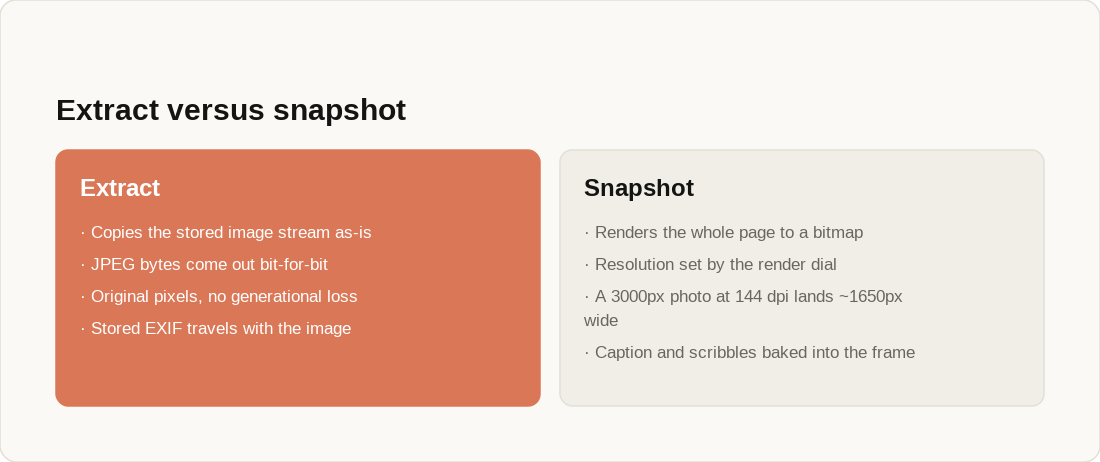
Extracting means copying the image data stored inside the file. A picture in a PDF is an image XObject: a stream of compressed pixel data plus a filter describing how it was coded. Extraction pulls that stream as stored.
Snapshotting means rendering the page to a bitmap: a screenshot with a resolution dial. Everything visible (text, vector art, the photo, the annotation someone scribbled on top) becomes one flattened picture.
The quality difference is structural, not subtle:
- A photo embedded as JPEG (the DCTDecode filter) is stored as literally JPEG bytes. An extractor can copy those bytes out bit-for-bit: no re-encoding, no generational loss, the same pixels that went into the document.
- A snapshot decodes that image, scales it to the resolution you chose, composites it with everything else on the page, and re-encodes the result. A 3000-pixel-wide photo on a 144 dpi render comes out roughly 1650 pixels wide, re-compressed once, with the caption baked into the frame.
So the rule is simple. To reuse the original picture at original quality, extract. To capture what the page looks like, snapshot. Screenshotting to "save" an image is how sharp documents produce blurry assets.
What you actually get out
The format of an extracted image is decided by the filter the producer used when embedding it (ISO 32000-1 §7.4.8 and §8.9 define the set):
- DCTDecode: JPEG, baseline or progressive. Comes out as
.jpg, and with the right tool the original bytes, unchanged. - JPXDecode: JPEG 2000,
.jp2. Rarer, mostly in print-shop and archival files. - CCITTFaxDecode / JBIG2Decode: bi-level fax and scan compression. Extractors re-wrap these as PNG or TIFF; fine for scans, meaningless for photos.
- FlateDecode: lossless zlib-compressed pixel data, the PNG-style default. Also re-wrapped, with no loss, but note there was never a "file" to recover: inside the PDF it is raw samples, not a
.pngwearing a disguise.
One wrinkle worth knowing: PDF handles transparency with image masks and soft masks (SMask), where the see-through parts live in a separate object beside the base image. Straightforward extractors hand you the base image and the mask as two outputs, which is why an extracted logo sometimes arrives on a solid black or white rectangle instead of a transparent background. Nothing is corrupted; the alpha channel simply is a second picture as far as the file is concerned.
And since extraction returns the stored bytes, it returns stored metadata too. If the producer embedded a JPEG with its EXIF intact, that EXIF travels out with it — worth remembering before you re-share "cleaned" images. The metadata removal guide and the hidden information overview cover what else files quietly carry.
The command-line route: pdfimages
Poppler's pdfimages command-line tool is the reference extractor. Two invocations cover almost everything:
pdfimages -list input.pdf
pdfimages -j input.pdf page
-list prints a table of every image in the file: page, dimensions, type, filter, size. Run it first, always — it tells you what extraction will actually find before you create a directory full of files. -j writes each image out, passing JPEG (DCTDecode) data through as-is where the image is DCT-coded rather than re-encoding it. The pdfimages man page documents the remaining flags, including -all for native formats like JP2 and CCITT. If you want to see the byte-exact philosophy taken to its conclusion, the img2pdf source is the cleanest reference implementation of copying image streams between containers without recompression.
The strips surprise
Some PDFs store one visual picture as many stored images. Some PDFs store one visual picture as many stored images: horizontal strips or tiles painted edge to edge, a habit inherited from certain scanner and print pipelines. Run extraction on such a file and you get dozens of fragments named page-000.png, page-001.png, each a skinny slice of the picture, none of which resemble the image you wanted.
The tool is not broken and neither is the file. -list exposes it immediately: forty entries of 2480×100 instead of one entry of 2480×4000. At that point your options are to stitch the strips in an image editor, or abandon extraction and render the page to a single bitmap. Recognizing the pattern takes ten seconds; not recognizing it costs an hour of re-downloading the PDF and reinstalling tools that were never the problem.
When extraction is the wrong tool
Vector art. Logos, charts, and diagrams in a well-made PDF are not images at all. They are drawn with path and fill operations, the same machinery as the text. There is no XObject to extract, so pdfimages -list reports nothing (or only the author's headshot) and every extractor agrees. If you need that chart as an image, render the page to PNG at 300 dpi and crop.
Scanned documents. A scanned PDF often is one full-page image with no other content. Extraction dutifully gives you the entire scan, not "the images from the page." The tell is clicking anywhere and selecting the whole page. Getting text out of that file is an OCR problem, covered in how to extract text from a PDF.
When you want what you see. Sometimes the composed page (photo, caption, chart, arrows) is the asset. That is a snapshot job. In LivePDF those are the page-render exports: Image (PNG or JPEG)… in the Export menu, Download pages as images… under Pages, or Download page as image from a page's context menu. The dialog offers PNG ("sharp, larger files") or JPEG ("smaller files") at 72, 144, or 300 dpi, annotations included, zipped when you select multiple pages. All of it runs in the browser, so the file never leaves the machine, which matters when the PDF is a contract.
One more route, for the byte-exact purist: LivePDF's Word export passes plain DCT images through as their original JPEG bytes. Export to .docx, rename the copy to .zip, and the untouched JPEGs are sitting in word/media/. It is an odd path to a clean result, but it works. For the reverse trip, pictures into a PDF with rotation handled correctly, see images to PDF.
The one-paragraph version
Extract to recover the stored picture at stored quality; snapshot to capture the page as it appears. JPEG in, JPEG out; FlateDecode comes out lossless but re-wrapped; masks arrive as separate files. Run pdfimages -list before extracting anything, expect strips on some files, and remember that vector logos were never images to begin with — render the page and crop instead of hunting for an object that does not exist.
Sources and further reading
- pdfimages man page (Debian)
- ISO 32000-1:2008, the PDF 1.7 specification (free Adobe-hosted copy)
- img2pdf source, reference implementation for byte-exact image embedding
Word count: 1194
FAQ
Does extracting images from a PDF lose quality?
Not from extraction itself. A JPEG stored in the file can come out byte-for-byte if the tool copies the original stream. Quality is lost when you screenshot the page instead, because that re-renders and re-compresses everything at the resolution you picked.
Why does pdfimages output dozens of tiny image files?
Some PDFs store one visual picture as many small image objects: strips or tiles painted side by side. pdfimages reports each stored object separately. Run pdfimages -list first; if the file is tiled, rendering the page to an image is the faster route.
Can I extract a logo or a chart from a PDF?
Usually not as an image. Vector logos and charts are drawn as path operations, not image XObjects, so image extraction finds nothing. Render the page to PNG and crop, or export the page as a picture.