Blog › Converting & extracting
JPG to PDF: photos into one file, right way up
JPG to PDF sounds like a one-step job: drop a few photos in, get a document out. It mostly is, until one of your phone photos lands sideways on the page, or a tall portrait sits on an A4 sheet under a fat band of white. The interesting parts of this conversion are orientation, page sizing, and what happens to your pixels along the way.
What the conversion is really doing
A PDF does not have a "photo" object. It has image XObjects: a rectangle of pixel samples plus a note about how those samples are compressed. A JPEG normally travels as a DCTDecode stream, which is just the JPEG, and a PNG's pixels travel losslessly as FlateDecode data. On top of that, a PDF page is a fixed canvas, so "JPG to PDF" is really "place each picture on its own canvas, in an order you choose." Everything that goes wrong goes wrong in the placing.
The sideways-photo problem
This is the single most common complaint about photo-to-PDF tools, and it has a specific cause. Phone cameras rarely rotate the pixels themselves. They write the image in sensor order and add an EXIF Orientation tag, defined by the CIPA DC-008 Exif standard as tag 274, which says "this needs a 90° turn" (or a flip). Surviving photo viewers read that tag and show the picture the right way up.
A PDF image XObject has no field like that. There is no Orientation tag to read, so if a converter copies the JPEG bytes in as-is and ignores the EXIF hint, the picture arrives sideways and stays sideways. The correct fix is either to physically rotate the pixels first, or to rotate the image when it is drawn on the page.
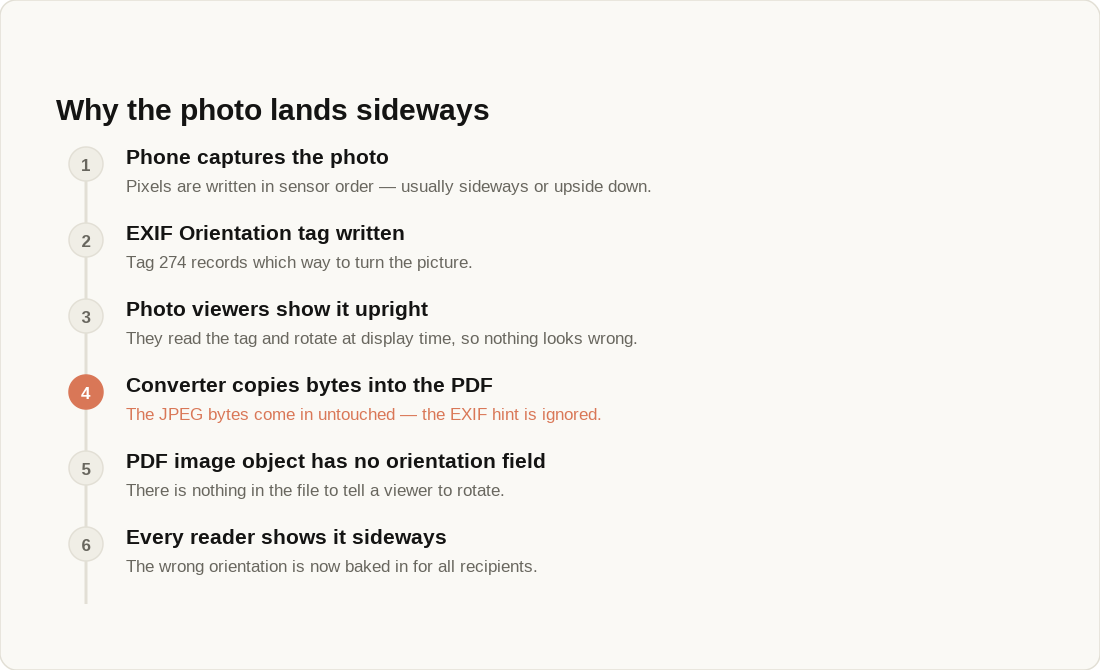
LivePDF takes the second route. It reads the orientation value out of the file, resets that one tag in its private copy of the bytes, and applies the matching rotation through the page's drawing matrix. The encoded pixels are never touched, so an upside-down or mirrored photo is corrected without a re-encode. If you want the gritty version of why this tag exists at all, Magnus Hoff's JPEG orientation write-up covers the 1990s history, and the CIPA DC-008 spec lists all eight orientation values.
Page sizing: A4, Letter, or fit the image
The second source of ugliness is geometry. A phone photo is usually around 4:3 or 3:4. A4 is about 1:1.414, and US Letter is about 1:1.294. None of those match, so something has to give: stretch (bad), crop (often bad), or leave white space (usually fine).
Two families of tools exist:
- Fit to image. The page is exactly the size of the picture, so there are no margins at all. Nice for a gallery of photos, odd for a document.
- Standard pages. A4 or Letter, with the image scaled to fit inside and centered. You get even white margins, and every page is the same size, which is what you want if the PDF will be printed, filed, or combined with anything else.
LivePDF uses standard pages, and it turns each page to match the photo: a landscape picture gets a landscape sheet, a portrait picture gets a portrait sheet, and the picture is scaled to fit whole, so nothing is cropped. Which paper it picks depends on your region, A4 in most places and Letter in the US, Canada, and a few others. If you are assembling a set of scans, standard pages are the right call; it is the difference between a document and a pile of differently shaped pictures. If you wanted a page that is exactly one photo with no border, that is the fit-to-image model, and LivePDF does not do it.
JPEG vs PNG: what happens to your pixels
Once a photo is inside a PDF, it usually stops being a JPEG in any useful sense, but the picture data itself may still be the original JPEG.
If the source is a JPEG, a careful converter can copy its DCTDecode stream straight into the PDF. No decode, no re-encode, no second round of JPEG artifacts. That is what LivePDF does, including for photos that need an EXIF rotation, because it fixes the turning on the page rather than by rewriting pixels. A PNG is different: there is no "PNG" compression filter in PDF, so it is embedded as lossless FlateDecode pixel data. A PNG screenshot stays crisp, but a photographic PNG that was heavy to begin with stays heavy.
Ask of any converter: does it decode and re-encode my photo? Re-encoding a JPEG is lossy, and doing it twice is visibly worse than doing it once. LivePDF accepts PNG and JPEG only. It does not take HEIC, which is what many iPhones shoot by default, so those need exporting to JPEG first, and it caps each picture at 20 MB.
Doing it in LivePDF
The whole thing runs in the browser, so the photos never leave your machine.
- Open livepdf.app and choose Create a PDF, then Pictures to PDF… (or drag photos onto the window, which does the same thing).
- Pick your PNG or JPEG files. Each one becomes a page, in the order you selected them.
- The result opens as an editable PDF. Rename or save it with the download button.
If you want photos mixed into a document you already have, the Combine files command takes "PDFs and pictures" and produces one new file: add the PDFs and the photos, use the Move up / Move down buttons to set the exact order, and press Combine. There is a walkthrough of that flow in the combine PDF guide. To drop new pages into a PDF that is already open, the page tools include Insert pictures as pages…, which slots the pictures in after the page you are on.
When the file is mostly photos, it can get large, and the compress PDF guide covers what is actually happening when the size drops.
A PDF of photos is a container choice
Turning photos into a PDF is not an upgrade or a cleanup step. It is a container decision, and it trades one set of conveniences for another.
What you gain. A fixed order that no viewer can shuffle. One file instead of forty. No accidental rotation, because the pages no longer carry an EXIF hint that some app might re-interpret. A page you can add a heading, an annotation, or numbers to. A shape that prints and emails predictably, and that a scanner-style app or OCR pass can treat as a document.
What you lose. You can no longer crop, filter, retag, or reorder the individual photos as photos. Camera metadata like GPS does not survive as a usable EXIF field, because a PDF page has no such concept. And any tool that rebuilds the file can re-encode the images and quietly cost you quality.
The rule is about intent. If the deliverable is a document (a portfolio, a set of ID scans, receipts for an expense claim, a signed-on-paper form you just photographed), a PDF is the right container. If the deliverable is individual pictures you or someone else will still edit and share one at a time, keep them as photos. And if you ever need the images back out of a PDF, that is its own job, covered in extracting images from a PDF.
Quick checklist
- Convert HEIC iPhone photos to JPEG before starting; LivePDF takes PNG and JPEG.
- Check the first page for orientation before sending. If a photo is ever sideways, the tool ignored its EXIF tag.
- Use standard paper for scans and documents; expect white margins around photos that are not that shape.
- Keep JPEG for photos (no recompression) and PNG for screenshots and line art.
- If the finished file is oversized, compress it after, and check the result rather than trusting the number.
Sources and further reading
- CIPA DC-008, Exchangeable image file format (Exif) — orientation tag 274
- Magnus Hoff: JPEG orientation, and why it exists
- MDN: createImageBitmap and image orientation
Word count: 1,374
FAQ
Why do some of my phone photos show up sideways in a PDF?
Cameras usually store the pixels in sensor order and add an EXIF Orientation tag saying which way is up. Tools that ignore that tag embed the raw image, and a PDF image has no Orientation tag of its own to correct it, so the photo displays sideways. LivePDF reads the tag and rotates the picture on the page instead, leaving the pixels untouched.
Does making a PDF from JPEGs reduce quality?
Not in LivePDF. It embeds the original JPEG bytes and applies any EXIF rotation through the page's drawing matrix, so there is no re-encoding and no generational loss. Other tools may decode and re-encode your JPEG, which does cost quality the second time around.
Should I use fit-to-image or A4/Letter pages?
Use standard pages (A4 or Letter) for anything meant to be printed, combined, or read alongside other documents, because every page is then the same size. Fit-to-image pages have no margins or white borders, which suits a set of photos you want to view exactly as shot, but LivePDF puts pictures on standard pages.