How to edit a scanned PDF (and what actually works)
If you have ever needed to edit scanned PDF files, you already know the failure mode: you click the text, double-click, and nothing happens. That is not a bug in your PDF editor. A scan is a photograph of a page. There are no characters in the file to select, retype, or delete, just pixels arranged to look like characters. Before any edit is possible, something has to read the picture and turn it back into text.
That something is OCR, and the whole workflow is: OCR first, edit second, and keep your expectations calibrated, because every change you make lands on top of a photograph.
What a scan actually is
A PDF produced from Word or InDesign stores text as text: each glyph is a drawing instruction tied to a real character code. Ctrl+F works, copy-paste works, and editors can rewrite a sentence in place.
A scanned PDF stores a page image, usually one JPEG or similar per page, and nothing else. This is why Ctrl+F finds nothing, why selecting text drags a picture-style selection box, and why file size tracks image resolution rather than word count. (If you only want to search the scan, not change it, that is a one-step job: run OCR and you are done, as covered in the searchable PDF guide.)
Editing is a different, messier business.
Step one: recognize the text
In LivePDF, open the document and run the Scan & OCR command. The dialog is called "Recognize text", and it says plainly what will happen: "Text found in scanned pages becomes selectable and searchable. The pages look the same; recognition runs on this device." Once the layer exists, everything downstream improves at once: Ctrl+F, copying, export — the four ways to get text out of a PDF all depend on it.
Two options matter:
- "Skip pages that already have text" is checked by default, and leave it that way. Mixed documents are common: a digital contract with one scanned signature page. OCR-ing the digital pages accomplishes nothing and wastes time.
- Resolution offers "200 dpi (faster)", "300 dpi (recommended)", and "400 dpi (small print)". The recommendation matches what OCR engines themselves ask for: Tesseract's documentation says it "works best on images which have a DPI of at least 300 dpi". Pick 200 only if you are impatient and the type is large.
When it finishes you get a summary like "Recognized 1,412 words on 3 pages. The text can now be searched and selected." One honest limit, stated right in the dialog: the language is English. The recognition model runs entirely in your browser, which is why only one language is bundled; tools like OCRmyPDF handle other languages if you need them on a desktop.
How OCR works under the hood, and why quality varies so much between scans, is its own topic; the OCR explainer and the accuracy tips cover it. The short version: OCR adds an invisible text layer aligned with the image. The pixels never change.
The catch: your edit goes on top of the picture
After OCR, the words in a scan are searchable, but the visible letters are still pixels. So when you "edit" a scanned page, no editor rewrites the original glyphs, because there is nothing to rewrite. What actually happens is:
- The old line gets covered up (a white rectangle, or an equivalent patch), and
- New, real text is typed on top of it in a font you choose.
Which means the edited sentence is not part of the photograph. It is a separate layer of live text floating over it, and the seam between the two is visible exactly to the degree that your font matching fails. Get the font size, style, and color close, and nobody sees the join. Get them wrong, and the patch announces itself: slightly different letterforms, a different shade of black, a baseline a half-point off. On a clean laser scan this is a small chore. On a fax, it is a losing battle.
A note on the covering step: a white box over a scan is cosmetic, not redaction. The original image, with the old pixels, is still stored in the file under the patch. For everyday typo fixes that is fine; for content that must genuinely be gone, see the distinction spelled out in the white-out guide.
The quality ladder: match the approach to the scan
Not all scans deserve the same treatment. Judge yours honestly before starting.
Clean 300 dpi scan, straight lines, decent contrast. Best case. OCR will read nearly everything correctly, and cover-and-retype edits blend in well because the underlying image is crisp and the typography is regular. Fix a date, swap a name, correct a typo: a few minutes of work and the result looks untouched.
Skewed, faxed, or low-resolution scan. OCR output will be unreliable, and worse, the image itself is ugly to patch: gray backgrounds, jagged letterforms, inconsistent spacing. Here the better move is usually to skip OCR for the line you are changing. Draw a white rectangle over the whole line, type the replacement above it in a clean font, and let the new text stand on its own. Trying to match a 200 dpi fax font is effort spent making something worse.
Anything where more than a few lines change. Stop patching. Every additional patch multiplies the chance that one of them is noticeable, and a document covered in near-miss typography looks worse than a clean re-issue.
When re-creating the document beats editing the scan
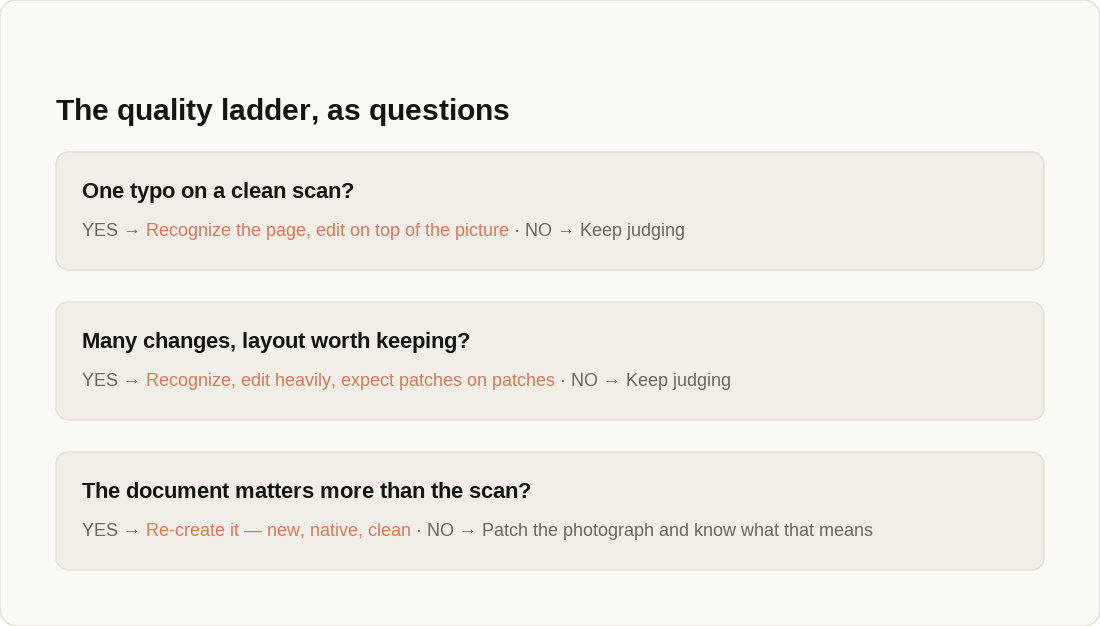
There is a threshold past which editing a scan is the wrong tool. Rough triggers:
- The changes touch whole paragraphs or sections, not isolated lines.
- The document will keep changing (a template, a recurring form). A scan is the worst possible master copy for a living document.
- The scan quality is poor enough that OCR errors would leak into your patched text.
In those cases, recreate the source: run OCR to get the text out (or export to Word from LivePDF and clean it up), rebuild the document in a word processor, and let the scan retire to the archive. Ten minutes of re-typing produces a file that is genuinely editable, searchable, and consistent, instead of a collage. This is the same decision logic as editing any PDF: local fixes are an edit, structural changes are a rebuild.
Every edit is a patch on a photograph
It helps to stop thinking of scanned-PDF editing as a data job at all. On a native PDF, editing is data manipulation: change the character codes, the layout engine reflows, done. On a scan, there is no data to manipulate, only a picture. Every "edit" is a patch applied to that photograph, and the success of the edit is measured entirely by whether the patch is visible.
Which reframes the skill involved. It is not about finding the right tool setting; it is a typography job. Matching the font's size and weight, sampling the ink color, aligning the baseline, spacing the replacement line so its rhythm fits the paragraph. The goal is patches nobody notices. That sounds modest, but it is the actual standard: a reader should see a document, not a repair.
FAQ
Can you edit text in a scanned PDF?
Not directly. The scan is an image; there is no text object to retype. Run OCR first, then make changes by covering the old line and typing new text over it. The new text is real, searchable text; the original stays in the image underneath.
Why does my font look different after I edit a scanned page?
Because the visible letters in a scan are pixels, and your replacement is a real font drawn on top of the picture. Unless you match the original font's size, weight, and color closely, the seam shows. On low-quality scans, do not bother matching: replace the whole line.
Is covering text with a white box on a scan secure?
No. A white rectangle hides pixels from a viewer, but the underlying image, old text and all, is still stored in the file. Treat covering as cosmetic. If content must truly be removed, edit or rebuild the image itself before the file leaves your hands.
Sources and further reading
- Tesseract: improving OCR output quality (DPI and preprocessing)
- OCRmyPDF documentation (adds OCR layers to existing PDFs, many languages)
- Adobe: what makes a PDF searchable
FAQ
Can you edit text in a scanned PDF?
Not the way you edit a Word file. The scan is an image; there are no letters to retype until something reads them. Run OCR to add a searchable text layer, then make changes by covering the old line and typing new text on top, matching the font as closely as you can.
Why does my font look different after I edit a scanned PDF?
Because the text you see was never text. It is part of the image, so any new characters come from a real font placed over the picture. If the font, size, and spacing are close, the patch disappears; if not, it looks pasted on.
Do I need to redact a scanned PDF differently?
Yes, and be careful: a white rectangle over a scan hides pixels visually, but the original image is still in the file underneath. Covering is cosmetic. If the content must actually be gone, remove it from the image or recreate the page before sharing.