Blog › Converting & extracting
PDF to Word: what survives, what breaks
Converting a PDF to Word sounds like a file-format change. It is actually a reconstruction job, and the whole experience turns on whether you know that going in. A PDF records where every glyph lands on the page. A Word document records what the content means: this is a heading, this is a paragraph, that grid is a table. Converting PDF to Word means rebuilding the second thing from the first, by inference. Once you see conversion as educated guessing rather than translation, the results stop being mysterious and start being predictable.
It is an inference, not a translation
The ISO 32000-1 specification describes PDF's core as an "advanced imaging model derived from the PostScript page description language," designed to be device-independent and resolution-independent. RFC 8118 has a plainer phrase for it: a "final-form document representation language." Both descriptions point at the same design goal, guaranteeing that a file looks identical everywhere, and the same omission. There is no paragraph object in PDF. There is no table cell. Text is drawn by operators inside a BT … ET block, each run positioned at coordinates (Td, Tm) and painted glyph by glyph (Tj, TJ). Reading order, paragraphs, columns, and tables are inferred from geometry at read time, never stored.
Word works the other way. A .docx is an OOXML package, standardized as ECMA-376, in which content is typed: a paragraph is a paragraph, and layout is computed when the document is displayed. PDF is the fixed canvas; Word is the flowing page. So a converter has to look at a scatter of positioned glyphs and decide where the paragraphs are, which runs belong on the same line, where a column ends and the next begins, and whether a rectangle of aligned numbers is a table or a diagram. Every one of those decisions is a guess.
There is a nuance worth knowing, because it explains why some files convert surprisingly well. PDF can carry structure through Tagged PDF, a formal way of recording reading order and element types, and PDF/UA requires it for accessibility. The catch is that tagging is optional and plenty of real-world files skip it. When a converter inherits good tags, it has real structure to work with. When it does not, it is guessing from pixels.
What comes back clean, and what comes back broken
The single best predictor of quality is how much structure the converter has to invent.
Converts well: single-column, text-heavy pages. Body text, headings, and simple lists in one column give the converter an easy reading order, and the result is usually close enough to edit without fuss. This is the case most people picture when they think "PDF to Word," and for this case the promise roughly holds.
Needs cleanup: multi-column layouts, text boxes, and anything where text sits beside text. Two columns look like interleaved lines of glyphs to a naive reader, so the converter may read across both, splicing sentences from different columns into one paragraph. Text boxes float free of the text flow in the PDF, and there is no instruction telling the converter to place them anywhere sensible in a reflowable document.
Breaks hardest: tables, especially nested ones, and graphics-heavy pages. Microsoft's own documentation on opening PDFs in Word lists what it says may not convert: tables with cell spacing, page colors and borders, tracked changes, frames, multi-page footnotes and endnotes, bookmarks, tags, comments, and any font not installed on the system. It also warns that graphics-heavy pages "might not convert well" and can end up as a single image, which cannot be edited at all. A converter that gives you back a picture of a page has, in a real sense, refused the job while appearing to finish it.
A measurable metric: inference error rate
Most converters advertise accuracy percentages without telling you what was measured. Ignore the number, because the only metric that matters is how often your file's structure gets misread, and you can measure that on your own document in about a minute. Call it the inference error rate: the fraction of the structure the converter had to guess that it guessed wrong. You do not need a tool to see it. Run this after any conversion.
1. Compare page counts. The Word status bar shows pages. If a ten-page PDF became sixteen pages, the layout collapsed and reflowed, which means columns or margins were misread. A one- or two-page drift is normal; a large jump is a warning.
2. Spot-check every table. Look for cells that merged, a header row that became body text, or a table that dissolved into boxes. Tables are where inference fails most often, so they are where you look first.
3. Check the headers and footers. In a PDF they float above and below the text block. In Word they should become real header and footer zones, but a converter that has no idea they are separate may fold them into the body as stray first or last lines of a paragraph, once per page.
4. Search for distinctive strings. Pick a phrase you know appears, search the Word document, and confirm the words are intact and not split across a wrong line break.
Read the result as a rate, not a verdict. One hiccup in a simple file is fine; the same three failure modes on every page mean the file is the wrong candidate for conversion, and you should go back to the source. This is also how you compare two converters without trusting either one's marketing: same file, same one-minute check, count the errors. And the fastest way to a perfect score is to skip conversion entirely. If the original Word document still exists on someone's machine, ask for it. A converter's job is reconstructing a file that often already exists intact somewhere.
If the PDF is a scan, convert nothing yet
One case stops the process before it starts. If you cannot select text and Ctrl+F finds nothing even though you can plainly read the page, the file is a scan: pictures of pages with no text underneath. A PDF to Word converter has nothing to read, so it will either fail or hand you back those page images. Run OCR first. OCR adds an invisible text layer over the picture, and after that the file behaves like any other PDF and converts on the same terms. LivePDF runs OCR on your device with no upload, which matters for the contracts and medical records scans usually involve, but be honest about the limit: it is English-only, and OCR mistakes become conversion mistakes, so proofread the result. There is more on the OCR step in how to OCR a PDF and on what to do with the result in editing a scanned PDF.
Doing it in LivePDF
LivePDF exports Word documents in the browser, with the file never leaving your device. Choose Export a PDF, open the Export to section, and pick Microsoft Word (.docx)…. The dialog titled Export to Microsoft Word document explains what you are about to get: "Text becomes editable paragraphs, headings, lists, and tables, with the pictures in place." It also lets you choose which pages to export, so you can convert just the section you need rather than the whole file. Pick the pages, confirm, and the .docx downloads.
That description is the accurate promise, and it is worth reading literally. It does not claim a pixel match; it claims the text becomes editable and the pictures come along. Your job after the download is the one-minute check above. If the PDF is still collecting changes, though, the more useful question is whether it should keep being a PDF at all, which is the edit-versus-convert decision you can settle first and the broader argument in when not to use PDF. And if all you actually need is the words, with no formatting to preserve, extracting the text is less work than a full conversion.
Matching the job to the fidelity you need
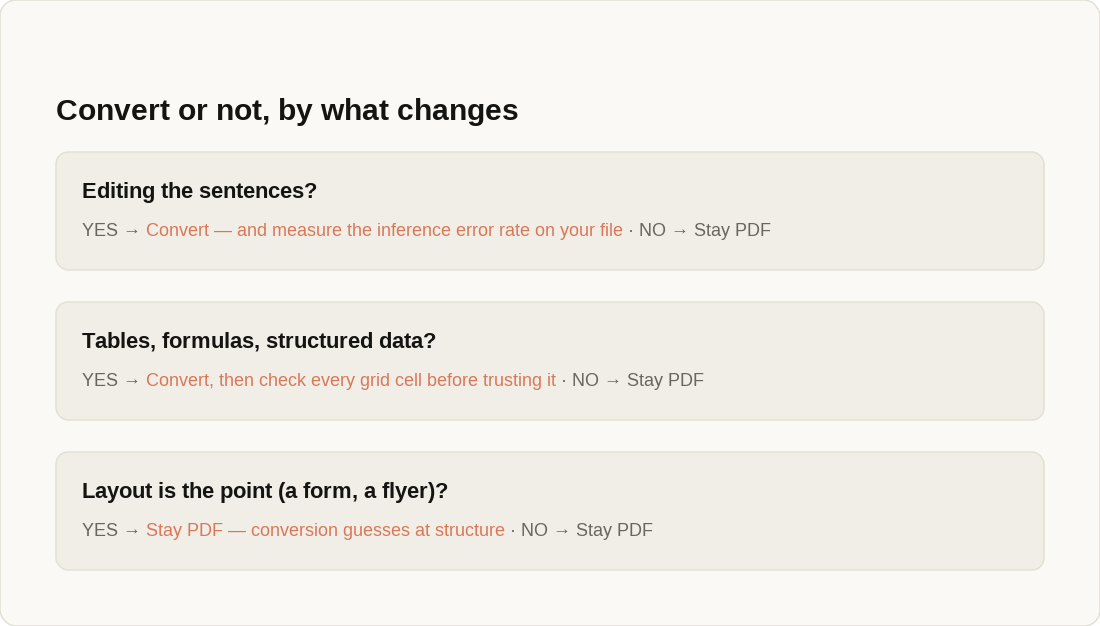
Fidelity is not one number. It is a spectrum from "opens and the text is editable" at one end to "looks indistinguishable from the PDF" at the other, and different jobs need different points on it. If you need the words to reuse in a new document, near-perfect text with rough styling is a success. If you need a print-ready replica, conversion will disappoint you and you should not attempt it. The PDF already is the print-ready replica.
The moments people get burned are the ones where they expected the far end of the spectrum from a file that could never reach it. Multi-column newsletters, densely nested financial tables, and design-heavy brochures are reconstruction problems, and reconstruction is lossy by nature. Knowing which file you have, and what you actually need out of it, is most of the skill. The converter does the guessing; you decide whether the guesses are good enough.
Before converting, check whether you need the export formats at all: LivePDF also exports directly to Word, Excel, PowerPoint, and more, which skips the converter for simple jobs.
Sources and further reading
- ISO 32000-1:2008 (PDF 1.7), the format's imaging model, free from Adobe
- RFC 8118: "final-form document representation language"
- ECMA-376, the OOXML standard behind .docx
- Microsoft: what may not convert when you open a PDF in Word
Word count: 1,536
FAQ
Why does my PDF to Word conversion come out scrambled?
Because conversion is reconstruction, not translation. A PDF stores where each glyph sits, not what the content means, so the converter has to guess paragraphs, columns, tables, and reading order from coordinates. When the guess is wrong, you get merged columns, split paragraphs, and tables turned into stray text boxes.
Will the Word file look exactly like the PDF?
No, and anyone promising that is guessing about your specific file. Single-column, text-heavy pages come out close. Multi-column layouts, nested tables, text boxes, and graphics-heavy pages need cleanup. Plan for a few minutes of correction rather than expecting a pixel match.
Can I convert a scanned PDF to Word?
Not directly. A scan contains pictures of pages, not text, so a converter has nothing to read. Run OCR first to add an invisible text layer, then convert the result. LivePDF's OCR runs on your device and is English-only.