PDF annotator: every markup type and its job
Marking up a PDF is one of those small skills that quietly decides how a review goes. A PDF annotator is the tool that draws a markup layer on top of the page: a highlight over a sentence, a note in the margin, a scribbled correction, a stamp that says Received. The page underneath never changes. That single fact, that annotations live in a layer rather than in the page content, explains almost everything else about them: why you can delete a colleague's highlight, why flattening changes the rules, and why the author name attached to a note can travel out of the building with the file.
It also separates two jobs that get mixed up. Marking up a PDF is not the same as editing it; changing the actual text is a different and much harder problem, which is why PDF editing is hard. Annotation is a comment on the document. Editing is a change to it.
An annotation is a layer, not page content
The PDF standard keeps two things apart. Page content is what the document is: the positioned glyphs, images, and drawing operators that make up the printed page. Annotations are a separate category of objects layered over it. The PDF Association's common-objects cheat sheet groups them the way the specification does, and each one is its own small dictionary: a subtype that names what it is, a rectangle for where it sits, the text of any note attached to it, and usually an author string.
The practical consequences all follow from that separation:
- A viewer can turn annotations on or off, hide them, or delete them, because they are drawn on the page rather than in it.
- A note's text and its author are recoverable data, not pixels. Any tool that reads the file can list them.
- Flattening is the operation that ends the layering: it draws the annotations into the real page content, and after that they are no longer a removable layer.
Which of those three states you are in determines everything that follows.
Highlight: the reviewer's default
Highlighting is the markup most people reach for first, and it is the right instinct for review. The standard's text-markup family is Highlight, Underline, StrikeOut, and Squiggly, and they all carry quad points, the coordinates of the little quadrilaterals that sit over the exact words you selected. That is why a highlight wraps a line of text instead of floating as a rectangle: the tool is recording which text, not merely where on the page.
Use it when the job is to flag a passage for someone else's attention. A page full of highlights is a reading list; the reviewer's job is to say "look here," and the highlight says it without obscuring the text.
Notes and comment threads: peer review
A sticky note is the annotation type the standard calls Text, and its defining trait is that it is not tied to a precise range. It points at a spot and holds a comment, which makes it right for remarks that do not belong to a single sentence.
Attach notes to the passage they are about whenever you can. Journal production workflows lean on this, and the ASHA Journals guide states it plainly: annotations "allow you to mark up your PDF proof and notify us of desired changes, rather than making changes yourself." Markup is a conversation, not an edit, and the author keeps control of the final text.
Threads are the part people forget. A note can carry replies, so a back-and-forth about one clause stays attached to that clause instead of scattering into email. The better annotators let a reply be answered and the whole thread closed out as one item.
Ink, stamps, free text, shapes
The remaining types each map to a job the text-markup family cannot do.
- Ink (freehand drawing) is for marks that have no text to attach to: circling a figure, crossing out a signature block, or sketching a correction on a scanned page. It is also the honest way to draw a signature-like mark when that is all that is needed.
- Stamps are for status. Approved, Draft, Confidential, Received: a rubber stamp records a decision in a form everyone reads the same way. They suit workflows where the point is the state of the document, not the wording of a comment.
- Free text prints words directly onto the page as a callout, so a correction reads as if it were part of the document. This is the type to use when you want the reader to see the text in place, not hover to find it.
- Shapes and boxes are for pointing. A rectangle around a clause, a line under a figure, an arrow to the relevant paragraph: legal markup runs on these, because an argument about a contract often needs to say this clause, right here without ambiguity.
One caveat ties back to the layer model. A shape or a box annotation sits over the content. If you draw a black rectangle to hide a name, the name is still in the file. That is a redaction question, not an annotation one.
The author field, and where it leaks
Every annotation can carry an author string, and reviewers rarely think about it. In the file it is a short text field on the annotation dictionary, the same one a comment reader pulls out when it shows who wrote a note. On a shared review that is exactly what you want: who flagged this, and when.
The problem is what happens next. When the review is done and the annotated PDF is sent onward, to a client, a court, or a public records request, the author strings go with it. A stray sticky note does not just carry its text; it carries the name or username of whoever made it. The pypdf documentation shows how plainly those fields are read back out of a file, and the same harvesting that finds a document's Author metadata in its info dictionary will find annotation authors too. If you did not mean to send a name, delete the annotations or flatten the file before it goes.
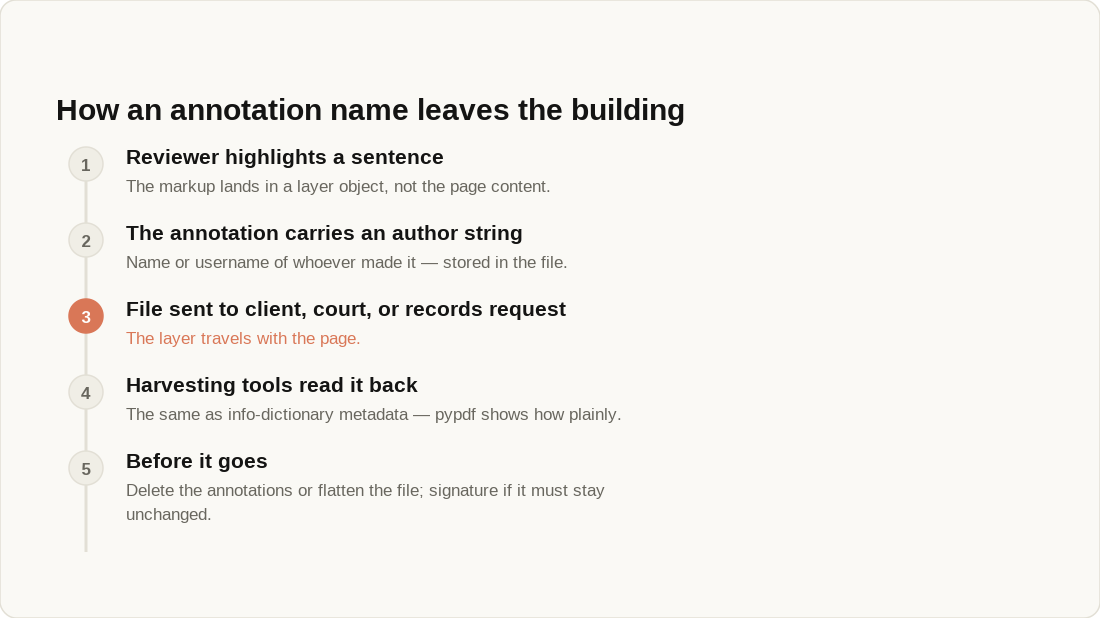
What "layer" means when you send the file
Three habits follow from the fact that annotations are a layer.
Before you send, decide what the recipient should be able to do. If you are sending a marked-up file for review, leave the annotations live. The other side needs to read, reply, and resolve. If you are sending a final copy that should not be altered, flatten it: the annotations become part of the page, and nobody can switch them off or quietly delete your comments. If several people marked up separate copies and you need one document, merging the PDFs first and flattening after is the clean sequence.
Watch for hidden markup. An annotation that has coordinates but no saved appearance can be invisible in one viewer and visible in another. That is behind the "my highlights disappeared" complaint, and it is a reason to check a file in more than one reader before relying on it. The same care applies to a scan: if the page is an image, there is no text under your highlight at all, and you may need to pull the images back out to see what the markup was really covering.
Remember that annotations are not tamper-proof. Because they are a layer, a viewer that ignores them can show a clean page, and a determined recipient can remove them. If the markup itself has to be trustworthy, flatten it and combine that with a digital signature; the annotation layer alone does not provide integrity.
Marking up a PDF in LivePDF
LivePDF is a browser-based PDF editor that runs entirely on your machine and never uploads the file, which matters when the markup concerns a contract or a medical record. Its annotation toolbar uses plain names: Select, Hand, Text, Highlight, Draw, Shape, and Note. The comment menu adds Add text comment, Callout, Pencil, Shapes (rectangle, oval, line, arrow, or cloud), and Add stamp…. Markup can be exported and re-imported as XFDF, and a Comment summary collects the review into a single document. The Comments tab lists every note and markup page by page.
If you are turning a stack of photographed pages into the thing you will annotate, assembling images into a PDF is the first step, and the rest is markup from there. Because the whole process is client-side, annotating a confidential PDF means the file stays where it is while you work.
Sources and further reading
- PDF Association: Common Objects cheat sheet: the annotation types and what each is for.
- ASHA Journals: annotating your PDF proof: a publisher's own markup workflow.
- pypdf: reading PDF annotations: how annotation fields, including the author, are read back out.
Word count: ~1,380 (body).
FAQ
What is the difference between annotating and editing a PDF?
Annotating adds a separate markup layer over the page: highlights, notes, ink, stamps, and shapes. Editing changes the page content itself, the positioned text and images that make up the document. Annotation is a comment on the document; editing is a change to it.
Do annotations change the original PDF?
Not the page content. Each annotation is its own object drawn on top, which is why a viewer can hide, move, or delete it. Flattening is the operation that draws the annotations into the page for good, after which they are no longer a removable layer.
Can someone remove the annotations I send them?
Yes. If you send a marked-up file with the annotations live, a recipient can hide or delete them. If the markup needs to be permanent, flatten the file before sending, and pair that with a digital signature if you also need to prove it was not changed.