PDF form fields not working: 6 causes and fixes
PDF form fields not working is a symptom with at least six different diseases. The blank line sits on the page, you click it, you type, and nothing lands. Or the field takes a value and then shows empty to whoever opens the file next. Or the whole document refuses to open at all. The instinct is to blame the file, the browser, or yourself. It is the form and the viewer disagreeing about what a field even is.
Here is the idea that makes all six cases legible. A fillable form is a user interface, and every viewer builds that interface itself. The file stores field names, types, and allowed values; it does not store the keyboard wiring, the behavior of Tab, or the look of the widgets. Acrobat builds one version, Chrome's built-in viewer builds a cheaper one, and the app on your phone builds a third. The same file is different software in every window. That is why "it works in Acrobat" is one data point and not a guarantee, and why every diagnosis below starts by asking where the failure happens.
1. Nothing accepts typing (the form is flat)
Symptom. You click the empty line where your name goes and no cursor appears. No field tints blue when the file opens. Tab does nothing.
Cause. The form has no fields. It is a picture of a form: printed labels, ruled lines, empty space, and not one field object behind any of it. This is the most common cause by a wide margin.
Confirm it. Three tests, fastest first. The highlight test: many viewers tint real fields the moment a form opens, so no tint suggests no fields. The tab test: click the first blank and press Tab; in a real form the caret hops field to field. The definitive test in LivePDF: open Fill & Sign → Fill in form fields…. Either the Fill forms dialog opens listing every field by name, or you get the message "This PDF has no fillable fields. Use Text to write on the page." That message is your answer.
Fix it. For a one-off, treat the page as a page and type over the lines: the fill and sign walkthrough covers the fast route. If it will be filled again, build actual fields. LivePDF's Prepare a form lets you drag a text box, checkbox, or dropdown onto the page, and Detect form fields… guesses fields from the underlines and boxes in the print. How to create a fillable PDF form has the full procedure.
2. Fields appear but do nothing in a browser (viewer limitation)
Symptom. The form looks fillable. Some fields even accept a character or two. But the spacebar does nothing inside a field, a dropdown won't open, or the values you typed in the browser render blank later in a real PDF app.
Cause. You are using a browser's built-in PDF viewer. Browsers implement a subset of AcroForm: enough to draw a box, not enough to run the behavior a form expects. Field calculations, JavaScript actions, and submit-FDF, all of which live in the file, are commonly missing. The fault sits in the viewer, which borrowed the form's appearance and skipped its behavior. The user reports are a genre at this point: Chrome owners describing the spacebar doing nothing inside a fillable field.
Confirm it. Download the actual .pdf file, not the preview, and open it in a full PDF application. If the same fields work there, the viewer was the problem.
Fix it. Fill forms in a real PDF app, not a browser tab. Government and tax forms say the same: download it, then open it. The document is rarely broken. The window was.
3. It filled yesterday and is locked today (Reader usage rights)
Symptom. The form filled fine once. Now, in the free Adobe Reader, filling is refused: "This document was changed since it was created and using extended features isn't possible anymore," or a dialog saying "commenting, filling in fields and signing isn't allowed."
Cause. Letting recipients save their answers in the free Reader requires the document to carry a usage-rights signature, which only Acrobat Pro (or the reader-enablement server) can apply when the file is made. Editing the file afterwards invalidates that signature, and Reader, which was relying on it, locks the form. The Stack Overflow report of a form that stopped being editable after it was partly filled shows Foxit still filling the same file while Reader refused it.
Confirm it. The error text above is the confirmation. File > Properties > Security will also show a permissions line.
Fix it. Ask the sender for a clean copy. If you are the author, apply reader-enablement last, after every edit. That lock is a Reader choice, not a property of the bytes: a viewer that doesn't depend on the usage-rights signature may still fill it.
4. You can type, but the value won't stick (broken field appearances)
Symptom. You type into a field and see your text, but it renders blank in another viewer, or the value disappears when the file is reopened.
Cause. A field's visible text comes from an appearance stream, a small drawing the viewer places over the widget. If a tool sets a value without generating that appearance, and the document's NeedAppearances flag isn't set, the data is present and invisible at the same time. Duplicate field names, a missing appearance dictionary, or a field whose type disagrees with its widget can leave a field half-alive the same way. These are producing-tool bugs, not user error, and they are why a form can be "filled" and look empty.
Confirm it. Fill the field in one viewer and open the file in a second. If the value exists in the data but shows blank, you have found it. If a single field refuses input while its neighbors accept it, the same malformed dictionary is usually the cause.
Fix it. If you are the recipient, fill in the viewer that draws the value correctly, or ask the sender for a rebuilt form. If you are the author, set NeedAppearances on the form, regenerate the field, or flatten the completed form so the values become ordinary page content.
5. It won't open, or it opens read-only (password and permissions)
Symptom. A password prompt on open. Or the file opens, every field is read-only, and a notice says editing is restricted. A Protected badge may appear in LivePDF, which honors the restrictions.
Cause. Two separate mechanisms share the word "protected." A user (open) password encrypts the content, so nothing can be read or filled without it. An owner (permissions) password leaves the file openable but sets permission bits that may forbid form filling. Compliant viewers obey those bits; unconcerned ones don't.
Confirm it. File > Properties > Security shows the encryption method and which actions are allowed. LivePDF can open password-protected PDFs using RC4 and AES-128/256, and it displays a Protected badge when permissions are in force. Is my PDF encrypted walks through reading that security panel.
Fix it. Get the correct password from whoever sent the file. Then expect inconsistency: permissions one viewer respects, another ignores. One report describes a protected form that Adobe Acrobat refused to fill even with the password while Edge, Chrome, and Firefox filled it happily. The flag is an instruction, not a wall, and not every viewer reads the same instructions.
6. It only behaves in Acrobat (XFA)
Symptom. The form is beautiful in Adobe Acrobat and dead everywhere else: fields missing, pages blank, or a "loading form" state that never resolves.
Cause. The form is XFA, the XML Forms Architecture: Adobe's older, parallel form system, where the field logic lives in an embedded XML stream instead of standard AcroForm field objects. It was never an ISO standard, it is deprecated in PDF 2.0 (published 2017), and Adobe discontinued the LiveCycle Designer tool that produced the dynamic flavor in March 2018. Dynamic XFA is why it works only in Acrobat: in that flavor there are no AcroForm fields at all until a viewer renders the XFA into a PDF, and only Adobe reliably does that. Renderers like pdf.js, the engine under Firefox and several web tools, don't implement XFA, so they see an empty container.
Confirm it. If it works in Acrobat and nowhere else, it is XFA. The cruellest variant is a hybrid form that carries both an AcroForm and an XFA copy. A tool writes your answers into the AcroForm half, Adobe reads the XFA half instead, and you get the classic report of a pre-filled form that is blank in desktop Reader but visible on a phone.
Fix it. If you are the recipient, open it in Acrobat, or ask the sender to re-export it as a standard AcroForm PDF. If you are the author, that re-export is the whole fix: XFA's one advantage, dynamic layout, cost a form that needs a single vendor's software to work.
The short version
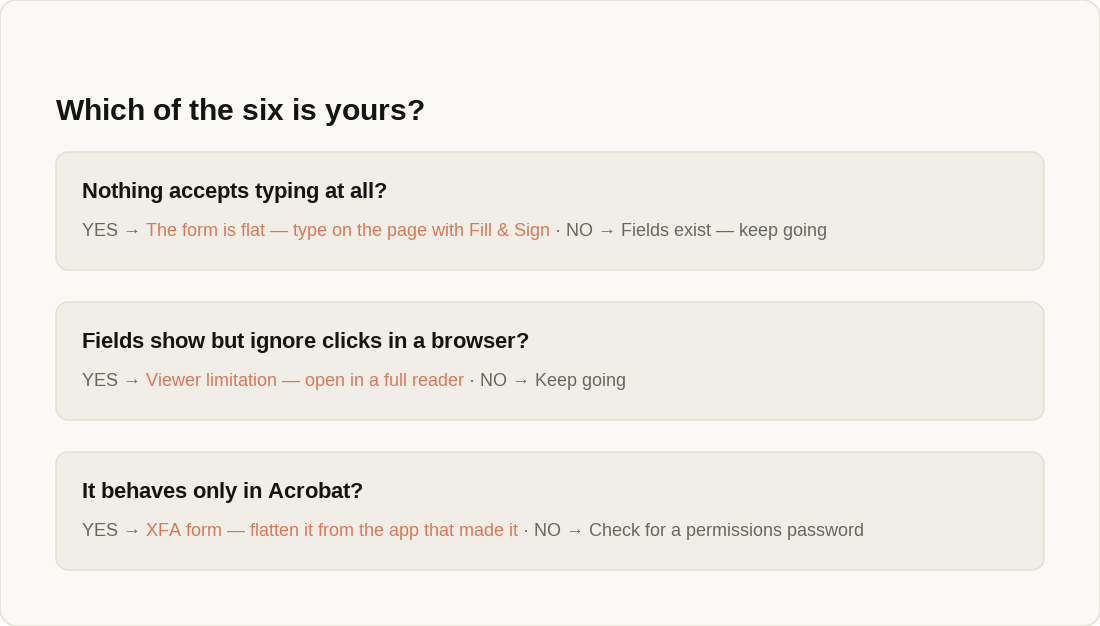
Six causes, six symptoms. Nothing accepts typing means the form is flat: add text or build fields. It fails only in a browser means the viewer: download the file. It locked itself in Reader means invalidated usage rights: get a clean copy. Values won't stick means broken appearances: set NeedAppearances or rebuild. It won't open or is read-only means a password or permission bits: find the password and expect viewers to disagree. It only works in Acrobat means XFA: open in Acrobat or have the sender re-export it.
The underlying rule doesn't change. The file defines the fields, and the software on the other end builds the interface, differently every time. "It works in Acrobat" tells you Acrobat can do it. It tells you nothing about the next viewer. Once you have filled and fixed the form, how to sign a PDF covers the other half of the job.
Sources and further reading
- r/chrome: space bar not working in fillable PDF forms
- Stack Overflow: PDF form no longer editable after partly filled
- Stack Overflow: unable to fill forms in Acrobat with password protection enabled
- Adobe Community: pre-filled form is frequently blank
Word count: 1700
FAQ
Why can't I type in a PDF form?
Most often the form has no fields at all: it is a flat picture of a form. Failing that, you are in a browser's built-in viewer, which implements only a subset of form behavior. Run the highlight test and the tab test, then try the file in a full PDF app before assuming the problem is on your end.
Why does a PDF form work in one viewer and not another?
Form fields are a user interface each viewer builds for itself from the field definitions in the file. The document stores names, types, and values; the viewer supplies the boxes, the keyboard wiring, and the behavior. Acrobat, Chrome, and phone apps each build a different interface, so the same file can fill in one and fail in another.
What is an XFA PDF form, and why won't it fill outside Acrobat?
XFA is Adobe's older XML-based form system, where field logic lives in an embedded XML stream instead of standard form fields. It was never an ISO standard and is deprecated in PDF 2.0. Dynamic XFA has no standard fields until a viewer renders the XML, and only Adobe reliably does that, so other viewers see an empty container.