How to sign a PDF: three routes and what each one proves
Most pages about how to sign a PDF are quietly selling a third thing: a subscription, a download, or a "free" tool that uploads your document to somebody's server. The question itself is more interesting, because "sign a PDF" names three different jobs. A manager approving expenses, a founder closing a funding round, and a lab technician recording a result are all "signing a PDF." What differs is what the signature has to prove, and proof is the part worth choosing deliberately.
There are exactly three routes: a mark on the page (drawn, typed, or an uploaded image), a cryptographic certificate signature, or an e-sign service that verifies people and records the process. None of them is the "real" one; each is correct somewhere and overkill or underkill elsewhere. What follows is what each route proves, which to use for which document, the exact steps for the two routes LivePDF performs, and how to check a signature afterward. Where the law comes up, this piece points at statutes instead of paraphrasing them.
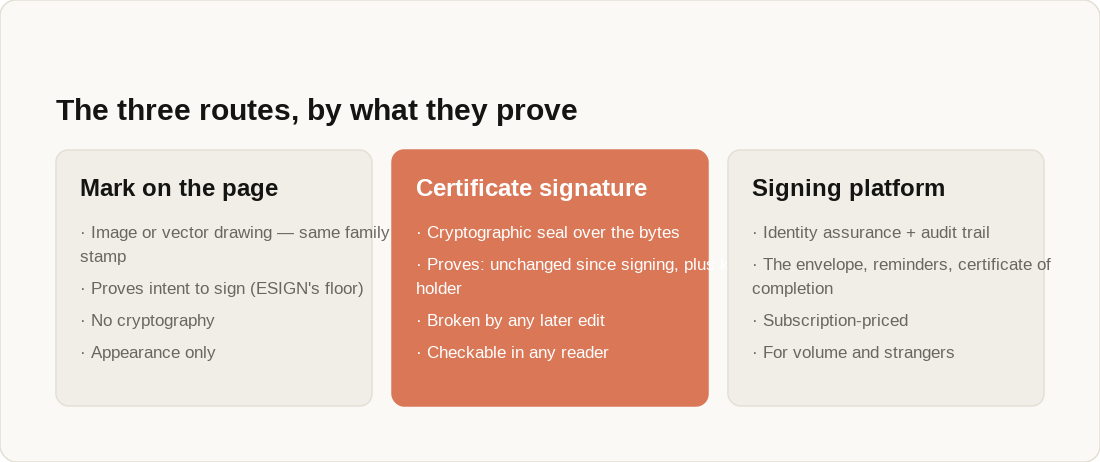
The three routes and what each proves
A mark on the page. The familiar version: a dialog offers a drawing pad, a type-your-name box, and an upload button; you produce something signature-shaped; it lands on the page and you drag it into position. In the file's terms it is an image or a vector drawing, the same family of objects as a stamp or a highlight. It records intent and appearance, and that is the whole of it.
The law, notably, starts at exactly that level. The US ESIGN Act defines an electronic signature as "an electronic sound, symbol, or process, attached to or logically associated with a contract or other record and executed or adopted by a person with the intent to sign the record" (15 U.S.C. §7006). No cryptography required. The EU's eIDAS regulation likewise begins with a "simple electronic signature" level that asks for no mathematics at all. Adobe, which also sells the cryptographic version, describes this kind of basic signature as involving "low or no identification verification beyond email address."
So a drawn signature proves that somebody intended to sign this document. It cannot prove who that somebody was, and it has no memory of the file's bytes: edit the payment amount after signing and no check will ever trip. That is not a defect. It is simply what the object is.
A certificate signature. This is what "digital signature" properly means: a cryptographic operation computed over the file's actual bytes. NIST defines it as "the result of a cryptographic transformation of data that, when properly implemented, provides a mechanism for verifying origin authentication, data integrity, and signatory non-repudiation." In practice the signer holds a digital ID, a private key with a certificate, typically in a .pfx or .p12 file, and the signing software writes a signature that any later reader can recompute and compare.
What it proves: the file is byte-for-byte unchanged since signing, and whoever holds that private key made the signature. What it does not prove on its own: that the name in the certificate belongs to a particular human. That binding is only as strong as the certificate's issuer. A certificate authority exists precisely to vouch for it; a self-signed ID vouches for nothing, since anyone can mint one in any name.
An e-sign service. DocuSign, Adobe Sign, and their peers are not a third kind of cryptography. They are one of the first two routes wrapped in a process: signers are verified by email, phone, or stricter checks; signing order is managed; and the service keeps an audit trail and issues a tamper-evident certificate of completion. What you are buying is that evidence chain. The document, meanwhile, lives on the vendor's servers.
Note what the money is actually for. In most jurisdictions the legal effect attaches to the electronic signature itself rather than to the brand on the completion email; eIDAS and ESIGN both say so in their own ways. The platforms sell much better evidence, not a different legal category. (The terminology tangle behind this deserves its own walkthrough: electronic vs digital signatures.)
Laid out side by side:
| Mark on the page | Certificate signature | E-sign service | |
|---|---|---|---|
| Proves | Intent | Intent, integrity, key possession | Intent, verified identity, process record |
| Detects edits after signing | No | Yes, in any compliant viewer | Yes, in the audit trail |
| Identity | Whatever context provides | Only as good as the certificate's issuer | Verified by the service |
| Where the file goes | Stays on your machine | Stays on your machine | The vendor's servers |
| Cost | Free | Free self-signed; CA certificates cost money | A subscription |
Which route for which document
A short decision pass, sorted by what is at stake:
- Internal sign-offs and approvals. Everyone involved can identify each other, and the signature records intent, which is all anyone will ask about later. A drawn or typed signature is the proportionate tool. Certifying an expense report with a CA-issued key is theatrical.
- Contracts between parties who know each other. A simple signature is routinely enough here; the surrounding email thread, the invoice, and actual performance all do evidentiary work. Add a certificate signature when you want the file itself to reveal edits. On anything with money in it, that is cheap insurance.
- Contracts a stranger might someday audit. Disputes, due diligence, years-later questions: this is where certificate signatures from a trusted issuer earn their keep, and where e-sign platforms add value beyond cryptography, namely verified identity and a documented process.
- Regulated records. These follow the regulator's rules, full stop. FDA-regulated records fall under 21 CFR Part 11; in the EU, eIDAS's qualified level carries "the equivalent legal effect of a handwritten signature" (Art. 25(2)). Do not improvise here. Follow the list the regulator publishes.
One summary the statutes do permit: most ordinary documents can be validly signed electronically. Which specific types cannot, wills and deeds and court filings being the usual suspects, is jurisdiction-specific, and no honest general article will assert it for you. The cheapest requirement analysis available is asking the receiving party what they accept.
Route 1 in LivePDF: place a signature on the page
The steps, verified against the app (the signing tool page condenses both routes into one card, if that's all you need):
- Open the PDF in LivePDF. Everything runs in the browser; the file stays on your machine.
- Press Sign in the toolbar, or open the Fill & Sign tool and choose Add signature…. A dialog appears with three tabs: Draw, Type, and Upload.
- Draw with a mouse, pen, or finger and pick a color; or type your name for a signature-styled rendering; or upload a PNG or JPEG of an existing signature. A PNG with a transparent background works best.
- Choose Place signature. It lands centered on the current page, already selected: drag to move, resize, then download the signed file.
- Optional: tick Remember drawn and typed signatures on this device to keep them for next time under Saved signatures. It is off by default, and the drawings are stored on the device, never sent anywhere.
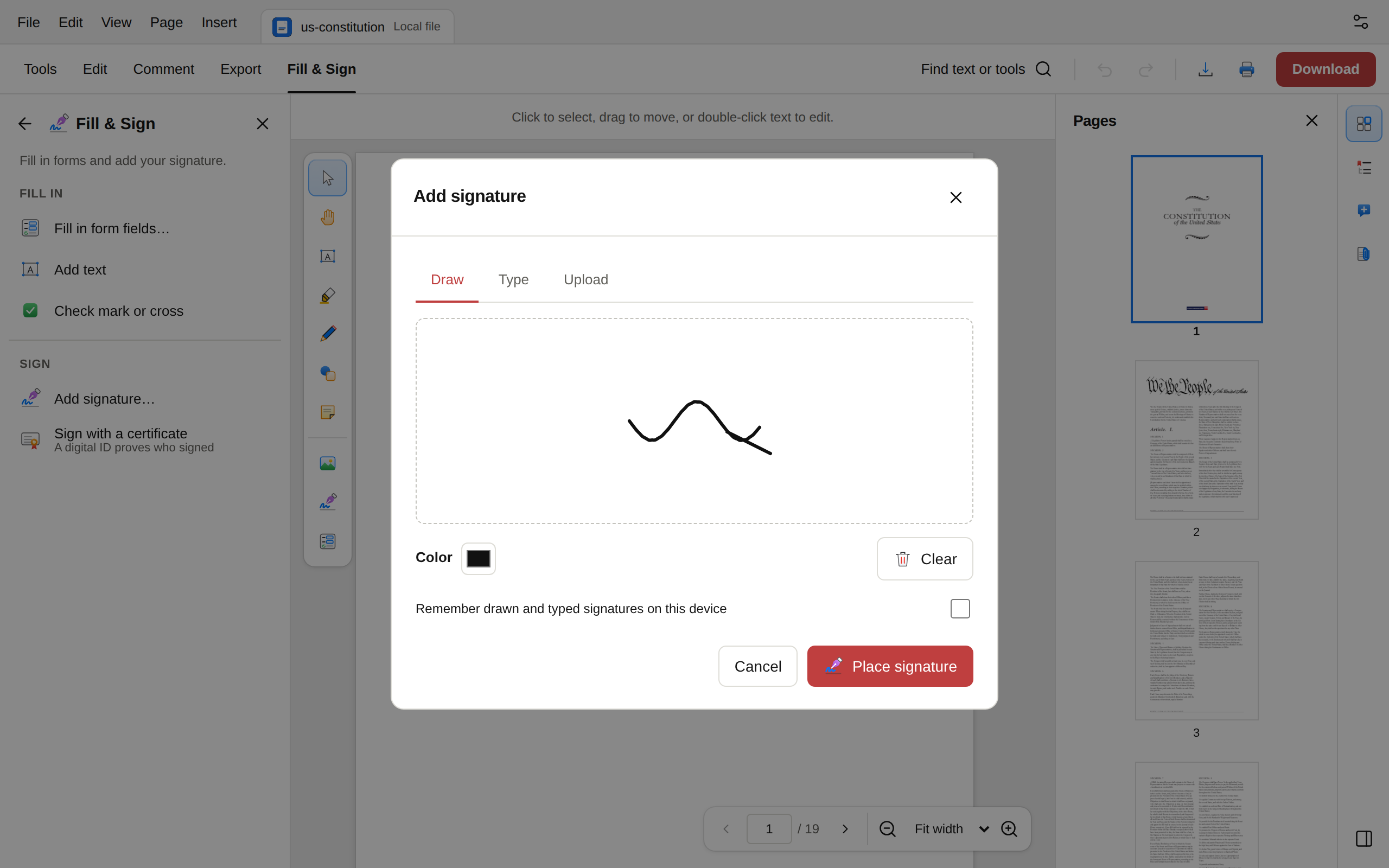
A typed signature becomes real vector art on the page, the same mechanism as adding text to a PDF, just signature-shaped, so it stays sharp at any zoom. Adding text to a PDF is the same family of operation if you ever need names, dates, or initials next to the mark.
The honesty checkpoint, again, because it matters more than the steps: this route proves intent. If someone later asks "did the file change after signing?", a page mark has no answer and never will. That is fine for internal documents and wrong for a settlement agreement.
And if what you are signing is a form rather than a letter, with fields and a signature line, that is its own workflow, covered in filling and signing PDF forms.
Route 2 in LivePDF: sign with a certificate
LivePDF performs real certificate signatures: sign or certify with a .pfx/.p12 digital ID or a self-signed ID created on the spot, appended as an incremental update so signatures made earlier keep validating.
- Open the Use a certificate tool (Forms & Signatures group). Three actions: Digitally sign, Certify (invisible signature), and Validate all signatures.
- Choose Digitally sign and drag a rectangle on the page for a visible signature. Choose Certify instead when you are the author and want to control what happens afterward; the levels are "no changes", "form filling and signing", and "form filling, commenting, and signing". Sign with a certificate in the Fill & Sign tool reaches the same signing flow.
- Pick your digital ID. Reuse one from this session, use a digital ID file (.pfx or .p12) with its password, or create a new one: name, email, organization, key type (RSA 2048-bit or ECDSA P-256), and a password of at least six characters. The new ID downloads as a .p12 protected by that password, so you can sign with it again. The dialog's own hint is the most honest sentence in the feature: "Others see it as self-signed until they trust it."
- Optionally add a reason, location, and contact information, then confirm. The app warns plainly: the signed PDF is the version on screen now, and any later edit invalidates the signature. So sign last, after every other change. Certificate signing is also refused while the file is password-protected, since re-encrypting would break the signature; remove the protection first.
Digital IDs live in the tab's memory only. Nothing is written to disk, which is the right default for a private key.
What you now have is a file where flipping a single byte after signing shows up in validation, in any compliant viewer. What you still do not have is proof of legal identity. A self-signed ID says "someone holding this key signed," not "this is really Dr. Chen." How trust gets established around that gap is its own topic: self-signed certificates and what they prove.
The route LivePDF doesn't have
Said plainly: LivePDF is not an e-sign service. There is no identity verification, no signer emails or SMS codes, no audit trail, no certificate of completion, and no qualified signatures. The product's own limitation list states it directly: it is not a qualified or legally-binding e-sign service, and it does not do DocuSign-style identity checks.
So when the job is convincing a stranger, high-value contracts between unfamiliar parties, anything where verified identity is the point, pay for a platform or a trust-service provider, and accept that the document will sit on their servers. When the job is tamper-evidence between people who already know each other, a certificate signature covers it with the file never leaving your machine. For legal, medical, and financial documents, that local property is not a bonus. It is often the actual requirement.
How to check a signature afterward
Signing is half the workflow. The other half is verification, and most people meet it only when there is a dispute, which is the worst possible timing to learn how it works.
In LivePDF, a signed document reports its state in a message bar above the page, and the Signature panel lists every certificate signature with a status: "Signature is valid", "Signature is valid, but the signer's identity is unknown", "Signature is invalid", or "could not be checked". Validate all signatures re-runs the checks on demand. Each entry can jump to its page and, if the document changed after signing, lists the changes that were detected.
Reading any such panel, here or in Acrobat, keep two questions separate:
- Integrity. "Invalid" means the file changed after signing, full stop.
- Identity. "Identity unknown" can sit on a perfectly intact file; it is the normal fate of a self-signed signature until the reader decides to trust the certificate. It does not mean tampering.
A page mark from route 1 will never appear in any signature panel anywhere, because there is nothing cryptographic to check. That absence is the cleanest one-line summary of the difference between the routes: only a certificate signature can testify about the file itself.
For the full walkthrough of reading the panel and what each status means, see how to verify a PDF signature.
Sources and further reading
- Adobe: types of signatures
- NIST CSRC glossary: digital signature
- ESIGN Act, 15 U.S.C. §7006 (GovInfo)
- eIDAS, Regulation (EU) 910/2014 (EUR-Lex)
Word count: 2083
FAQ
Is a typed or drawn signature legally valid?
For most routine documents, yes. The US ESIGN Act says a signature cannot be denied legal effect solely because it is electronic, and the EU's eIDAS treats even a simple electronic signature as sufficient without cryptography. Some document types are carved out and follow jurisdiction-specific rules, so check the rule for your specific document before relying on any kind of electronic signature.
Do I need a digital certificate to sign a PDF?
No. A certificate signature answers two extra questions: did the file change after signing, and which key signed it. If all you need is a visible mark of approval from someone identifiable through context, a drawn or typed signature is the proportionate tool. Reach for a certificate or an e-sign platform when a stranger or an auditor will one day need convincing.
Can I sign a PDF for free without uploading it?
Yes. LivePDF does drawn, typed, and uploaded signatures plus certificate signing with a .pfx/.p12 file or a self-signed ID, entirely in the browser. The file never leaves your device, and digital IDs stay in the tab's memory. What costs money is the third route: identity-verified e-sign services, which charge for verification and the audit trail, not for the signature image.