How to fill and sign a PDF form (even a flat one)
Every "fill and sign PDF" job is really two jobs stapled together: get your answers into the document, then attach something that says the result is you. The tools blur the line because the marketing does, but the two halves fail separately, and knowing which half is broken is the entire diagnostic skill.
Filling works when the file contains actual field objects. Signing works when you know which kind of signature the moment calls for. And the most common reason a form won't fill has nothing to do with your tool: the form has no fields, or you're looking at it through a viewer that can't see them. Both halves, in order.
Two kinds of form, and only two
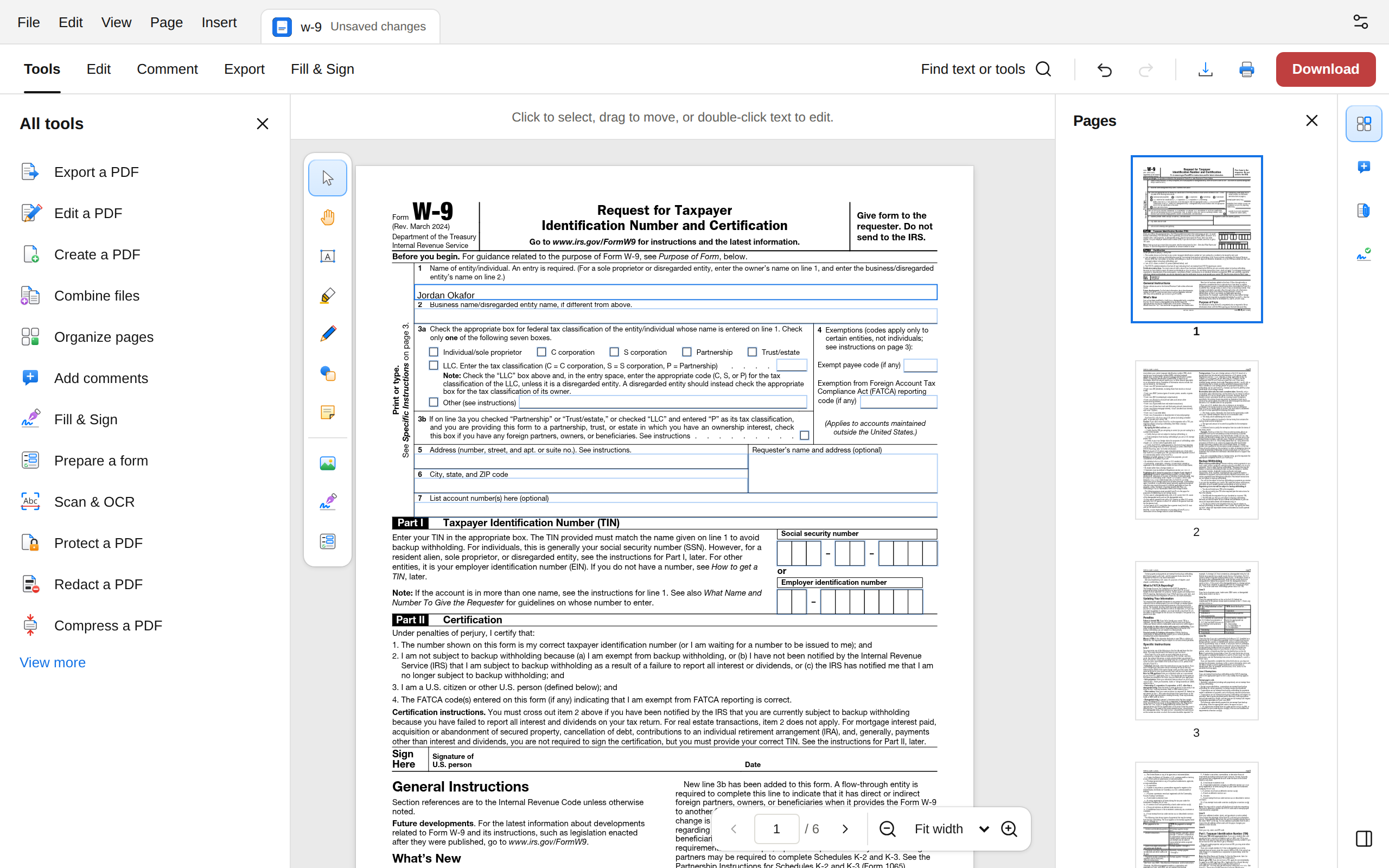
A PDF page is a finished picture: instructions that place every glyph and line at exact coordinates. A fillable form is that picture plus a layer of field objects (text boxes, checkboxes, dropdowns) that the author placed on top. A flat form is the picture alone: labels, lines, and empty space. Nothing to click.
To the eye they can be twins. The IRS publishes its W-4 as a proper fillable PDF; plenty of employers will email you a scanned image of the same form. Both print identically. One accepts typing; the other accepts a pen.
There is no third kind you need to care about, with one exception called XFA, covered in its own section below.
The one idea that explains every weird form problem
Worth internalizing: a fillable form is a user interface the author built on top of the document, and every PDF viewer implements that UI itself.
The file stores the boring half: field names, types, allowed values. The file does not store the interactive half. When you open a form, your viewer reads the field list and builds the widgets on the spot. It draws the boxes, wires the keyboard, decides what Tab does, what a checkbox looks like, how a dropdown opens. Acrobat builds one version; Chrome's built-in viewer builds a different, lesser one; LivePDF builds its own.
That is why the same form behaves differently everywhere, and why "it worked on my machine" is the defining form-filling experience. The document is constant; the software around it is not.
How to tell which kind you're holding
Three quick tests, in order of speed:
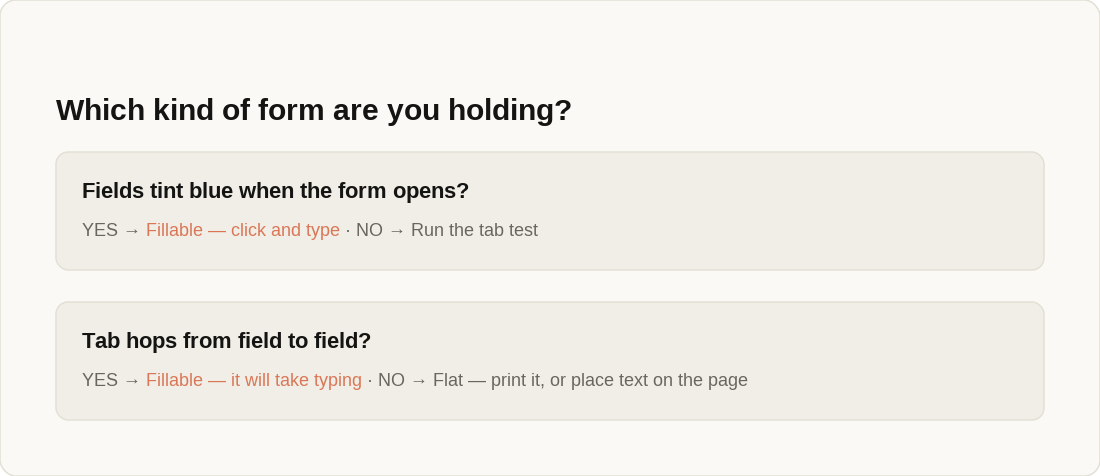
The highlight test. Acrobat and several other viewers tint fillable fields blue the moment a form with fields opens. No tint, probably no fields. Crude but instant.
The tab test. Click into the first blank and press Tab. In a fillable form, the caret hops field to field like a web form. In a flat form, nothing happens, because you never got a caret in the first place.
The fields list. In LivePDF, open the Fill & Sign tab and choose Fill in form fields…. One of two things happens. Either a dialog titled Fill forms opens with every field listed by name (fillable), or you get a message: "This PDF has no fillable fields. Use Text to write on the page." (flat, and the app has already handed you the workaround).
Filling the form in LivePDF
Open the file and the fields render as controls directly on the page. Click one and type. Tick checkboxes. Open dropdowns and pick. For people who prefer a list, the dialog route does the same job: Fill & Sign → Fill in form fields… opens the Fill forms window, whose help text is honest about the model: "Complete the PDF's existing form fields. Changes apply when you save the form." Hit Save form and the values are written into the file.
Two details worth knowing:
- Read-only fields are labelled (read only). The author locked them on purpose: computed totals, pre-filled case numbers. You can't edit them, by design.
- Some PDFs carry permission restrictions that block filling; LivePDF shows a Protected badge and honours them. The document's owner set those restrictions, and respecting them is the viewer's job.
One more entry in the Fill in section covers flat-form checkboxes: Check mark or cross draws a tick as page content, for forms whose little boxes are printed rather than wired up.
Signing after you fill
Do it in that order. Fill first, sign second, because a signature is your claim that the values underneath are the agreed ones, and in the certificate case, a technical lock on them.
In the same Fill & Sign tab, under Sign:
- Add signature… opens the familiar dialog: draw with mouse or finger, type your name in handwriting faces, or upload an image. The signature lands as an object on the page that you position and resize.
- Sign with a certificate is the cryptographic route. The app's own one-line hint for it: "A digital ID proves who signed". This one covers the file's bytes and matters when someone might later need proof the document didn't change after signing.
Which of those you need is its own question with a real answer, covered in how to sign a PDF; the terminology tangle behind "electronic" and "digital" is untangled here. The short version: most routine forms need nothing more than the mark. Anything a stranger may one day audit earns the certificate.
One sequencing note: if you use a certificate, sign after all edits, including form values. The signature records the file's exact bytes, and filling a field afterwards can show up as a modification in validation. Drawn signatures check nothing, so order matters less with them. That is either their weakness or their convenience, depending on what you need.
When the form won't fill
Now the troubleshooting half. Three causes cover nearly everything.
The form is flat. The most common case by far, and the least mysterious: there are no fields, only lines that look like they should hold text. Two fixes, depending on whether you want speed or reusability:
- Fast: treat the form as a page and add text over the lines. Click, type, match the size of the printed labels, move on. The right approach for one-off forms.
- Durable: make it actually fillable. LivePDF's Prepare a form tool describes itself plainly: "Add fillable fields: choose a field type, then drag a box on the page." You get text fields, checkboxes, radio buttons, dropdowns, list boxes, dates, buttons, and signature fields. And if dragging boxes across a ten-page form sounds like an afternoon, Detect form fields… guesses them from the layout (the underlines and boxes in the print) and lets you untick its mistakes.
The form is XFA. XML Forms Architecture: Adobe's older, parallel form system, where the field logic lives in an embedded XML stream instead of standard field objects. XFA was never an ISO standard, it is deprecated in PDF 2.0, and Adobe ended support for the LiveCycle tooling that produced the dynamic flavour in 2018. The signature symptom: the form works beautifully in Acrobat and is dead everywhere else, with missing fields or blank pages. That is not your tool misbehaving; the format was built to require Acrobat's engine. Adobe's own troubleshooting pages state that the built-in browser viewers (Chrome, Firefox, Edge) cannot complete XFA forms and point you to desktop Acrobat. If you're the form's author, re-export it as a standard fillable PDF. If you're the recipient, ask the sender to do that, or fall back to Acrobat.
You're in a browser's built-in viewer. Even standard forms wobble here, because, per the idea above, the browser rebuilds the form UI from scratch, and its build is the cheapest one you'll encounter. The user reports are a genre at this point: Chrome owners describing the spacebar doing nothing inside a fillable field; forms filled in Chrome rendering blank when opened in Acrobat; ChromeOS users suddenly unable to fill a form that filled fine the week before. Connecticut's Department of Revenue Services maintains a help page whose practical advice reduces to: don't fill our forms in the browser's PDF viewer, download them and open them in a real one (CT DRS browser tips).
The fix, in nearly every case, is boring: download the actual .pdf file (not the preview, the file) and open it in a full editor. The document usually isn't broken; the viewer was.
If the form misbehaves in every viewer, or fields exist but reject values, that's a deeper cut: the six-cause breakdown lives in PDF form fields not working.
The short version
Fill, then sign. Test a form with the tab test before you blame yourself. Flat means add text or build fields; XFA means the sender has work to do; browser weirdness means download the file. And when you sign, know which kind of signature the moment deserves. Most moments deserve the simple one.
Sources and further reading
- Adobe: XFA forms don't work in Chrome, Firefox, Edge (troubleshooting)
- r/chrome: spacebar not working in fillable PDF forms
- r/Acrobat: Chrome-filled fields render blank in Acrobat
- Connecticut DRS: browser tips for fillable tax forms
Word count: 1518
FAQ
Why can't I type in my PDF form?
Most likely one of three things: the form is flat (printed lines, no field objects), it's an XFA form that only works properly in Acrobat, or you're in a browser's built-in PDF viewer, which implements form fields badly. Press Tab over the blanks and open the file in a full PDF editor before assuming the problem is you.
How do I fill in a PDF that isn't fillable?
Either add text over the printed lines (fast, fine for one-offs) or make the form genuinely fillable with a form-designer tool that lets you drag field boxes onto the page and can auto-detect fields from the layout. The second route pays off if the same form will be filled again, by you or anyone else.
Should I fill or sign first?
Fill first, sign second. A signature is your claim that the answers underneath are final, and a certificate signature locks the file's bytes, so filling a field after signing can trip validation later. A drawn signature doesn't check anything, but the order still reads better to whoever receives it.