How to create a fillable PDF form
To create a fillable PDF form, you don't draw boxes that look like blank fields. You place field objects the reader can actually type into, tick, or sign. That distinction is the whole job. A PDF page is a finished picture: glyphs, rules, and blank space at fixed coordinates. A fillable form is that same picture plus a second layer carried alongside it, a set of field definitions that tell a PDF viewer "here is a text box, here is a checkbox, here is a signature line." Draw a rectangle that merely looks like an input and you have a picture of a form. Put a field object in the same spot and you have a form.
Everything else here follows from that.
What "fillable" actually means
The layer has a name in the format. Interactive forms are AcroForm objects, defined in the PDF spec as a document-level field hierarchy, with each field paired to a widget annotation on a page (ISO 32000-1 §12.7). The field can exist without caring how it looks; the widget is its on-page box, painted by an appearance stream the viewer generates.
That split is why the same file behaves differently on different machines. The document stores the boring half: names, types, allowed values. It does not store the interactive half. When someone opens your form, their viewer reads the field list and builds the controls itself, wiring the keyboard, deciding what Tab does, how a dropdown opens. Acrobat builds one version; Chrome's built-in viewer builds a lesser one; the phone app builds another.
You are authoring data; the software on the other end renders it. Keep that in mind and half of form design becomes obvious.
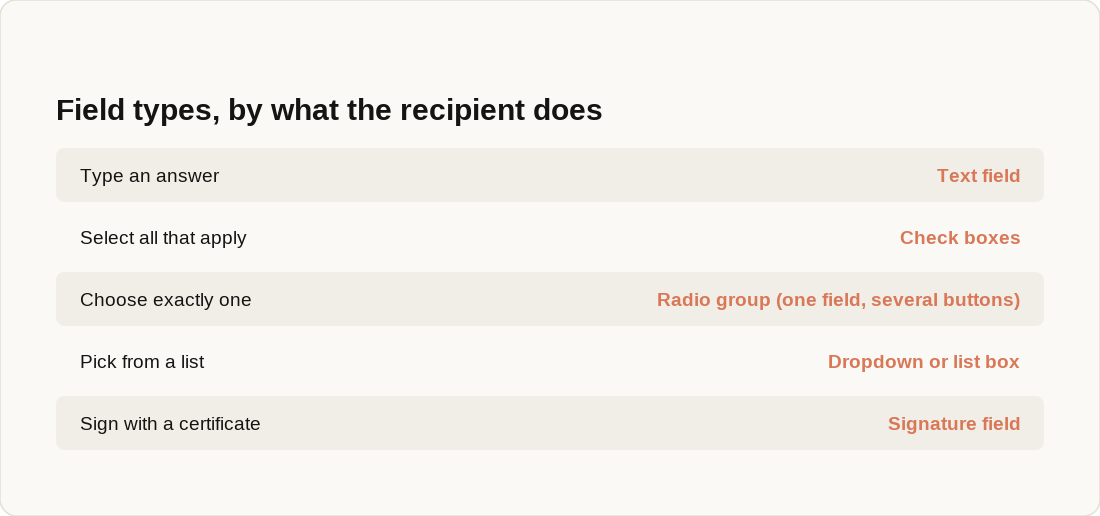
Field types, by what the recipient does
Sort fields by the action they invite. Only a few matter.
Type an answer. A text field. Useful options: multi-line for paragraphs, a character limit for account numbers, and a comb setting that divides the box into one cell per character. A date field is a text field with a date format attached; the template guides the shape as the recipient types.
Tick an answer, once per item. Check boxes. Each stands alone, on or off, and several can be on at the same time. Use them for "select all that apply."
Choose exactly one. Radio buttons, which are not separate fields but a single field with several buttons. Turning one on turns the others off, because mutual exclusivity is built into the group rather than requested in a label. When a form asks you to "circle one" and then lets you leave two circles filled, someone used check boxes where a radio group lived.
Choose from a list. Two renderings of one field type. A dropdown shows one value and expands when clicked, best when the list is long. A list box shows several rows at once and can allow more than one selection. If you let people type their own value into the box, that is the editable setting on a dropdown, and it quietly turns your tidy list back into a text field.
Sign. A signature field is its own type, separate from a drawn or typed mark placed on the page. It reserves the space and, used with a certificate, holds the cryptographic signature. A push button is the odd one out: it stores no value at all, it just triggers an action like reset or print.
Adobe's own field-properties reference lists the controls per type: formatting, validation, calculations, tooltips, required flags. The spec underneath is what makes any of it portable.
A field is a contract with every viewer
When you place a field, you are writing a contract between yourself and every viewer that might ever open the file, including ones that do not exist yet. You control the file. You do not control the interpreters.
That is why the safest forms lean on the simplest field types. A radio group encodes "pick one" in the format, so every viewer that renders radio buttons at all will enforce it. A clever validation script encodes the same rule in JavaScript, which is optional, inconsistently implemented, and routinely switched off. The required flag is widely honored; an on-blur calculation is not. The more of your form's logic you push into script, the more viewers you silently break, and the failure is invisible on your machine because your viewer is the one that works.
When you can choose between a standard field that says what you mean and a workaround, choose the standard field. It is the difference between a rule the format enforces and a rule you hope the recipient's software bothers to run.
One exception is at the document level: a form that lets recipients save their answers in the free Adobe Reader needs a usage-rights signature that only Acrobat Pro can apply when the file is made. Editing that file afterwards invalidates the signature and can lock the form in Reader, which is why tools that write into a form need to respect it.
Tab order is not cosmetic
Press Tab in a good form and the caret walks the fields in the order you read a page: left to right, top to bottom. Press Tab in a bad one and it jumps to the bottom, then the top, then somewhere in the middle, because the field order was created in whatever sequence the author dropped boxes and never fixed.
Tab order is not stored as a neat list. It comes from the field tree order or the page's annotation order, with the page's /Tabs flag choosing which (the spec defines row, column, and structure options). Most people never touch it, so the default is whatever the authoring sequence happened to be, which is rarely the reading order.
This matters more than it looks. Keyboard users navigate entirely by Tab, and screen readers announce fields in tab order, so a scrambled order is not a minor annoyance, it is the form. WebAIM's guidance is blunt and testable: the tab order should follow the visual order, and you verify it by saving, reopening, and tabbing through the whole thing. A form can look perfect and still be unusable in the order it is actually traversed.
Set it on purpose. In LivePDF's Prepare a form you can push every field to a row-major or column-major order from the menu (Tab order: by rows, Tab order: by columns), then reopen and Tab through to check the result.
Making one: the tools
The paid reference point is Adobe Acrobat Pro's Prepare Form: automatic field recognition from a flat layout, manual placement for the rest, and a properties panel with tooltip, required, formatting, validation, and calculation per field type. If you need the widest compatibility and the Reader-save feature, that is the compatibility reference.
The free route is shorter than people expect. In LivePDF, the Prepare a form tool is a panel of field types you drag onto the page. Its own description: "Add fillable fields: choose a field type, then drag a box on the page. Double-click a field for its properties." The field types on offer are Text field, Check box, Radio button, Dropdown, List box, Date field, Button, and Signature field. Each field opens a properties dialog with a Name, a Tooltip ("read to screen reader users"), Required and Read only flags, border and fill colors, a font size where 0 fits the box, and the type-specific settings: an export value and check style for buttons, options one per line for lists, a custom-value toggle on dropdowns, multi-select on list boxes. If the form is a flat scan, Detect form fields… guesses the fields from the underlines and boxes in the print so you start from a draft instead of nothing.
None of it uploads the file. The form is built in the browser tab and saved on your machine, which matters when the form collects exactly the kind of data people should not be emailing to a form-builder website.
Two caveats. This builds a fillable form, not an e-signature service: it draws a signature field and lets you sign, but it does no identity verification and keeps no audit trail, so when you need a platform, that is a different decision. And a form is still a PDF, so the ways forms break, from XFA to browser viewers, apply to yours as much as anyone's; PDF form fields not working walks through them.
The short version
A fillable form is a page plus a layer of field objects. Pick the field type that matches the recipient's action. Prefer the version that encodes a rule in the format over the one that enforces it with a script. Set the tab order, then test it by tabbing. And remember that you are writing a contract with every viewer that will ever open the file. Simple fields keep that contract.
If your job is on the receiving end, start with how to fill and sign a PDF form. If you have to collect signatures from other people and are deciding whether a paid platform is worth it, that comparison lives in request a signature without DocuSign, and the mechanics of signing it yourself are in how to sign a PDF.
Sources and further reading
- ISO 32000-1 §12.7, interactive forms (the AcroForm spec)
- Adobe: Acrobat field properties by field type
- WebAIM: creating accessible forms in Acrobat
- Adobe: allow form recipients to save in Reader
Word count: 1596
FAQ
What makes a PDF fillable?
Field objects, not ink. A fillable form is the page plus a layer of AcroForm fields (text boxes, checkboxes, dropdowns, signature lines) that the file defines and each viewer builds into controls. Lines and boxes drawn onto the page look the same but accept nothing. If you can't type in it, it has no fields.
Should I use checkboxes or radio buttons?
Checkboxes when each choice stands alone and several can be on at once. A radio group when the choices are mutually exclusive and only one may be picked. The radio group is a single field with several buttons, so the viewer enforces the one-of rule itself, which is clearer to fill and more reliable than separate checkboxes plus a label asking people to circle one.
How do I fix the tab order in a fillable form?
Set it deliberately, then test it: save, reopen, and press Tab through every field. The order should match the visual reading order. LivePDF's Prepare a form offers Tab order: by rows and Tab order: by columns; Acrobat lets you drag fields in the Fields panel or order tabs by structure.