Blog › Converting & extracting
How to Read a PDF on Kindle (and Actually Enjoy It)
Anyone who has tried to read pdf on kindle files knows the loop: open the document, squint at the shrunken page, zoom in, pan right, pan down, pan back left, lose your place, repeat for 200 pages. The Kindle is a superb reading machine and a terrible PDF viewer, and that is not a bug Amazon forgot to fix.
Here is the framing that makes the whole problem click.
The e-reader isn't small. The page is big.
An e-reader has roughly the same screen area as a paperback page, so it seems like it should handle any book. But a PDF is not a book; it is a photocopy of a page of paper. The file carries its physical dimensions forever: A4, US Letter, whatever the author's printer wanted in the pre-digital era. Those dimensions survive every copy, upload, and transfer, untouched by the device that receives them.
So when an A4 page meets a 6-inch screen, something has to give. The device scales the whole page down to fit, and since A4 has roughly twice the area of the screen, your 11-point body text renders at an effective 6 or 7 points. Every readability trick (zoom, landscape mode, margin cropping) is, at bottom, an argument with 1985 paper sizes. You are not fighting the Kindle. You are fighting the ghost of an office printer.
E-books sold on the Kindle store don't have this problem because they aren't pages at all. They are reflowable text: the file stores paragraphs, not positions, and the device recomposes the text for whatever screen it lands on. That is the fixed-vs-reflowable distinction, and it explains everything that follows. A PDF is fixed by design, the same reason it's hard to edit: the format stores exactly where every glyph sits, which is great for a contract and terrible for a commuter.
Why e-ink makes it worse
Any screen shows the same mismatch, but e-ink amplifies it:
- No comfortable pinch-zoom habit. E-ink refreshes slowly, so the zoom-pan-zoom cycle that is merely annoying on a phone becomes genuinely painful. Each pan-and-redraw takes a visible beat.
- Lost position. Panning across a scaled page means the device must remember both your page and your spot on the page. Half the time you return from a zoom to the wrong corner.
- No reflow escape hatch. On a phone, most readers can reflow a PDF's text as a workaround. Kindle's native PDF view will not do this at all.
Which brings us to what does work.
The conversion route: Send to Kindle
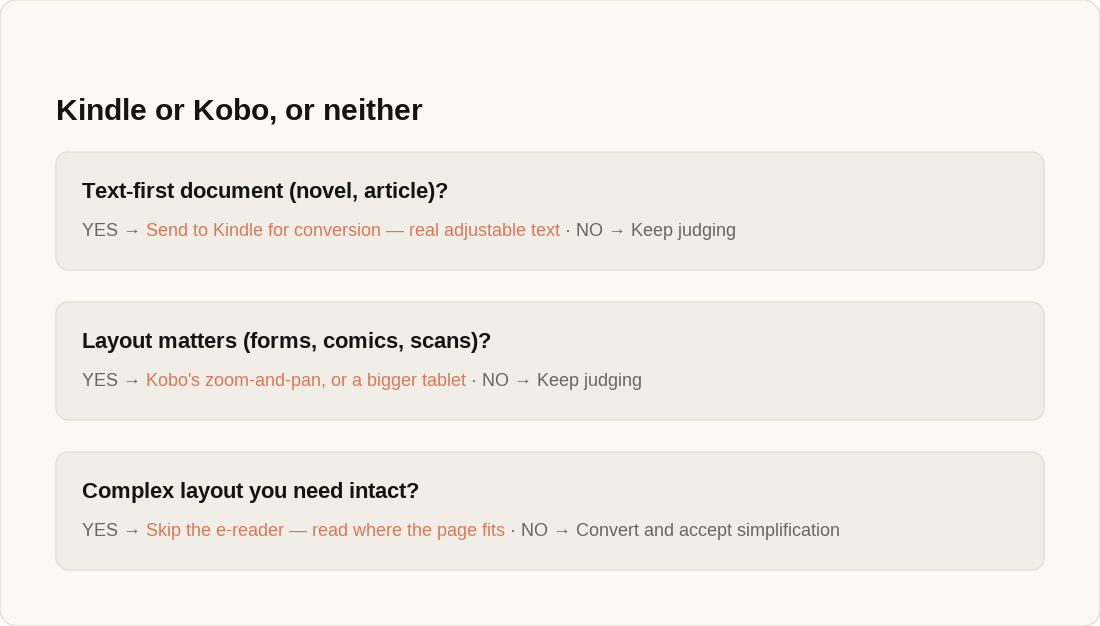
Amazon knows PDFs don't fit, so it ships its own escape: Send to Kindle, the free service that accepts PDFs (up to 200 MB) via web, email, or app. Crucially, Amazon treats personal documents as candidates for conversion: it runs the file through its own converter and delivers a reflowable Kindle book instead of a shrunken page. Amazon's own conversion tips page draws exactly the line described above: fixed-layout documents like PDFs stay fixed, while adjustable documents become true Kindle books.
For a novel, a report, or anything that is mostly straight text, this is the single best move available. The text suddenly respects your font size, margins disappear, and page turns replace panning.
The limits are real, and Amazon doesn't hide them:
- Complex layouts degrade. Multi-column newsletters, tables, sidebars, footnotes, and heavy graphics get straightened out or dropped. The converter rebuilds your document as a linear stream of text, and anything that lived outside that stream may end up in the wrong place.
- Forms and signatures don't survive. A converted PDF is for reading, not for filling or signing.
- Scanned PDFs convert badly or not at all. If the file is a stack of page images, the converter has no text to rebuild.
The rule of thumb: conversion trades fidelity for comfort. Great for reading a manuscript, wrong for reading a form.
The no-conversion route: Kobo
Kobo takes the opposite approach: it leaves your PDF alone but gives you better tools for fighting the page. Its PDF reading help documents the whole survival kit: zoom with a slider, pan by dragging, and, most usefully, a landscape mode that rotates the page so two wide lines fill the screen width instead of one narrow column.
Landscape mode deserves a note, because it is the cheapest fix that requires no re-processing. A Letter page is taller than it is wide; your screen in portrait is the opposite. Rotating the page 90 degrees means its height now runs across the screen's long axis, so the text renders at roughly 1.5 times the size. You turn pages twice as often, which is a good trade.
The costs: no reflow ever, and grayscale-only rendering. Kobo treats the PDF as the fixed artifact it is.
Preparation that moves the needle
However you read it, some cleanup before the file leaves your computer pays off disproportionately on a small screen.
Crop the margins. A typical document gives its text a two-centimeter border of nothing on every side. On paper that border is breathing room; on a 6-inch screen it is a quarter of your real estate spent on whitespace. Trimming the margins makes the remaining text render significantly larger at the same zoom level. The right tool makes this a 30-second job, and it's non-destructive: cropping only changes the visible region, as the crop guide explains, so the original is recoverable.
OCR the file first. If your PDF is a scan, none of the good options work: conversion has no text to work from, text-to-speech is mute, and lookup is impossible. Running OCR adds an invisible text layer over the page images, which is what makes a scan behave like a document. The OCR walkthrough covers what changes and what fails (handwriting and dense tables are the usual casualties).
Compress the heavy scans. A color-scanned book can easily run past 100 MB, which is slow to send and can choke an e-reader's modest storage and processor. Slimming the images before transfer, as in the compression guide, costs a little scan crispness and buys a lot of patience. On an e-ink screen at 167 ppi, you will not miss the detail.
When to skip the e-reader entirely
Some documents should never board the device. Forms (tax, application, anything you'll sign), dense academic papers with two columns and marginalia, comics and sheet music, and anything you'll annotate heavily: these want a tablet. A tablet shows an A4 page at nearly full size, in color, with a stylus if you want one. The e-reader's selling points (weeks of battery, no glare, no notifications) don't help when the task is fundamentally "interact with a piece of paper."
The honest division of labor: e-reader for long, linear, text-first reading; tablet for everything else. Preparation helps the first category enormously and cannot rescue the second.
A PDF's stubbornness is its whole personality. It promises that the page will look the same everywhere, and it keeps that promise even when "everywhere" is a screen the size of an index card. Work with the text, not the paper, and the little screen finally earns its keep.
FAQ
Can you read PDFs on a Kindle? Yes. Send the PDF with Send to Kindle and it opens as-is, zoom and all. For real Kindle reading with adjustable text, let Amazon convert it to the Kindle format and accept that complex layouts come out simplified.
Why does my PDF look so small on my e-reader? Because the PDF keeps its paper dimensions. A 6-inch screen showing a full A4 or Letter page has to shrink it, text and all. Cropping margins or rotating to landscape makes the same text render larger.
Is PDF or EPUB better for e-readers? EPUB, whenever you have the choice. EPUB reflows to fit the screen; a PDF is a fixed picture of a paper page. Reserve PDF for documents where layout matters more than comfort.
FAQ
Can you read PDFs on a Kindle?
Yes. Send the PDF with Send to Kindle and it opens as-is, zoom and all. To get real Kindle reading (adjustable text, no panning), send it through Send to Kindle so Amazon converts it to the Kindle format, and accept that complex layouts come out simplified.
Why does my PDF look so small on my e-reader?
Because the PDF keeps its paper dimensions. A 6-inch screen showing a full A4 or Letter page has to shrink it, and the text shrinks with it. Cropping the margins or reading in landscape mode makes the same text render larger.
Is PDF or EPUB better for e-readers?
EPUB, whenever you have the choice. EPUB reflows to fit the screen, so you change font size and the text rearranges itself. A PDF is a fixed picture of a paper page. Reserve PDF for documents where the layout matters more than the comfort.