Blog › Privacy & local processing
Is this PDF tool safe? Where your file actually goes
A field guide to the first question to ask about any PDF tool: where do the bytes go?
Type "is this PDF tool safe" into a search engine and you get two kinds of answers: reassurance from the tools themselves, and vague warnings about "the cloud." Neither tells you the thing that actually matters, which is where your file physically goes the moment you click the button.
There are only three answers. It goes to a server, it stays in your browser tab, or it stays on your machine inside a desktop app. A pdf tool without upload belongs to the second group, and it is the only category whose privacy claim you can check with your own eyes rather than a policy promise. This article is the taxonomy, the policy quotes almost nobody reads, and the 30-second test.
The three places your file can go
Every PDF tool on the internet is one of three architectures. Knowing which one you are holding tells you more about safety than any badge, seal, or "trusted by millions" counter on the front page.
1. Upload-then-server (the default). Most "free online PDF tools" are a polished web page sitting in front of server-side binaries, frequently LibreOffice, Ghostscript, or qpdf running on rented infrastructure. You pick a file, the browser POSTs it to their server, the server runs the tool, and a result comes back for download. None of this is hidden, and none of it is necessarily malicious; it is simply how the architecture works. But structurally, your document left your device and was processed on someone else's computer. That remains true whatever the front page says about privacy, and it stays true when the policy promises deletion later. The deletion is scheduled; the upload is immediate.
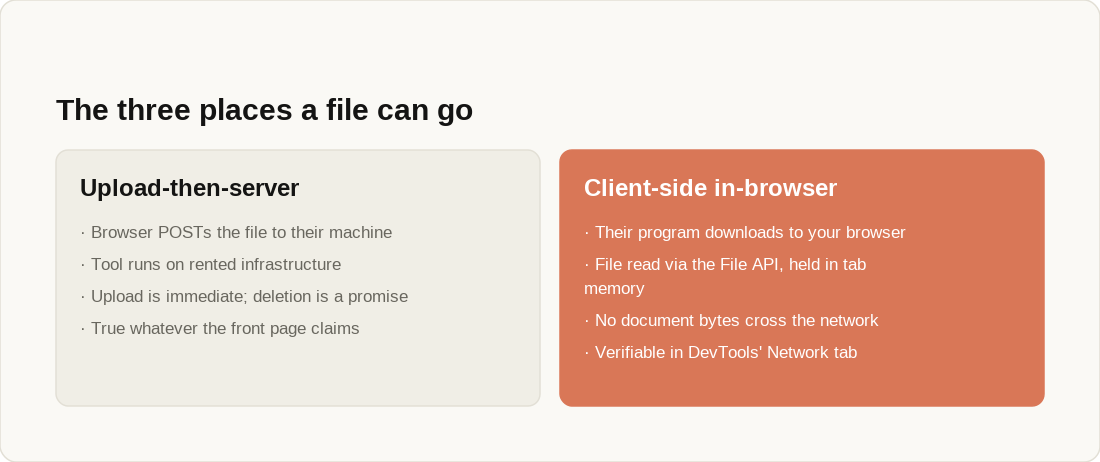
2. Client-side in-browser. The second category inverts the flow: instead of uploading your file to their program, you download their program to your browser. The code, plain JavaScript plus an increasing share of WebAssembly, arrives once, runs inside the browser sandbox, reads your file through the File API, holds it in tab memory, and writes the result out as a local download. No document bytes cross the network at any point.
This used to be a party trick. It is not anymore. Mozilla's pdf.js parses and renders PDFs entirely in the browser and has for more than a decade; pdf-lib creates and modifies them in any JavaScript environment; newer projects wrap full desktop engines like MuPDF in WebAssembly, so the same C code that powers native apps now runs in a tab. The browser quietly became a real PDF processing environment, and most people never noticed.
One distinction worth drawing before moving on: self-hosted is not client-side. Tools like Stirling PDF run on a server you own, typically a Docker container on your own hardware. That is a better privacy story than a stranger's server, but the file is still uploaded, to your box instead of theirs. Different trust model, same network hop.
3. Desktop apps. Traditional desktop software never had this problem: the file was on your disk, the program was on your disk, and the two met locally. That is still the architecture, and for very large files it remains the strongest option, since a native app is not bounded by a browser tab's memory. The trade-offs are the old ones: installation, updates, licenses. And read the settings, because many desktop apps now bolt on optional cloud features such as sync, sharing, and sometimes OCR that quietly reintroduce the upload. Adobe's own guidance to users is that files stored locally stay on the device unless you opt into a cloud service.
What the policies actually say
The major online tools are, to their credit, frank about all this — in their own words, in documents almost nobody reads — about what happens to your file. Here are the quotes.
iLovePDF's security page states:
"all files processed within our platform are automatically and permanently deleted within two hours of being processed. We also provide users with the option to manually delete files from the download screen."
The same page says "iLovePDF does not retain user documents," and their privacy policy clarifies the architecture: for content you provide, "ILOVEPDF will act as a data processor." A data processor processes data. The file went up. Their policy also confirms files are transferred to third-party hosting providers, which matters in a moment.
Smallpdf's terms of service are the most candid about the part that should interest you most, which is access:
"We will only access, view, or listen to your content in limited ways. For example, in order to perform the Services, we may need to access, view, or listen to your content to (a) respond to support requests; (b) detect, prevent, or otherwise address fraud, security, unlawful, or technical issues; (c) improve our Services and (d) enforce these terms."
The same terms reserve the right to disclose information "when it is required by law."
Adobe's Acrobat online FAQ handles retention like this:
"If you don't sign in, even if you download the file, Adobe soon deletes it from its servers to respect your privacy."
And on timing: "Adobe will delete the file from the server within a short time period."
One more quote deserves careful handling. iLovePDF's security page also advertises "end-to-end encryption." A service that processes your file on its servers must decrypt it on its servers; that is what processing means. Encryption in transit and at rest, which is what their policy describes elsewhere, is real and worth having. Zero-knowledge processing is not what is happening, because it cannot be.
None of these companies is lying. Every quote above is a reasonable company describing a server pipeline honestly. The problem is that the marketing says "private" while the policy says "uploaded, accessed under conditions, deleted on a schedule," and those are different products.
Deletion answers the wrong question
Here is the part the retention headlines encourage you to skip. The question everyone asks about an online tool is "do they delete it?" The policies compete on the answer: two hours, a short time period, immediate on download. But deletion is a promise about the end of your file's stay on someone else's infrastructure. The question that actually determines safety is: during its stay, who else could access it?
Look at what the quotes above quietly admit on that score. Files are transferred to third-party hosting providers, so the infrastructure is shared even when the brand is singular. Staff and automated systems may "access, view, or listen to your content" for a list of purposes that includes service improvement and terms enforcement. Content may be disclosed "when it is required by law." And no deletion clause tells you what happens to backup copies, because retention policies describe the live system, not its archives.
So during the retention window your file exists — on hosting you cannot see, administered by people you cannot audit, reachable by legal processes you cannot control — and the timer tells you only when that window closes. Deletion answers "when does the copy go away." Safety lives in a different question: "who was standing in the window while it was open." Any tool that processes server-side, whatever its deletion schedule, has a nonzero answer. Any tool that processes in your browser tab has none, because there is no window.
That is the whole argument for local processing, compressed to one line: it is not that deletion policies are dishonest, it is that they answer the wrong question.
How to verify any tool in 30 seconds
You do not have to trust policy pages, and you do not have to trust this article. The useful property of a "no upload" or "pdf without upload" claim is that it is checkable. Here is the method.
- Open the tool in Chrome, Edge, or Firefox and press F12. Go to the Network tab.
- Click the clear icon so you start with an empty log.
- Load your PDF and perform the operation: merge, compress, redact, convert, whatever the tool is for.
- Watch the request list while it runs. Filter to Fetch/XHR and check the Size column.
If the tool uploads, you cannot miss it. There will be a request roughly the size of your document, typically a single large POST with a multipart/form-data body pointed at an API host. A 5 MB PDF shows up as a roughly 5 MB request, and the finished file usually comes back as a second request. If the operation completes and no request ever carried your file's bytes, the processing happened inside your tab. Google documents this workflow in the Chrome DevTools network guide; Firefox and Edge have the same panel.
Two honest caveats. First, the absence of an upload is evidence, not a security audit; a page can still load fonts, analytics, and other chatter, so inspect what each request contains rather than counting requests. Second, corroborate: once the app has loaded, switch off Wi-Fi. A genuinely local tool keeps working offline, because everything it needs is already in the tab.
Documents that should never touch a server
Some categories should not ride the upload-then-server pipeline at all, at any retention window, under any encryption claim:
- Contracts and term sheets. A draft contract contains your negotiating position; a signed one contains everything. Upload either and you have disclosed it to a third party your counterparty never agreed to.
- Medical records. If you handle files covered by HIPAA or comparable health privacy law, sending them to a consumer tool with unnamed sub-processors is precisely the situation those laws exist to prevent.
- Financial documents. Tax returns, bank statements, loan applications, payroll files. Anything with account numbers, national ID numbers, or card numbers.
- Anything under NDA. Read yours again. It almost certainly forbids disclosing the material to third parties. A server operated by a company your counterparty has never heard of is a third party.
And remember that visible content is not the whole document. A PDF carries metadata, revision history, attachments, and sometimes entire deleted pages that still exist inside the file. We cover that territory in the guides on redaction, removing metadata, and hidden information in PDFs. Uploading an unexamined file exposes all of it at once.
Where LivePDF sits, and how to check us
LivePDF is a category-two tool. The app loads into your browser, your files are read and written on your device, and there is no account, no upload, and no telemetry, because there is no server doing anything with your documents at all.
We are not asking you to believe that on the strength of this paragraph. Run the test from above on us. Open the Network tab, clear it, then merge, redact, or compress a real file. You will see the app itself load once — code, fonts, the works — and then no request containing your document. Switch off Wi-Fi afterward and keep editing. That is the entire basis of the claim, on display every time you use it.
Two limits of this architecture: Browser tabs have memory ceilings, so a very large PDF can hit a wall where a desktop app would not. And a no-upload design means no cloud conveniences either: no cross-device sync, no shared workspace, no server holding your library. Those are the costs of the architecture. For the documents in the list above, they are cheap.
Sources and further reading
- iLovePDF security page: retention and deletion policy, in their words
- Smallpdf Terms of Service: the access and disclosure clauses quoted above
- Adobe Acrobat online services FAQ: deletion timing for anonymous use
- Chrome DevTools: inspect network activity: the verification method
- pdf.js on GitHub: the reference browser-side PDF engine
Word count: 1890
FAQ
How can I tell if a PDF tool uploads my file?
Open DevTools (F12), go to the Network tab, clear the log, then run the operation on a real file. An upload is unmistakable: one request roughly the size of your document, usually a POST with a multipart/form-data body. If the tool finishes with no document-sized request, the processing stayed in your browser.
Do online PDF tools actually delete your file?
Most commit to deletion on a timer. iLovePDF says files are 'automatically and permanently deleted within two hours'; Adobe says files are deleted 'within a short time period' if you don't sign in. Deletion is a promise about later, though. It says nothing about who could access the file during the retention window, or what backups and legal requests do in the meantime.
What kind of tool should I use for confidential documents?
One that never receives the document. A pdf tool without upload processes everything in your browser tab, so there is no server copy, no retention window, and no access clause to parse. Run the Network tab test before trusting any tool with a contract, medical record, or NDA file.