Blog › Converting & extracting
Why PDF conversion loses formatting (it was never there)
Ask why PDF conversion loses formatting and you will usually get a shrug about imperfect tools. The honest answer is stranger: nothing is lost. The PDF never contained the paragraphs, columns, and tables you miss in the converted file. It contained instructions for drawing ink on a fixed page, and the converter had to reconstruct a document from the drawing. Sometimes the reconstruction matches what the author meant. Sometimes it does not, and we call the difference "loss". This article is about where that difference comes from, and why each familiar casualty breaks for its own specific reason.
A PDF is a drawing. A Word file is a document.
The ISO 32000-1 standard describes PDF's core as an "advanced imaging model derived from the PostScript page description language," device-independent and resolution-independent. RFC 8118 is blunter: PDF is a "final-form document representation language," built in 1993 for one purpose, making a file render identically everywhere. John Warnock's 1991 memo that started the project was about capturing pages "from any application" and printing them on any machine. Appearance was the mission. Structure was somebody else's problem.
So a PDF page is a canvas with drawing operations on it. Text is painted by operators inside a BT … ET block: pick a font (Tf), move to a position (Td, Tm), paint glyphs (Tj, TJ). That is all. There is no paragraph object in the format. There is no table cell, no column, no heading level. Whatever paragraphs and columns you perceive when you read the page exist in your head, inferred from position, size, and spacing. The file itself stores none of it.
A Word document works the other way around. A .docx is an OOXML package, standardized as ECMA-376, in which content is typed: this run is a paragraph, that grid is a table, this line is a heading. Layout is not stored, it is computed at display time from the structure and the styles. Word is a flow model; PDF is a fixed canvas.
Everything downstream follows from this mismatch. Converting PDF to Word means looking at a scatter of positioned glyphs and deciding where the paragraphs are, where a column ends, and whether that rectangle of aligned numbers is a table. These decisions are inferences, and every inference can be wrong. The quality of a conversion is not a property of the converter alone. It is a property of how much structure the specific PDF forced the converter to invent.
Six things that break, and the reason each one breaks
The same inference problem produces different failures depending on what the converter is looking at. Here are the six you will actually meet.
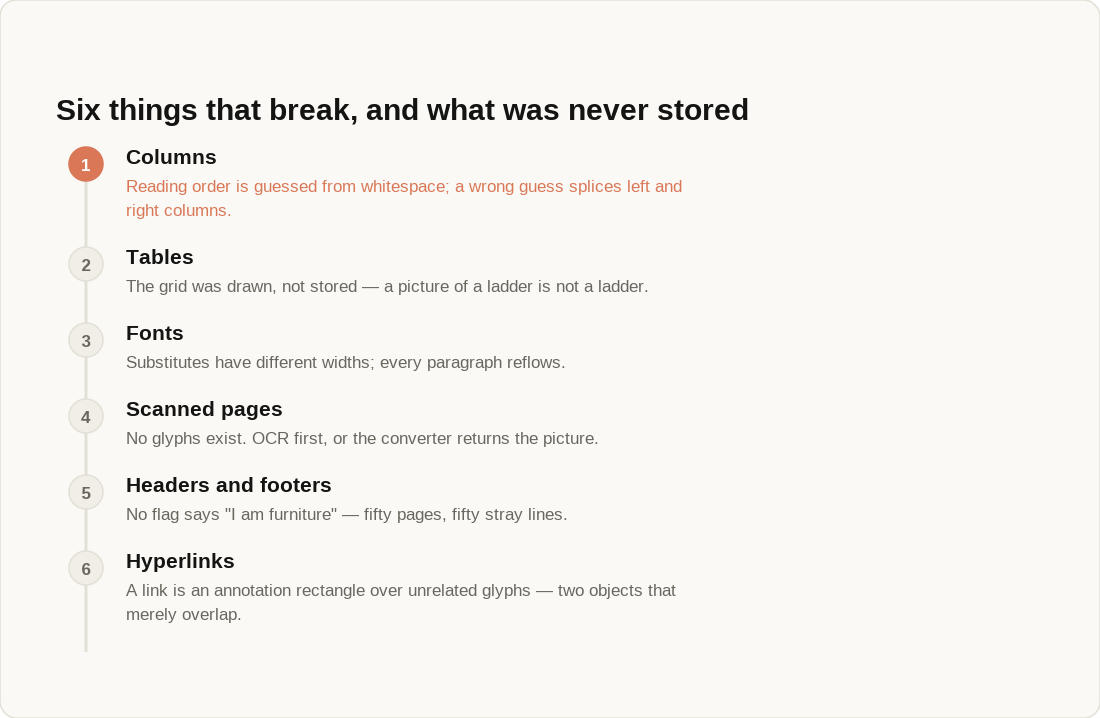
Columns break because reading order is guessed. On a two-column page, the glyphs arrive as one soup of coordinates. Nothing in the file says "this is the left column." The converter has to infer column boundaries from whitespace and alignment, and when the guess is wrong it reads straight across the gutter, splicing half a sentence from the left column onto half a sentence from the right. The output is fluent nonsense, which is worse than obvious nonsense because it looks plausible until someone actually reads it.
Tables break because the grid was drawn, not stored. In a Word file a table is a typed object with rows, cells, and spans. In a PDF the cell borders are just painted lines and the numbers are glyphs positioned to look aligned. The grid is a picture of a table, in the same sense that a photo of a ladder is not a ladder. The converter must re-derive the cells from geometry, and nested tables, merged cells, and cell spacing defeat that regularly. Microsoft's own documentation on opening PDFs in Word lists tables with cell spacing among the elements that "might not convert," alongside tracked changes, frames, bookmarks, and comments. When a table is beyond repair, some converters quietly give up and hand back an image of the region, which cannot be edited at all.
Fonts break through substitution, not theft. A PDF references its fonts by name, and not every font is embedded. If the machine doing the conversion lacks the font, or the converter cannot use it, a substitute is chosen with different character widths. Different widths mean different line breaks, and different line breaks mean every paragraph reflows. This is why a conversion can be "correct" word for word and still look like a different document. Microsoft's list includes "any font not on your system" explicitly, and decorative effects such as drop shadows may vanish outright.
Scanned pages break because there is no text. A scan stores one full-page image per page. There are no glyphs to convert, no positions to infer from, nothing. The converter either fails or returns the picture. This is the one case where something genuinely is absent rather than merely unstored, and the fix is to create the missing text with OCR before converting. LivePDF's OCR adds that invisible text layer on your device, and there is a full walkthrough in editing a scanned PDF. Be aware that OCR has its own error rate, and OCR mistakes flow straight into conversion mistakes.
Headers and footers break because nothing marks them as furniture. A running header is just glyphs at the top of each page, identical on every page, with no flag saying "I am a header." The converter must notice the repetition, guess that it is not body text, and route it into a real header zone. Guess wrong and the body of your Word document grows one stray line per page, once for every page of the original. Long documents suffer most: a fifty-page PDF can sprinkle fifty identical fragments through the text.
Hyperlinks break because a link is not text. In a PDF, a hyperlink is an annotation: an invisible rectangle drawn over the page with an action attached. The visible words underneath are ordinary glyphs, unrelated to that rectangle. They are two separate objects that happen to overlap. A converter that reads the text gets the words but not the annotation; one that reads annotations may reattach the link to the wrong span. This is why links survive some conversions and disappear from others, even from the same tool: the two halves of the link live in different layers of the file.
Nothing is lost, because it was never stored
Here is the reframe worth keeping: conversion does not lose your paragraphs. It cannot. To lose something, you have to have it first. When a PDF was created from a Word file, the paragraphs existed in the Word file, and the export step discarded the model and kept only the drawing. The information was thrown away at PDF creation, not at conversion. Converting back is an attempt to re-derive discarded information from its residue, like writing a recipe by tasting the finished dish. Sometimes the dish gives up its secrets. Sometimes it does not.
This explains the pattern everyone has noticed but few can articulate: the same converter is flawless on one file and butchered another. The converter did not get dumber. The second file simply contained less to work with. It also explains the exception: tagged PDFs, which store reading order and element types formally, convert dramatically better, because the converter is working from facts instead of guesses. Tagging is fully supported by the format and required for accessibility under PDF/UA, but it is optional, and plenty of real-world files ship without it. The loss, when there is any, tracks the tagging that was skipped years before you pressed Export.
The practical conclusions are short. The best conversion is the original file you never needed to convert, so if a source document still exists anywhere, use it; the PDF versus Word decision is worth making before the PDF is created, not after. If the PDF is all you have, go in expecting inference rather than translation, and judge the output accordingly. If you only need the words and not the layout, skip the whole problem and extract the text instead. And for the hands-on part, which converter settings to pick and how to verify the result page by page, that is the job of the PDF to Word how-to, which covers the workflow this article deliberately stays out of.
Sources and further reading
- ISO 32000-1:2008 (PDF 1.7), the imaging-model standard, free copy hosted by Adobe
- RFC 8118: the media type spec calling PDF a "final-form document representation language"
- Microsoft: elements that might not convert when you open a PDF in Word
- Adobe: exporting PDFs to Word and other formats from Acrobat
FAQ
Why does PDF conversion lose formatting?
Because a PDF stores where every glyph sits on a fixed page, while Word stores what the content is. The converter has to infer paragraphs, columns, tables, and reading order from coordinates, and every inference can disagree with what the author meant. The formatting was not lost in transit; it was never in the PDF to begin with.
Can any PDF to Word converter be perfectly accurate?
Not for arbitrary files. Accuracy tracks how much structure the PDF actually stored. Tagged PDFs carry reading order and element types and convert far better, but tagging is optional and plenty of files skip it. Simple single-column pages guess cleanly; nested tables and multi-column layouts do not.
How do I stop losing formatting when converting a PDF?
Go upstream. If anyone in the workflow still has the original Word or Google Docs file, use that instead; it contains the structure the PDF discarded. If the PDF is all you have, expect cleanup on tables, columns, and repeated headers and footers, and check the converted file before you rely on it.