Blog › Privacy & local processing
Accessible PDF: what screen readers need from a file
Most PDFs are, from a screen reader's point of view, a pile of ink. The page looks fine to a sighted reader because the format is superb at recording where every mark sits. What it doesn't record, by default, is anything about meaning: which line is a heading, what an image shows, which column comes first. An accessible PDF is one that carries that missing layer, and most PDFs you'll meet, including ones produced by professional tools, don't carry it.
The good news is that the gap between "renders correctly" and "works with assistive technology" is usually a handful of specific, fixable defects, not a rebuild. Here's what the file actually needs, the five failures behind most of the problem, and how to check your own documents.
What a screen reader needs
A screen reader doesn't look at the page. It reads a structure tree underneath the page, and that tree only exists if someone built it. WebAIM puts it directly: when people talk about accessible PDFs, they are "usually referring to 'tagged' PDF files." Five things have to be in place.
Tags. Every meaningful element (heading, paragraph, list item, table cell) is wrapped in a tag, and pure decoration (background art, rules, page furniture) is marked as an artifact so the reader skips it. No tags, no tree; no tree, nothing sensible to read.
Reading order. The tag tree defines the sequence. Where there's no tree, software falls back on inferring order from coordinates, and that inference is where multi-column layouts, sidebars, and pull quotes get scrambled.
Alt text. Images need a text description attached to their figure tag. Charts and diagrams especially: an undescribed figure gets announced as, at best, "image."
Language. The document declares its language (en-US, fr-CA, whatever applies) so the synthesizer picks the right voice and pronunciation rules. A French document with no language tag gets mauled by an English voice.
Real text. A scan is a photograph of text; there is nothing to read until OCR produces a text layer. This is the most binary failure of the five: no OCR, no accessibility at all.
The wall of glyphs
Here's the part that explains everything else. An untagged PDF read aloud is a wall of spoken glyphs: character runs in whatever order the file stores them, which is the order the authoring tool happened to draw them, which is frequently not the order a human would read. So software that needs reading order (a screen reader, a text extractor, a converter) faces an identical problem: infer the sequence from position, top-to-bottom then left-to-right. That's the same y-then-x inference problem that makes pulling text out of PDFs unreliable, and it fails on the same layouts.
The difference is that when copy-paste hands you scrambled text, you notice. A screen reader user gets the scrambled version with no way to know it was scrambled.
This is also why accessibility work is mostly retroactive. Structure was bolted onto PDF long after the format was set, as an optional layer, and export pipelines skip it because skipping it changes nothing visible. The same print-first history that makes the format hard to edit (more on that in why PDFs are hard to edit) is what makes it invisible to assistive technology. Tags were an afterthought twice over.
The five failures to fix first
1. It's a scan with no text layer. Cause: paper went through a scanner, or someone "printed to PDF" from a viewer that rasterized the page. Nothing selectable, nothing readable. Fix: run OCR to add a text layer, then tag on top of it — the tagging is only as good as the OCR underneath, so check the recognized text on a page or two. We cover the mechanics in the OCR explainer.
2. No tag tree at all. Cause: exported from Word or InDesign with the accessibility options off, or printed to PDF, which never carries structure. This is the single most common finding in any audit. Fix: auto-tag the document, then verify the tree rather than trusting it. Autotagging is layout guesswork; it's right for most straightforward documents and confidently wrong on complex ones. (And note the trap: "print to PDF" from any application discards structure the source document actually had.)
3. Wrong reading order. Cause: multi-column layouts, text boxes placed after the fact, footers in the middle of the content stream. The tag tree exists but reads column one, column two interleaved, or the caption before the figure. Fix: reorder in the tags or reading-order tool until the tree matches how a person would read the page, then re-run the checker.
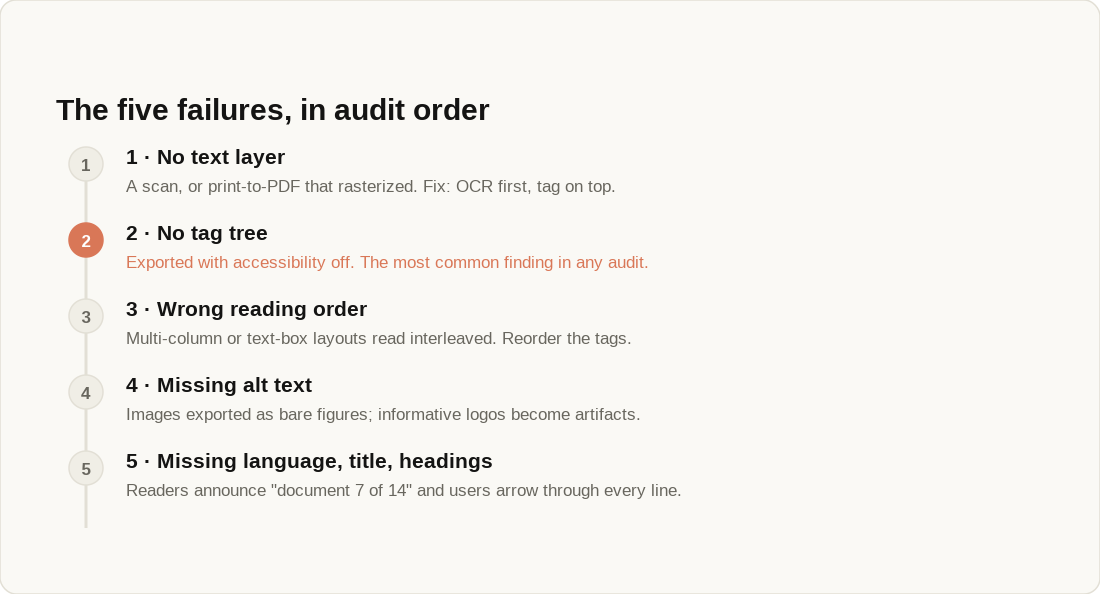
4. Missing alt text. Cause: nobody wrote descriptions at authoring time, and export silently dropped the images to bare figures. Fix: go figure by figure and write them — short for simple images, a sentence or two for charts conveying data. Logos that carry no information get marked as artifacts instead.
5. Missing document language, title, or heading structure. Cause: the file's metadata was left blank and the visual design implies hierarchy through font size alone. Fix: set the language and title in document properties (readers announce the title instead of "document 7 of 14"), and give real heading tags so users can jump between sections instead of arrowing through every line.
How to check a PDF
Don't eyeball it; run a checker. Acrobat Pro has an Accessibility Checker (under the accessibility tools) that scores the document against a rule set and produces a report linking each failure to the offending page, plus a Reading Order tool for repairs — Adobe's own create-and-verify guide walks the full workflow. PAC (PDF Accessibility Checker) is a free Windows tool, widely used since 2010, that tests a file against PDF/UA and WCAG success criteria and shows the tag tree visually, which makes reading-order mistakes obvious.
Both kinds of checker split their findings into hard failures and "needs manual check." The manual bucket is not boilerplate: color contrast, for instance, can't be judged from the tag tree, so a tool can only remind you that body text should stand at roughly 4.5:1 against its background. A clean report with a skipped manual pass is a half-checked document.
Checking without sending the file anywhere
Confidential documents are disproportionately the ones with accessibility obligations — court filings, benefit letters, medical summaries — which makes "upload it to a checker" an awkward step. LivePDF's Accessibility check (in the sidebar, or the same command in the tools menu) runs entirely in the browser tab; the file never leaves the device, and the empty panel says as much: "Run the check to see how well this PDF works with screen readers and other assistive technology."
The report lists rules by category as Failed, Needs manual check, or Passed, with page links to each finding. Where a fix is mechanical, there's a Fix button: "Set title…", "Set language…", "Autotag document", "Set alternate text…", "Fix tab order", "Add bookmarks", "Describe links". The honest boundary is the same one every tool has: the fixes that require judgment (reading order, alt text wording, table headers) are still yours. "Autotag document" is upfront about this — its own confirmation reads "Tags added. Review the reading order and alternate text."
PDF/UA in one paragraph
PDF/UA ("Universal Accessibility") is the ISO 14289 standard that defines what a conforming accessible PDF must actually contain: a complete tag tree with correct semantics, Unicode mappings so text survives extraction, document language and title, labeled form fields, and no information conveyed by visuals alone. It comes in two parts: PDF/UA-1 builds on PDF 1.7-era ISO 32000-1, and PDF/UA-2 targets PDF 2.0. PAC validates against it. If a procurement spec or a client asks for "PDF/UA conformant," this is the standard they mean. It pairs naturally with PDF/A archiving: PDF/A-1a and PDF/UA both require Tagged PDF, so a file tagged properly for one has done most of the work for the other.
The legal part, briefly
We're not lawyers and this isn't advice, but the obligations are real and findable in primary sources. WCAG 2.1 applies to PDFs as web content. In the US, Section 508 requires electronic documents from and procured by federal agencies to be accessible. In the EU, EN 301 549 imposes comparable requirements on public-sector bodies. The common thread: the duty lands on the organization publishing the document, which is why "it looked fine" has never been a defense — the file is the deliverable, and the file was unreadable to part of its audience.
One artifact worth knowing about: running headers and footers. A page number announced after every paragraph is maddening, which is why standards treat repeated furniture as artifacts to skip. If you're adding them, page numbers and headers/footers should be applied so they can be marked as artifacts afterward — and one accessibility check will tell you whether they were.
FAQ
How do I know if a PDF is accessible?
Run a checker rather than eyeballing it. Acrobat Pro has a built-in Accessibility Checker, and PAC (PDF Accessibility Checker) is a free desktop tool that tests against PDF/UA. Both list failed rules with page references; color contrast is the one item they always flag for manual review.
Does auto-tagging make a PDF accessible?
It's the foundation, not the finish line. Autotagging builds a structure tree from layout guesswork, which is right for most simple documents and wrong for complex ones. After auto-tagging, a human should still check reading order, headings, and alt text before calling the file done.
Can a scanned PDF be made accessible?
Not until it has real text. A scan is a photograph, so the first step is OCR to produce a text layer, then tagging on top of it. OCR quality bounds the result: garbled OCR just gives the screen reader garbled text to read.