Blog › Converting & extracting
Print to PDF: what it does, what it breaks
Print to PDF has a strange reputation. People treat it as a save option, a conversion tool, a repair kit, and a last resort, usually in the same week. It is none of those things exactly. It is one very specific operation, and knowing what that operation actually is tells you exactly when to reach for it and when it will quietly wreck your file.
What print to PDF actually does
When you "print" a document to PDF, no printer is involved and nothing is exported. Instead, the operating system pretends a printer exists, and your application prepares the document for that printer. Every app already knows how to do this: it converts the document into a stream of drawing commands, pages of text placed at coordinates, images pasted at rectangles, lines and fills. The print driver receives that stream, renders it, and writes the rendering into a brand-new PDF file.
This is the crucial part: the output is not your document translated into PDF. It is a picture of your document's print job, rebuilt from scratch. Whatever the application would have put on paper is what ends up in the file. Whatever it would not have put on paper (form field logic, embedded scripts, revision history, annotations in some cases) never enters the pipeline at all.
That is also the honest answer to "print to PDF vs Save as PDF." Save as PDF (or Export) asks the application to write its own document model out in PDF form, structure mostly intact. Print to PDF asks it to fake a print job and photograph the result. The two can look identical on screen and be completely different files underneath.
When it is the right tool
Flattening forms and annotations. A filled form, a document covered in comments, a contract with signature overlays: these are layers stacked on top of a page. Some recipients' software handles the layers badly, and some workflows (courts, archives, printing vendors) want one flat, inert page with no interactive anything. Printing the file to PDF bakes every visible layer into the page content itself. Nothing is hovering; it is all ink. This is the same goal as a dedicated flatten command, and if you want more control over what gets flattened, a real editor does it more surgically than a print driver.
Capturing a web page. Browsers put "Print > Save as PDF" one click away because the print pipeline is the most reliable way to turn rendered HTML into a fixed file. Everything else you might try fights the page's dynamic layout. We compare the browser route against dedicated tools in the HTML to PDF guide, but the short version: for a page you just need to keep as it looked, the print dialog is fine.
Stripping interactivity. Need a file that cannot be filled in, commented on, or mangled by a viewer's form engine? Re-render it. Form fields become printed text, buttons become rectangles, and the recipient gets exactly the inert artifact you intended.
Fixing a stubborn file. Occasionally a PDF will not open right, prints wrong in one viewer, or misbehaves in some tool that has parsed its unusual internal structure into a corner. Printing the open document to PDF rebuilds it as a clean, plain, boring PDF with standard structure. Whatever exotic feature confused the old file is gone, along with whatever was exotic. It is the "turn it off and on again" of document formats, and it works about as often.
What it costs
The print driver is a filtering machine, and the filter is calibrated for paper.
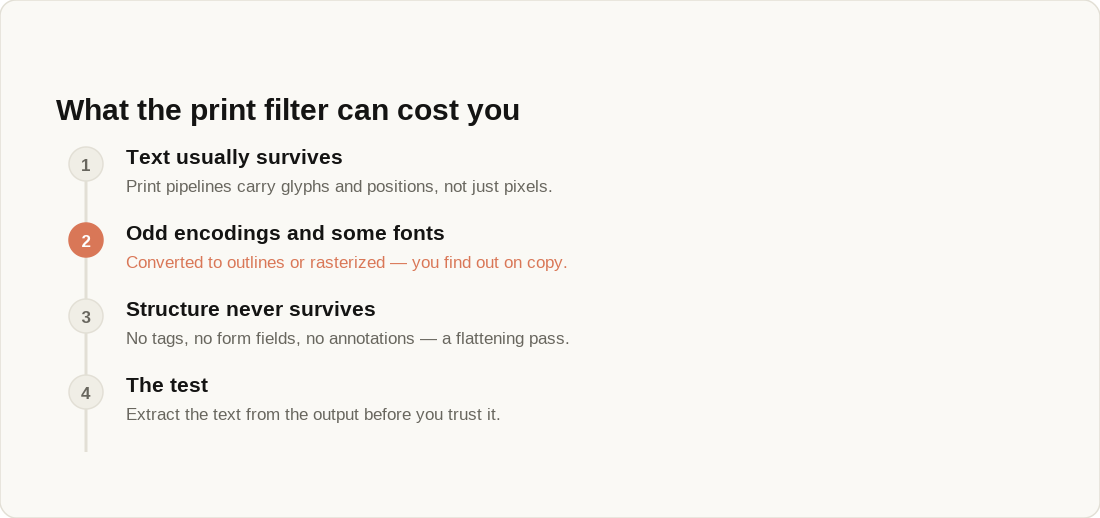
Text usually survives as real, selectable text, because print pipelines carry glyphs and positions, not just pixels. Usually. Odd encodings and some fonts get converted to outlines or rasterized along the way, and you find out when you try to copy a paragraph. The reliable test is to extract the text from the output and see if it came through.
Layers and annotations get baked, which was the point, but it cuts both ways. Sticky notes and comments vanish from view entirely in many drivers; a highlight may become a painted rectangle; the "text" inside form fields becomes indistinguishable from the label next to it. After a print pass, you cannot tell what was content and what was markup, and neither can any tool.
Hyperlinks may die. A printed page has no clickable regions, so a lot of print drivers drop link annotations rather than translate them. If the document's links matter, print to PDF is the wrong route.
And the file gets bigger, not smaller. People frequently print to PDF hoping to shrink a bloated file. The opposite usually happens: the driver embeds fresh fonts, re-encodes images at its own resolution, and discards whatever clever compression the original had. If size is the goal, use compression; if fidelity is the goal, use export.
How to do it
On Windows, open the document, press Ctrl+P, and choose Microsoft Print to PDF as the printer. Pick a filename and location, and the output lands as a new file. If the printer is missing from the list, it can be re-enabled through the Windows Features dialog (Microsoft's own walkthrough covers the common cases).
On macOS, press Command+P and click the PDF button in the lower-left corner of the print dialog, then choose Save as PDF (Apple's instructions include password options if you want them).
Either way, the output is a new file. Your original is untouched, which makes this one of the few document operations with no downside to trying.
When not to do it
The single biggest mistake: printing to PDF when you actually want the text back in a usable form. If the goal is to edit the content in Word, restructure a report, or reuse the copy somewhere, print to PDF changes nothing for you. The text is still sitting in a PDF, now with less structure than before. What you want is an export to an editable format, or in-place PDF editing for corrections that are small enough to do without reflowing the page. Print to PDF never makes a file more editable. It only ever makes it less.
Same logic for anything machine-readable: form data, bookmarks, accessibility tags, and searchable layers range from degraded to destroyed. If a tool downstream needs structure, feed it the original.
The universal solvent
Here is the mental model worth keeping. Print to PDF is the universal solvent of document problems, not because it preserves anything, but because it faithfully reproduces exactly what the screen shows and throws the rest away. Every complication a file carries lives in the part that gets thrown away. That is a destructive operation wearing the costume of a safe one, and it is wonderful precisely when destruction is the goal: a flat page, an inert copy, a clean rebuild. It is terrible any time the part that got thrown away turns out to be the part you needed. Check what you are throwing away before you press Print, and the button stops being a gamble.
FAQ
Is print to PDF the same as Save as PDF?
No. Save as PDF or Export keeps the document's internal structure and hands it to the PDF writer as-is. Print to PDF sends the document through a print driver, which re-renders it as if it were going to paper, then captures the result. The output looks the same but the insides differ: fewer bookmarks, form fields, or links survive the print path.
Does print to PDF reduce file size?
Rarely. It re-renders pages, which usually means new embedded fonts and re-encoded images at the driver's resolution. Text-heavy files can shrink slightly; image-heavy files often grow. If size is the goal, use a compression tool instead of a print driver.
Why did my hyperlinks disappear after printing to PDF?
The print path only receives marks to place on paper. Link annotations are not marks, so most print drivers drop them. If links matter, save or export the file as PDF directly, or re-add the links afterward with a PDF editor.