Blog › Converting & extracting
HTML to PDF: use the converter already in your browser
The best tool for html to pdf conversion is already on your computer: the best tool for the job is already installed on your computer, and it has been for years. It is your browser's Print dialog. Press Ctrl+P on any web page, pick "Save as PDF" as the destination, and you get a file produced by the exact same layout engine that drew the page on your screen. No upload, no account, no watermark, no free-tier page limit. Everything else in this article is about the cases where that is not enough.
Why the browser wins
An "HTML to PDF converter" has a genuinely hard job. It has to fetch the page, run its CSS, execute (or skip) its scripts, compute the layout for some page width, and only then draw the result onto PDF pages. Get any one of those steps wrong, and the output is a mangled approximation: missing fonts, collapsed layouts, broken grids.
Your browser skips the hard part because it has already done it. The page on your screen is the layout, computed by an engine that handles CSS better than almost any standalone converter. When you print to PDF, the browser lays out that same page for paper dimensions and draws it. This is the same mechanism behind the print-to-PDF confusion we cover elsewhere: what comes out is a faithful rendering, not a reconstruction.
One setting matters more than the rest: background graphics. Browsers default to printing like a cheap office printer, meaning no backgrounds, which is why screenshots of dark-themed sites come out as white pages with invisible text. In Chrome and Edge you will find the checkbox under "More settings" in the print dialog. Tick it and colors come back.
The walkthrough
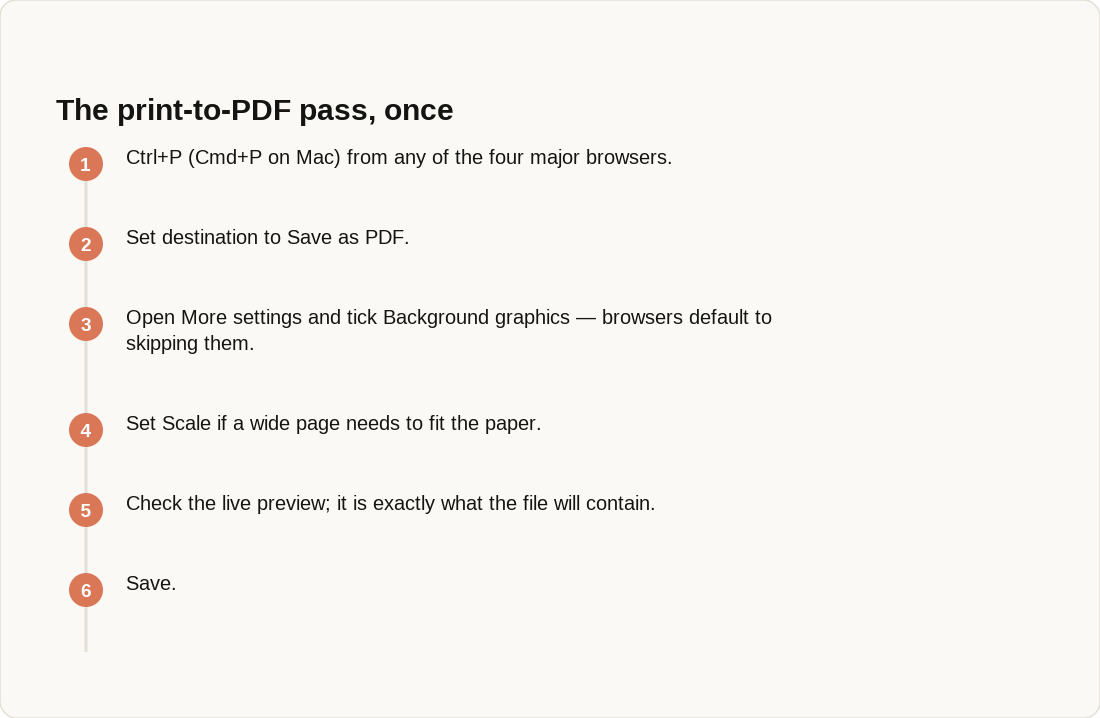
The menu paths, as of late 2026, for the four major browsers. All of them can be reached faster with Ctrl+P (Cmd+P on a Mac).
Chrome: three-dot menu (top right) → Print.... In the dialog, set Destination to Save as PDF. Under More settings, tick Background graphics if the page has a dark theme or colored backgrounds you want to keep. Click Save.
Edge: three-dot menu (Settings and more) → Print → destination Save as PDF. The More settings section carries the same Background graphics checkbox, plus margin and scale controls.
Safari: menu bar → File → Print.... In the macOS print sheet, click the PDF dropdown in the bottom-left corner and choose Save as PDF. For background colors, use File → Export as PDF after enabling background printing in Safari's settings, or tick the appropriate option in the print sheet's advanced pane.
Firefox: hamburger menu → Print → destination Save to PDF. Use More settings to adjust scale and orientation; Firefox's dialog includes a "Print backgrounds" toggle in its page setup options.
Two universal tips before you click Save: use the built-in Scale control to fit a wide page onto the paper, and check the live preview on the right of the dialog. What the preview shows is precisely what the file will contain, including the cutoffs described below.
When you need more than the Print dialog
Browser printing fails in three predictable ways, and each has a workaround.
You want only part of the page. The Print dialog prints the whole document, navigation and all. To capture a single section, select the text and images you want first, then print and choose Selection as the print range in the dialog. This works in Chrome, Edge, and Firefox; if the site's print styles fight you, copying the selection into a document and printing from there is the low-tech version of the same move.
You have many pages to convert. One at a time, the Print dialog is unbeatable. Twenty of them, it is an afternoon of repetitive clicking, and no browser offers batch printing of web pages. This is where scripted tools and APIs earn their keep: headless browser commands or a conversion service fed a list of URLs. For a handful of files, an hour of setup does not pay for itself; for hundreds, it does.
The page has no print stylesheet worth the name. Good sites define @media print rules: nav bars removed, sidebars dropped, links printed with their URLs. Mediocre sites do not, so you get a paper version of the screen layout with blank margins where ads used to be. MDN documents how print stylesheets work; the short version is that quality varies wildly and the browser can only print what the site hands it.
The three page types that break print-to-PDF
Print-styled pages that strip too much. The flip side of the previous section: sometimes the print stylesheet is the problem. You print a documentation page and the PDF arrives missing the code-block backgrounds, the tables collapsed to plain text, the whole thing reformatted into something the site's designer thought paper deserved. Nothing is broken; the site chose this. If the result is worse than the screen, screenshot-level fidelity tools or disabling the site's styles (reader mode is a decent middle ground) are the fallbacks.
Dark-mode sites. A page styled dark-on-dark with CSS backgrounds prints as white paper with light-gray text, or nothing at all, unless background graphics are enabled. Tick the checkbox, and if the site uses prefers-color-scheme to detect dark mode, consider forcing light mode in your browser settings first; a PDF meant for printing usually reads better in its light theme anyway.
Infinite-scroll pages. A feed or timeline that loads content as you scroll only prints what has been loaded. Print immediately and you get the first screenful; scroll to the bottom, wait for everything to load, and then print, and you get the whole thing. Lazily loaded images have the same behavior. There is no setting that fixes this; scrolling first is the fix.
The insight underneath all of this
An HTML page is not a document. It is a living thing: CSS computed at display time, scripts running on a timer, layout that reshapes itself for the width of the viewport. Asking to "convert HTML to PDF" is asking to freeze a moving target, and every converter must silently answer: freeze it when, at what width, with which of its states?
That question answers itself once you phrase it correctly. You are not converting a page; you are printing one frozen moment of it. And the thing that renders that moment, with the most correct CSS engine and the most current scripts, is your browser. The browser is the best html to pdf converter for the same reason a camera is the best tool for photographing a scene: it is already pointed at it.
Which is also the practical payoff. The PDF that comes out of the Print dialog is a normal PDF, so it is not the end of the line. Open it in LivePDF and the frozen moment becomes workable: fix a typo, annotate, merge the page into a report alongside images turned into PDF pages, or reorder the results. All of it happens in your browser, on your machine, which is fitting; the files never needed a server in the first place.
If your real question is whether the page should be a PDF at all, that decision has its own framework, and it is worth settling before you convert anything.
Sources and further reading
- MDN: Printing and print media queries
- Google Chrome Help: Print from Chrome
- Mozilla Support: Print web pages in Firefox
FAQ
How do I save a web page as a PDF?
Press Ctrl+P (Cmd+P on Mac), choose 'Save as PDF' as the destination, tick 'Background graphics' under More settings if colors are missing, and save. This uses your browser's own layout engine, so the page prints exactly as the browser renders it.
Why does my web page PDF look different from the screen?
Most sites define a separate print stylesheet with @media print rules that strip navigation, backgrounds, and sidebars for paper. You are seeing the site's own print design, not a conversion error. Fewer sites maintain these stylesheets well, which is where the gaps come from.
Can I edit a web page after saving it as PDF?
Not the page itself; PDF is frozen. But you can open the saved file in a PDF editor and work on the output: LivePDF runs entirely in your browser and handles text edits, annotations, page reordering, and combining with other documents.